Manage department and project spaces
丰盘ECM introduces the concept of a document space. Most document management operations and permission settings are handled by the administrator of each space instead of the super administrator, which greatly reduces the maintenance workload of the system super administrator.
For a department space, the super administrator assigns the space primary administrator (the owner of the document space). If an employee leaves or changes position, the super administrator must reassign the role on the "Admin Console / Space Management" page. For a project space, the creator is the primary administrator by default, but the system super administrator can also assign a new primary administrator.
Tip
Files in a personal space are usually private to the employee, so a personal space supports a single user and has no separate space management features. Users can still share files from a personal space through link sharing.
Change the space logo and basic information
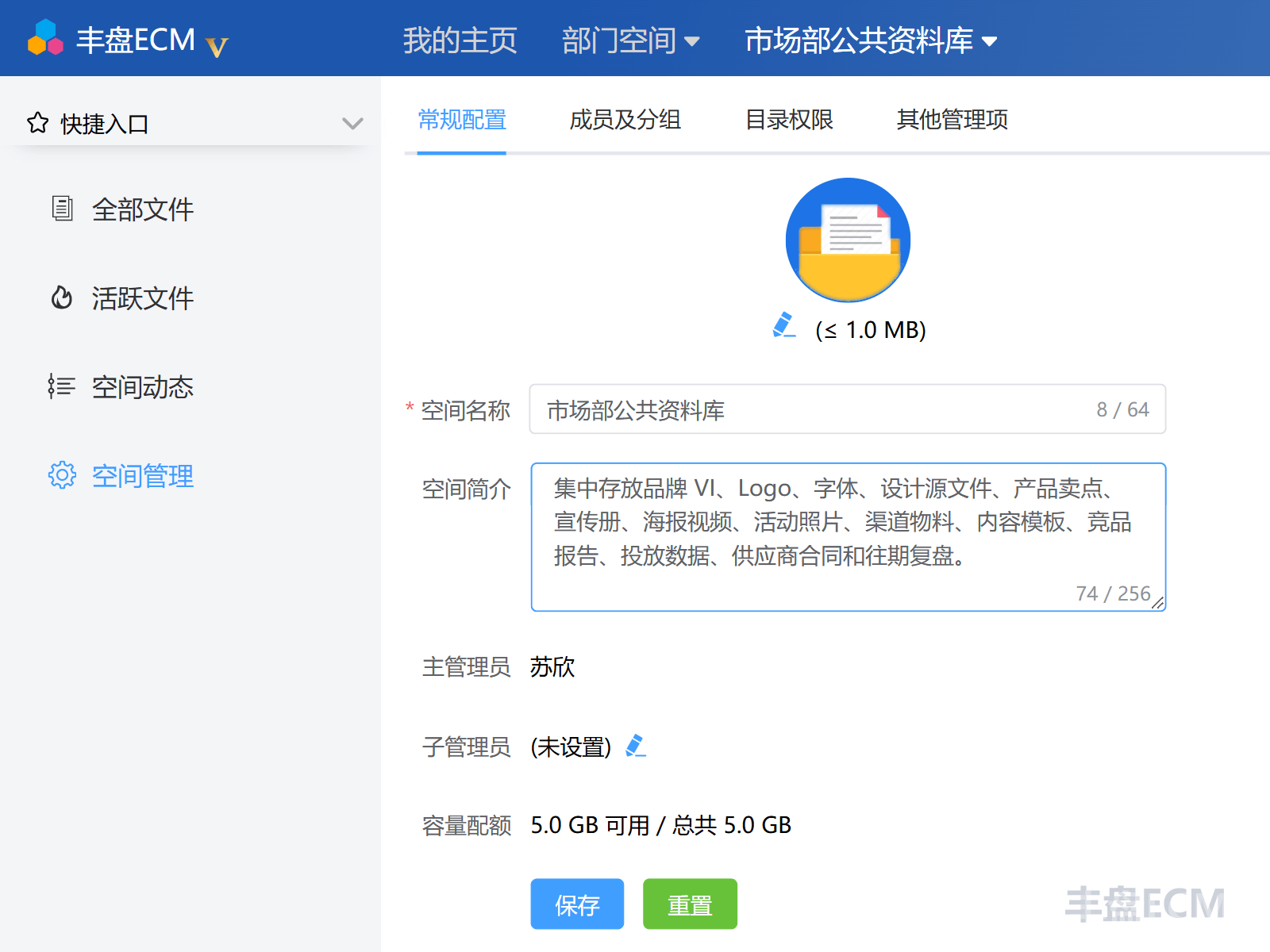
After you switch to a document space, if you are a space administrator, you can find Space Management in the left menu. On the "General Settings" tab, you can edit basic space information, including the space name and description, and upload a space logo. The page also shows the primary administrator, sub-administrators, and the current storage quota.
Space members and groups
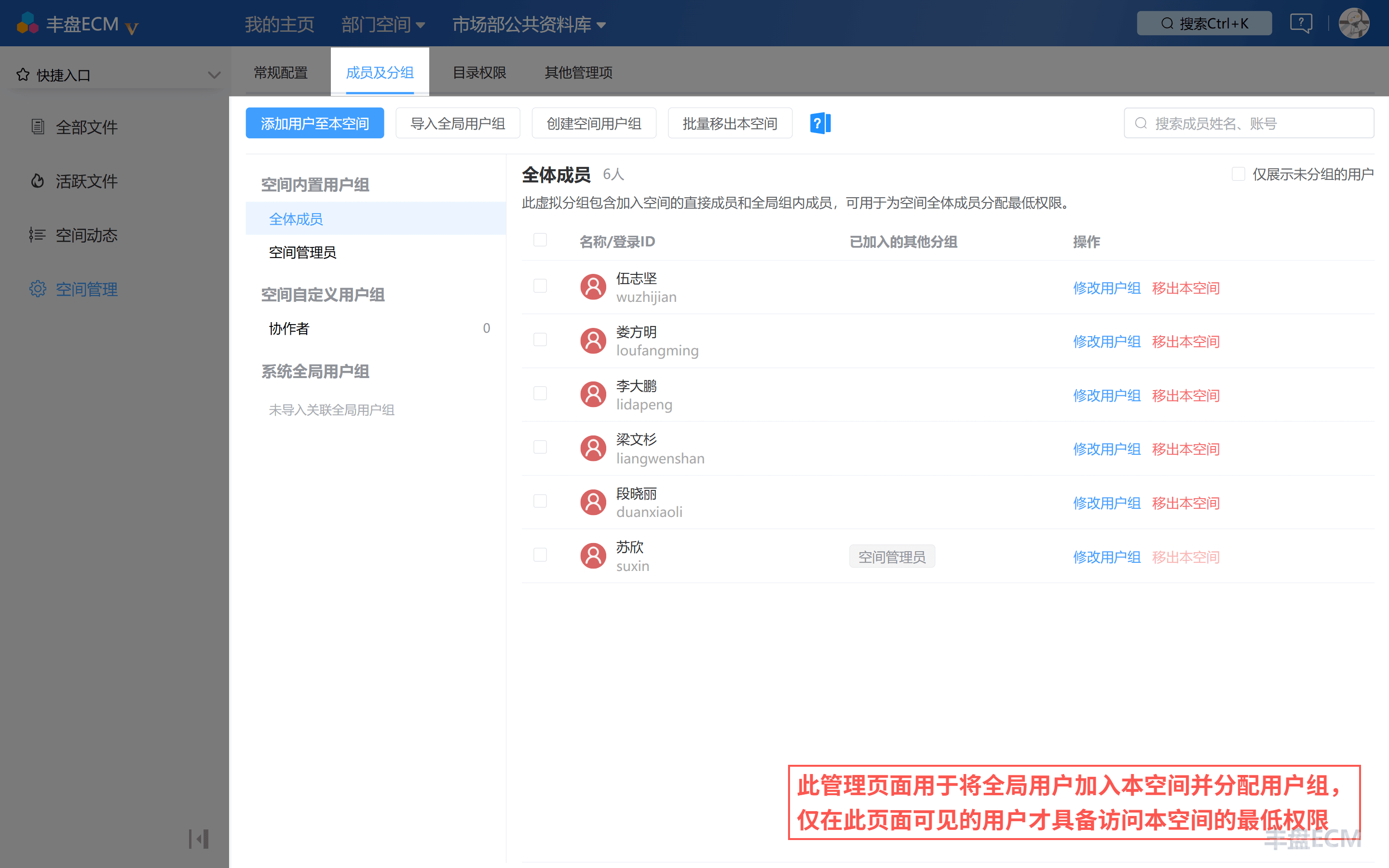
The "Members and Groups" tab in Space Management organizes members with user groups. A space administrator can:
- Click "Add Users to This Space" to add user accounts to the space.
- Click "Import Global User Groups" to bulk import user groups from the organization structure.
- Click "Create Space User Group" to define custom user groups in the space.
- Select members and click "Remove from This Space" to remove them.
New members join the "All Members" group by default and inherit the permissions configured for that group. A space administrator can also bind members to a custom user group so they get the permissions of that group.
Role-based access control (RBAC) with user groups
RBAC stands for role-based access control, a model that grants permissions through roles instead of assigning every permission item to each user. Enterprise software usually has a large number of permission items, while new hires, departures, and project team changes are routine. If an administrator assigns permission details to each user individually, the work becomes tedious and hard to maintain. The core idea of RBAC is to group common permission sets into roles and bind users to roles, so authorization is batch-based and maintainable.
丰盘ECM uses an RBAC-based permission system, but turns the traditional "role" into a more flexible user group:
- A user group is a role: spaces include built-in user groups such as "Space Administrators" and "All Members", and administrators can create custom user groups for business needs, such as "Sales Staff" and "Sales Engineers".
- Authorization per folder permission scope: permissions are not configured in one pass at the space level. You can configure them separately for the root folder or for the independent permission scope of a subfolder.
- Permissions are combined: if a user belongs to several user groups, the final permission is the union of the permissions of all groups. For example, the user Xiao Yang belongs to both "Sales Staff" and "Sales Engineers", so he can read both sales operations files and technical files.
This combination of user groups and folder permission scopes lets space administrators grant permissions in batches by role, as with traditional RBAC, while still applying finer-grained control per folder.
Configure folder permissions
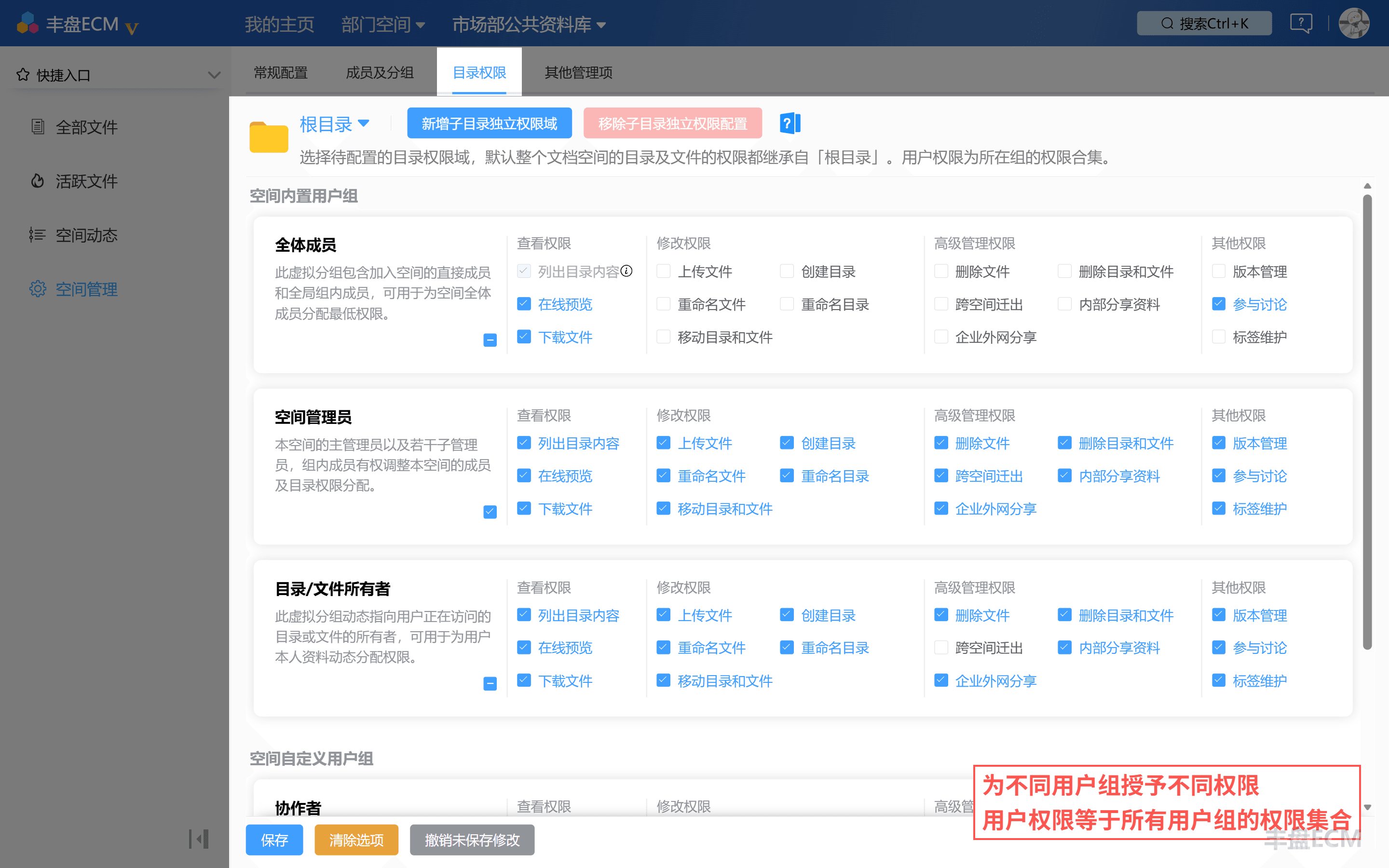
On the "Folder Permissions" tab in Space Management, administrators configure the permissions of each user group for the folders and files in the space. At the top of the page, select the folder permission scope to configure. By default, the whole document space inherits permissions from the root folder. To control a subfolder separately, click "Add Subfolder Permission Scope" to create one.
Each user group appears as a permission card, and permission items fall into four categories:
| Permission category | Permission items |
|---|---|
| View permissions | List folder contents (always on), online preview, download files |
| Modify permissions | Upload files, create folders, rename files, rename folders, move folders and files |
| Advanced management permissions | Delete files, delete folders and files, move out of the space, share files internally, share outside the company |
| Other permissions | Version management, participate in discussions, maintain tags |
Select the items and click "Save" to apply them. After you buy a Premium Edition plugin, its permission items also appear. For details, see the documentation for each plugin.
Special note on sharing files internally
When the "Share files internally" or "Share outside the company" permission is enabled, a user can create link shares for any folder or file. This permission is powerful: once enabled, it bypasses the existing permission system of the project space. For example, user Xiao Li has read and share permissions. He shares a folder with another user and grants full control, so the other user can write to the shared folder even though Xiao Li himself has no write permission.
This permission is designed for cases where a space administrator shares files with a user temporarily and revokes access when the task ends, with permissions reclaimed automatically. It avoids adding users to the space permanently for a short-term need and forgetting to revoke access later. By default, only the two built-in user groups "Space Administrators" and "Folder/File Owner" have this permission, so configure it with care.
Built-in user groups (built-in roles)
When a document space is created, the system includes several special user groups that you do not create manually:
- Space Administrators: the primary administrator and sub-administrators of the space. They can change members and folder permission assignments in the space.
- All Members: every user who joined the space. The system maintains this group automatically when members are added or removed, and manual maintenance is neither needed nor supported.
- Folder/File Owner: a virtual, dynamic user group. It is not bound to a specific user; instead, it checks dynamically whether the resource being accessed belongs to the current user. For example, to let everyone upload to a folder but delete only their own files, select the upload permission for All Members, clear the delete permission, and then select the delete permission for Folder/File Owner.
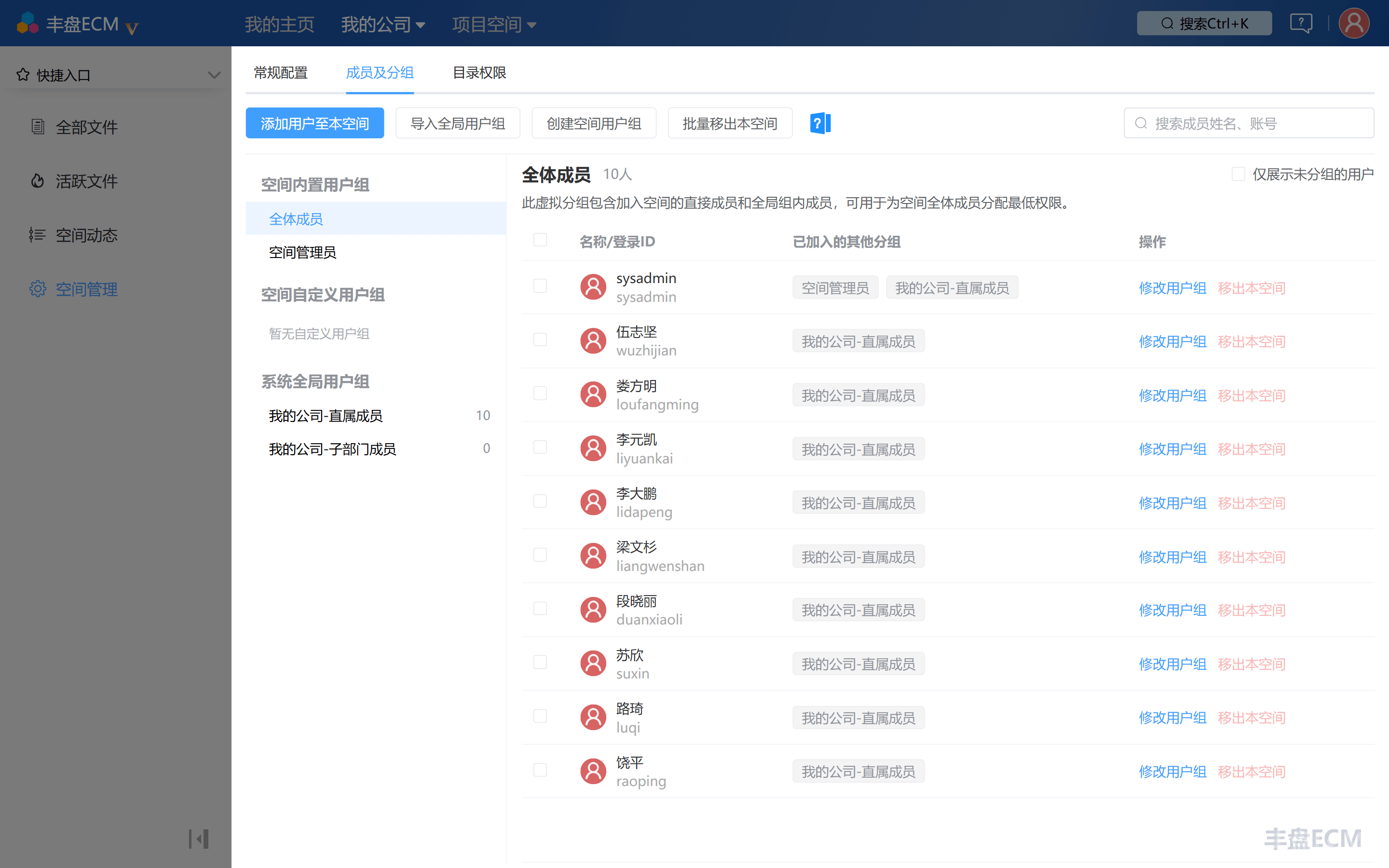
Department spaces also import two global user groups from the organization structure, Direct Department Members and Sub-department Members, in addition to the built-in groups above. They represent employees attached directly to the department and employees in sub-departments. 丰盘 maintains the mapping between members and user groups automatically from the organization structure that the super administrator maintains. Even a department space administrator cannot change this binding.
Advanced feature: sub-administrators
In the Community Edition, "Space Administrators" can be bound to only one account. The Premium Edition supports the sub-administrator advanced feature, which lets the primary administrator appoint several member accounts as sub-administrators to help manage daily operations in the space. See Advanced feature: space sub-administrators.
For more details on operations, click the blue question mark help button in the product interface.