Spaces and storage quotas
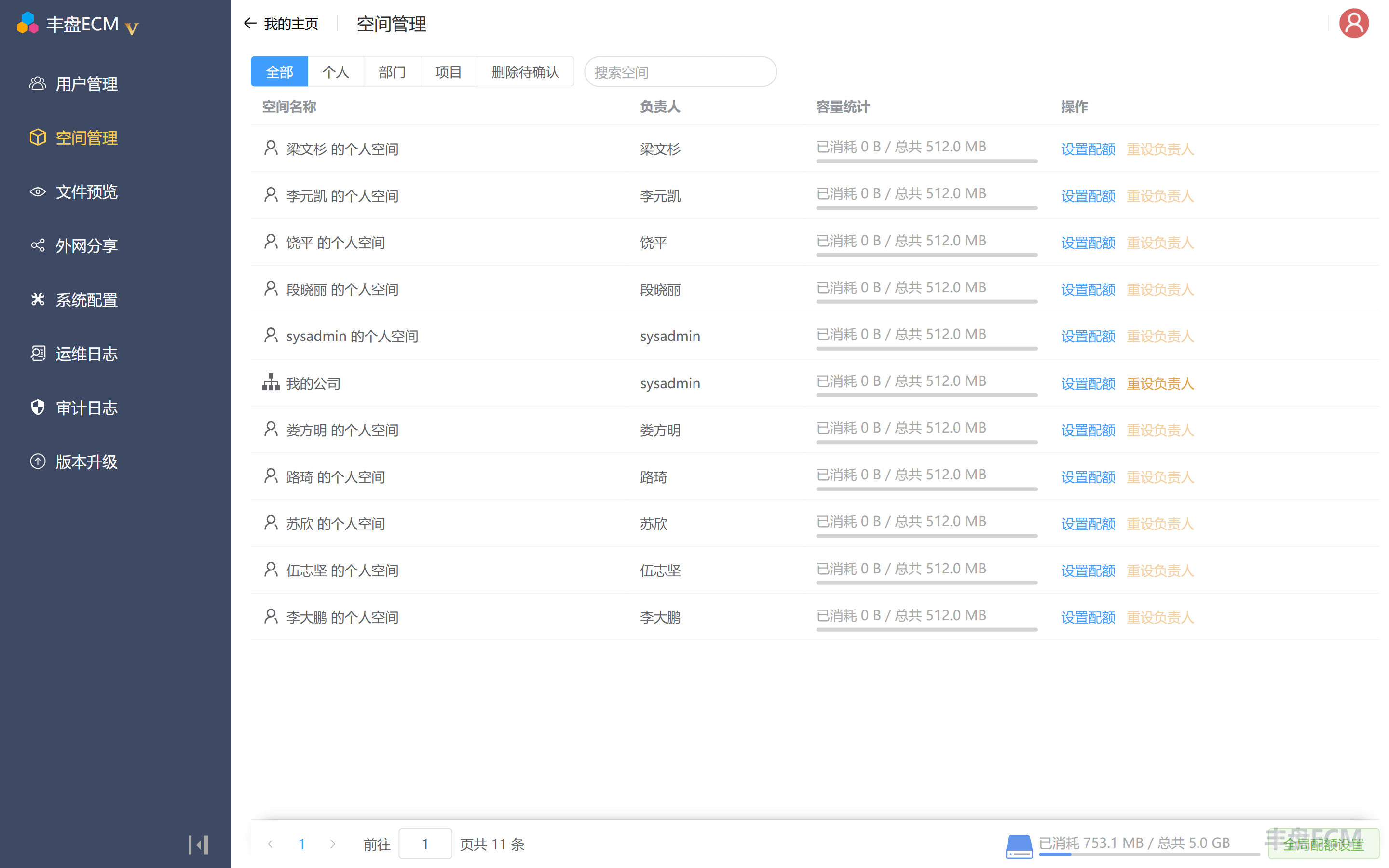
On the Space Management page in Admin Console, administrators can review and manage the personal space of each user, the department spaces created automatically from the organization structure, and the cross-department project spaces that employees create. They can check actual capacity usage, set maximum storage quotas, reassign space administrators, and more.
Interface layout
Click "Space Management" in "Admin Console" to see every department, project, and personal document space at a glance. You can also search for a specific space to manage.
Set a storage quota for a specific space
Different employees and different projects have different storage requirements. Administrators can assign an independent storage quota to each space. When users upload files there, the system checks the quota in real time and blocks new uploads once the limit is exceeded.
Oversubscription warning
To use system storage as efficiently as possible, the 丰盘 system uses a shared quota model rather than dedicated quotas. The quotas of all spaces may add up to more than the total capacity of the 丰盘 system, but actual storage will not exceed that total capacity. Once total system storage reaches the quota limit, the system blocks new uploads, even if an individual space still shows free quota.
Assign a new space administrator
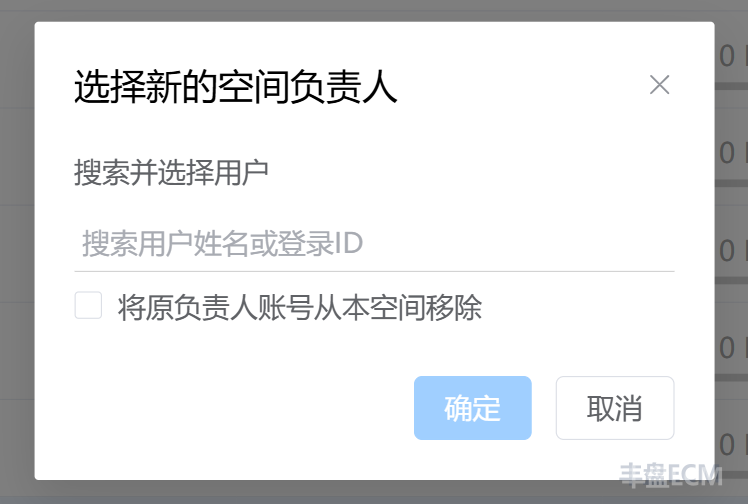
Every document space is linked to exactly one owner account, which acts as the space's primary administrator. A personal space is always owned by the employee's own account, and that owner cannot be changed. A project space is owned by its creator by default. The creator can transfer ownership to another space member from the space management interface. A super administrator can also force-assign a new document space owner on the Space Management page in Admin Console. Department spaces are different: only a super administrator can maintain their owners, and department space administrators cannot transfer ownership on their own.
Physically delete a document space and reclaim storage
A personal document space is bound to an employee's personal account, so it cannot be deleted on its own to reclaim storage. The storage is reclaimed by deleting the user account instead. Likewise, a department document space is bound to a department node in the organization structure, so it cannot be deleted on its own either. An administrator reclaims that storage by deleting the department from the organization structure.
Project document spaces are more flexible. After an administrator of a project space submits a deletion request from the space management page, a super administrator can see the request on the Space Management page in Admin Console. Once the request is confirmed, the document space and all its data are physically deleted.
Global quota settings
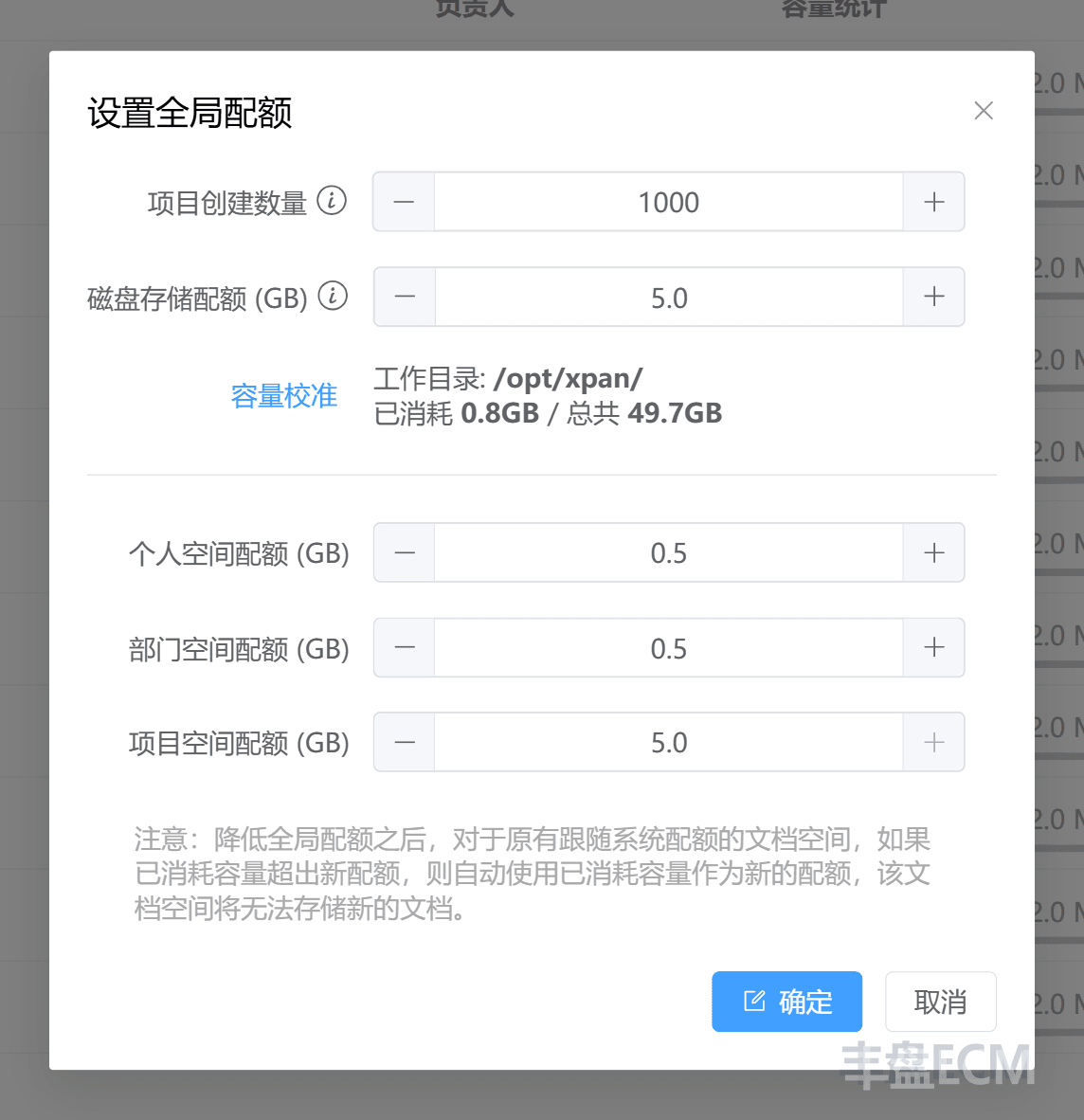
All 丰盘 data is stored in the /opt/xpan/ directory on the host. The bottom right corner of the page shows the capacity that directory currently consumes. It also shows the total capacity of the disk the directory resides on (disk total capacity = actual 丰盘 usage + remaining capacity - 10GB reserved).
Info
Other software on the server may also consume space on the same disk, so free disk capacity can drop even when the 丰盘 system is not in use. The 丰盘 interface does not reflect that change in real time, so the figures can lag behind.
To keep the reported free capacity accurate, the system backend scans and recalculates available storage on a schedule. For stability, the total capacity limit for 丰盘 is lower than what the host can actually provide. Even a fully loaded 丰盘 system will not fill the server disk.
Employees can consume disk space until the disk raises capacity alerts or the system fails. To prevent that, you can set the maximum disk capacity that the 丰盘 system may use. When employees upload files, the system probes the remaining storage dynamically, and all upload tasks are aborted when capacity runs out.