Quick start for new users
Welcome to 丰盘ECM
If you have used personal drives such as Baidu Netdisk or Alibaba Cloud Drive, you know how convenient they feel: after you sign in, you see a single "All Files" list, and you drop in whatever you want to keep. These products are person-centric by design, which makes them a good fit for storing and managing your own files.
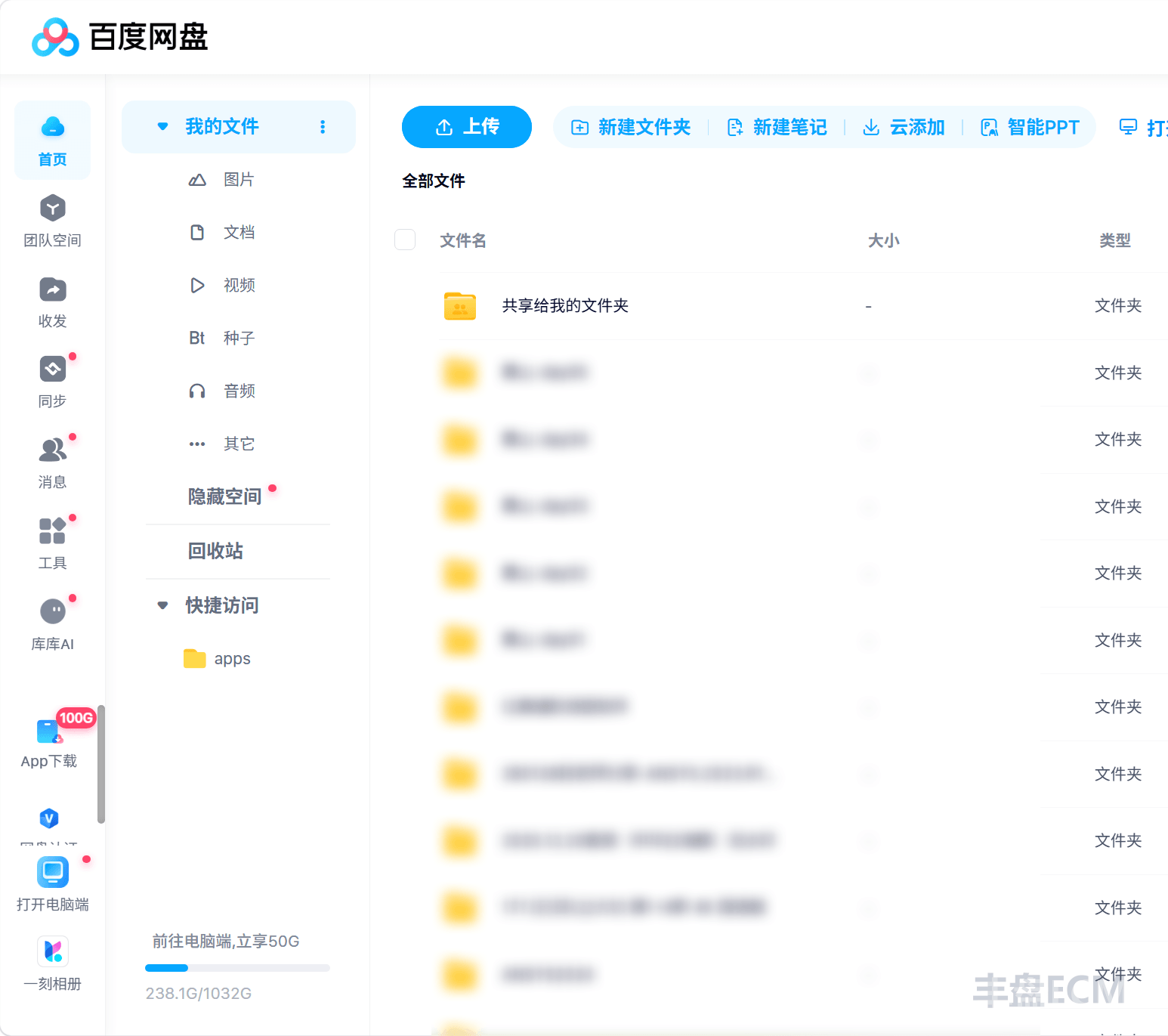
Collaboration on corporate files, however, is not the same as one person managing their own files. If you put company files in a personal drive, you soon run into these problems:
- Files follow people: files live under a colleague's personal account. If that person leaves, changes roles, or takes extended leave, and the account is frozen or deleted, the files lose their access point, and the team's accumulated work is hard to hand over.
- Unclear ownership and permissions: with only one big list, you cannot tell which files are departmental and which are personal scratch space, and you cannot make financial policies visible only to Finance and project files visible only to the project team.
- Versions everywhere: people tell "draft", "final", and "final 2" apart by file name, and no one can say which copy is the latest.
丰盘ECM is a professional document management system deployed privately on the corporate intranet, commonly called an enterprise private drive. Its design does not simply copy a personal drive and add groups for collaboration. Instead, it uses the "space" concept from Atlassian Confluence to organize files: files belong to the organization (a department or a project) rather than to an individual account. People who join automatically get access to the files they need. When people leave, the files stay with the department or project, ready for new colleagues to take over.
This page is for users who are new to 丰盘ECM. It helps you get started with these common daily tasks.
- Core concept: document space: how the three types of space differ.
- Interface layout on first sign-in: the top navigation area, the left navigation area, and the file browsing area.
- Upload files: button upload and drag-and-drop upload.
- Preview files online: which files you can preview without downloading.
- Create a project space for cross-department collaboration: a war room for cross-department work.
- Share files with other users temporarily: when to use link sharing.
Core concept: document space
As described earlier, a personal drive organizes files around "my account". An enterprise drive must organize files around the business: every file should belong to a specific department or project, with a clear owner and clear access rules.
For this reason, 丰盘ECM introduces the core concept of a "document space": every file belongs to a document space, and the space is the owner of the file. Document spaces fall into three types, each matching a typical collaboration scenario.

| Type | Who can access by default | Who manages it | Typical business scenarios |
|---|---|---|---|
| Personal space | Only the owner | The owner | Temporary drafts, weekly reports |
| Department space | Members of the department and its parent departments | Department space administrator | Policies, technical standards, department archives |
| Project space | Members of the cross-department project team | The creator (space primary administrator) | Product R&D, shared asset library, special initiatives |
Personal space is the type closest to a personal drive. The system automatically creates a personal space for every user to store their own work documents. Only the owner can access a personal space, and you cannot add colleagues to collaborate in it. To share files from a personal space with colleagues, use link sharing to create a short-lived temporary share.
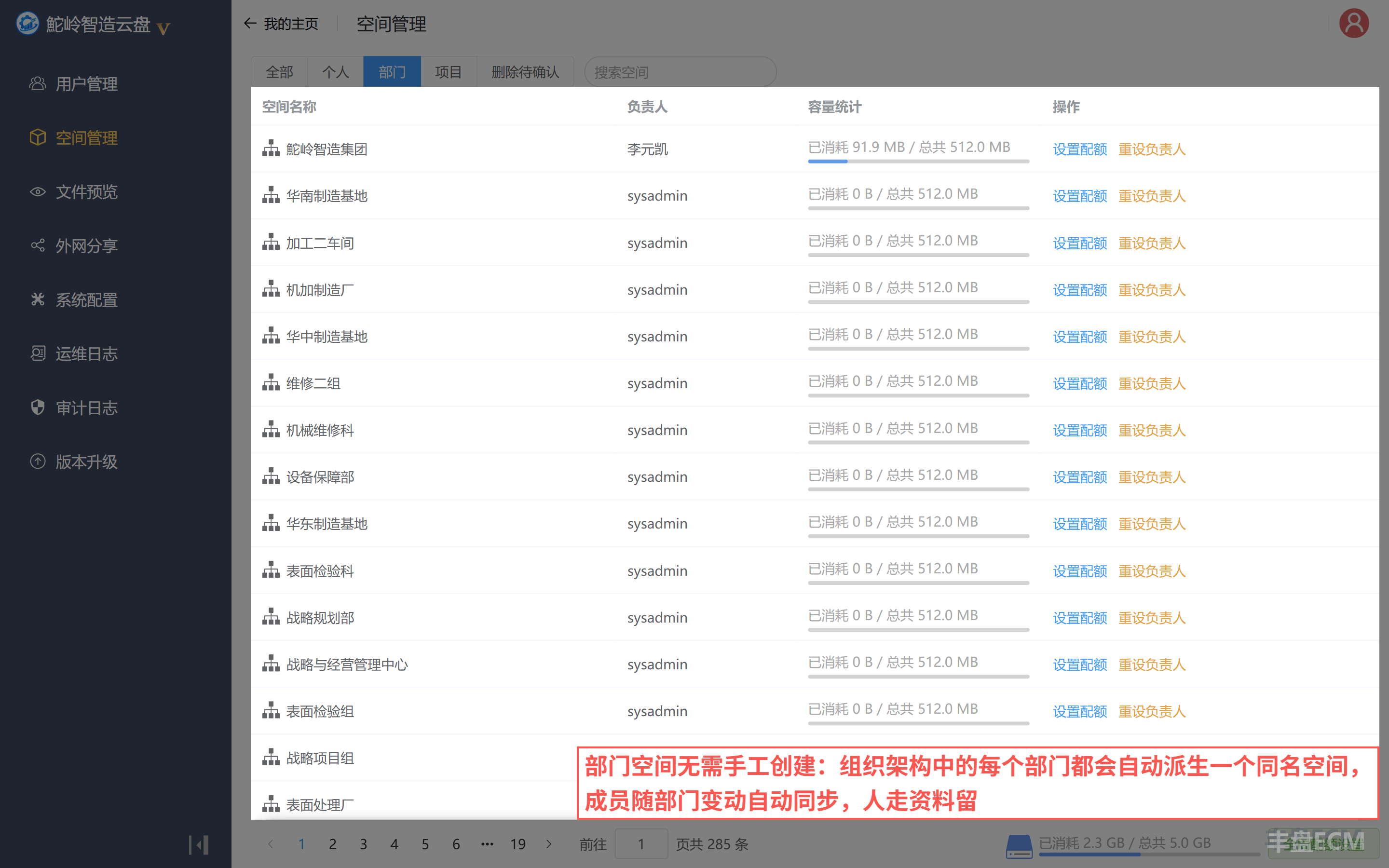
Department space maps one-to-one to the organization structure and requires no manual creation or request. Based on the organization structure configured by the system administrator, the platform automatically creates a department space with the same name and adds employee accounts to the department spaces of their direct department and all parent departments. When an employee moves to another department, the system adds or removes them automatically, so the spaces always match the organization structure with no manual work for administrators or users.
A department space belongs to the organization, and members are only granted access. When an employee leaves, the account is frozen, but the files in the department space remain as they are, and colleagues who take over can view them at any time. This is the most fundamental difference between an enterprise drive and a personal drive.
Tip
After installation, 丰盘 automatically creates a root-level department space named My Company. All users on the platform join it automatically, which makes company-wide file sharing easy. Enterprise IT administrators can rename it to the actual company name.
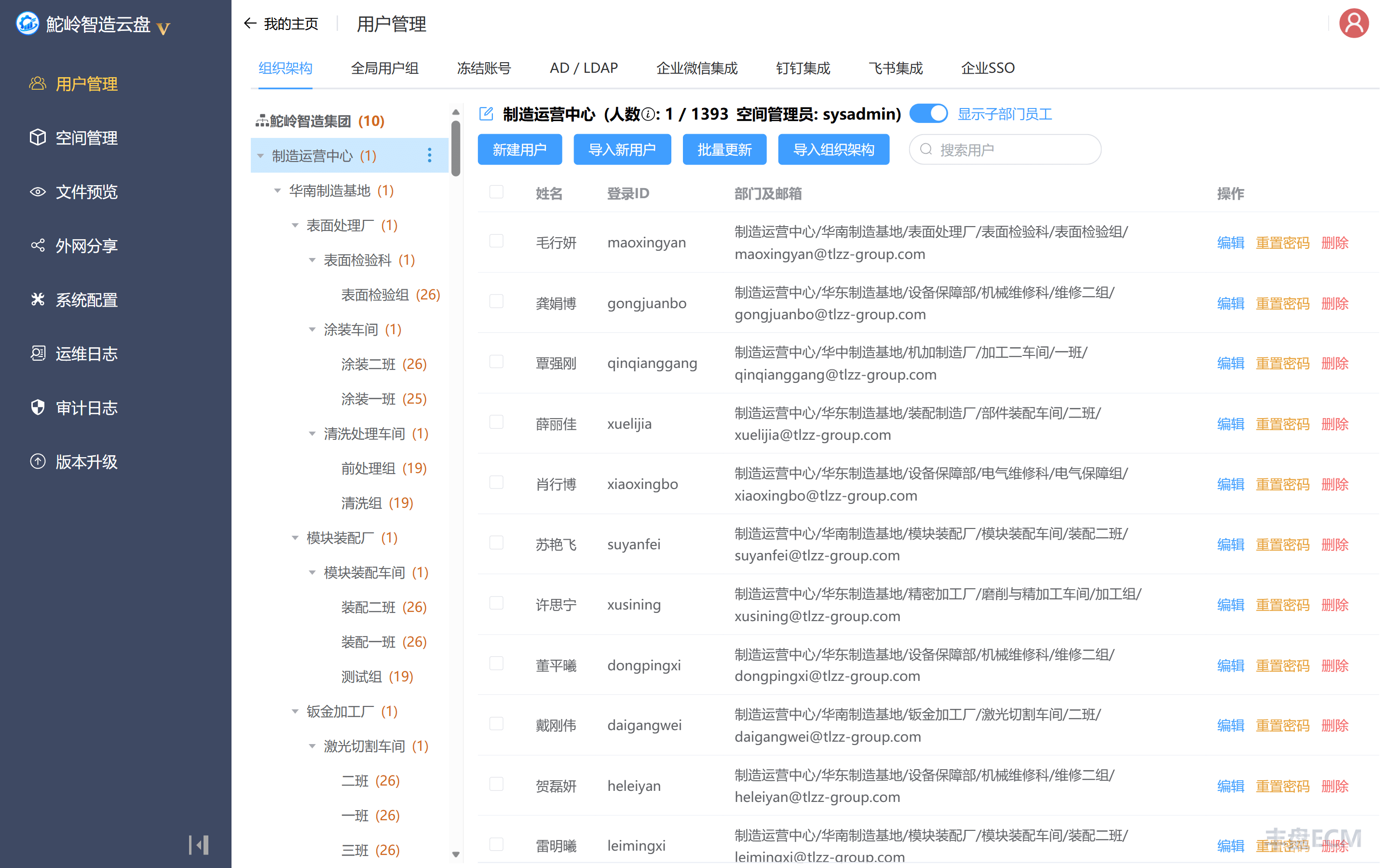
Project space is a cross-department collaboration space for a project or team, created and managed by users themselves, for example "Next-generation production line digital upgrade", "Douyin campaign phase 2", or "Investment analysis group". The creator becomes the primary administrator of the space by default and can add members and configure permissions in space management, with full self-service control instead of asking the system administrator for everything.
Putting the three types together, the overall file landscape looks like this (structure only, not the actual storage layout).
丰盘ECM file landscape
├─Personal spaces
│  ├─Li Yuankai's personal space
│  ├─Liang Wenshan's personal space
│  └─...
├─Department spaces
│  └─Tuoling Smart Manufacturing Group (shared by all)
│     ├─Marketing Department
│     ├─R&D Center
│     └─Finance Department
└─Project spaces
   ├─Next-generation production line digital upgrade
   │  ├─Bidding
   │  ├─Cost control
   │  ├─Solution design
   │  └─Acceptance materials
└─Smart warehouse system rolloutInterface layout on first sign-in
When a user signs in for the first time, the system opens the root department space "My Company". If the system administrator renames the root node of the organization structure, the department space name changes accordingly.
The interface consists of three main areas:
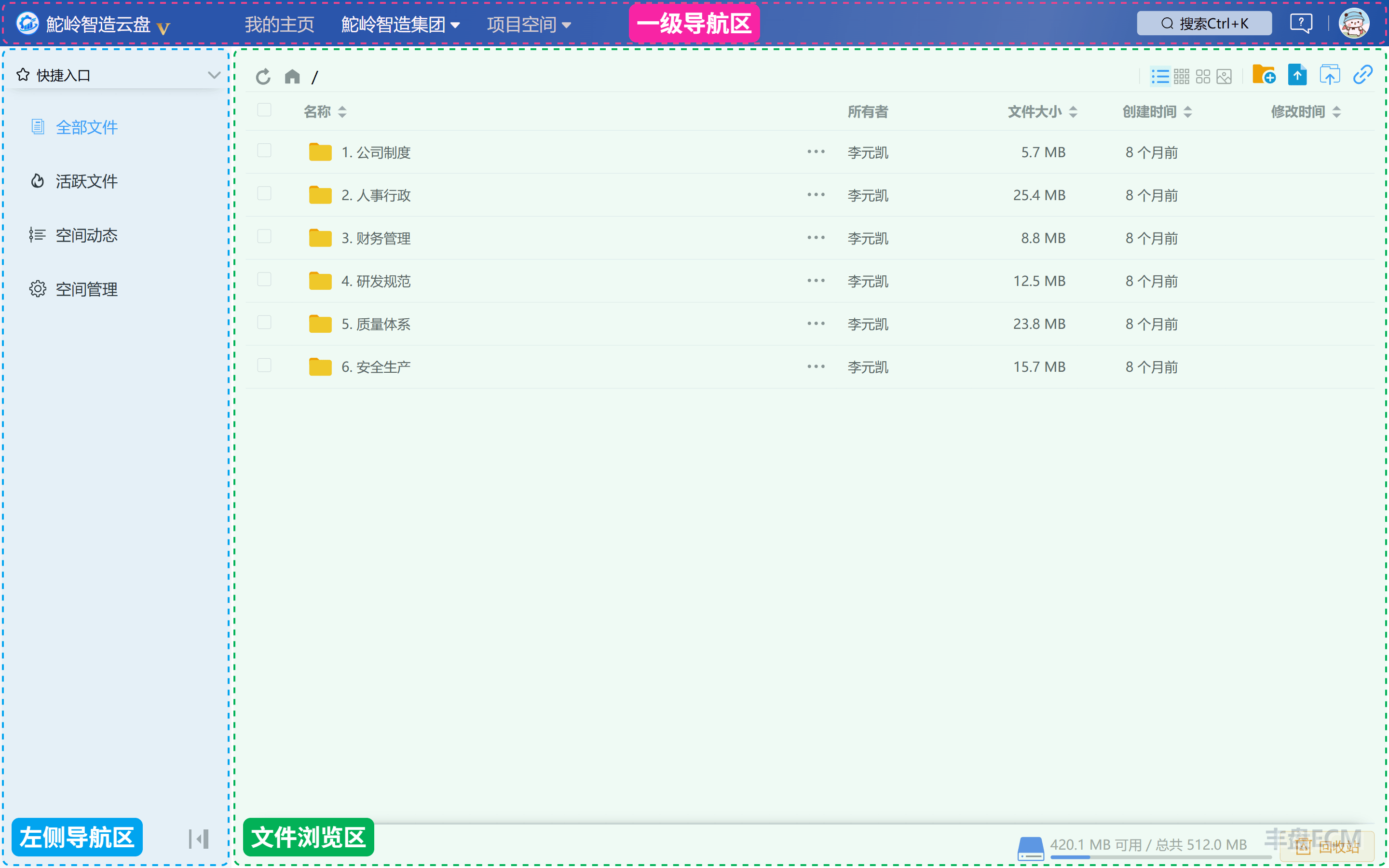
- Top navigation area: switch between "My Home", "Department Spaces", and "Project Spaces". "My Home" is your personal area, similar to a personal drive, and contains "Personal Files" (your personal space), "My Shares", and "Shared with Me".
- Left navigation area: switch features within the current space, such as "All Files", "Active Files", and "Space Activity". If you are a space administrator, you also see "Space Management".
- File browsing area: shows the files and folders in the current space or folder.
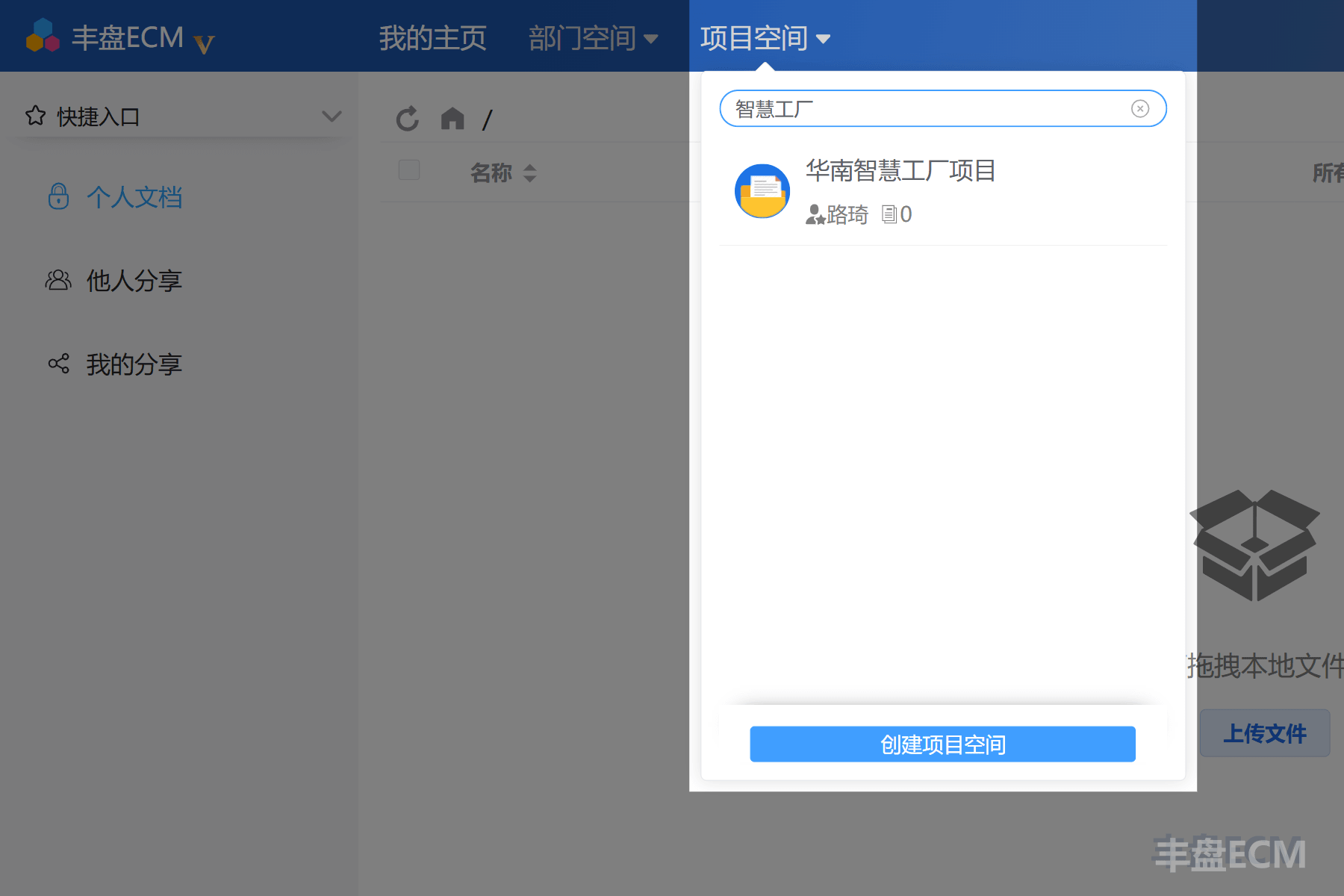
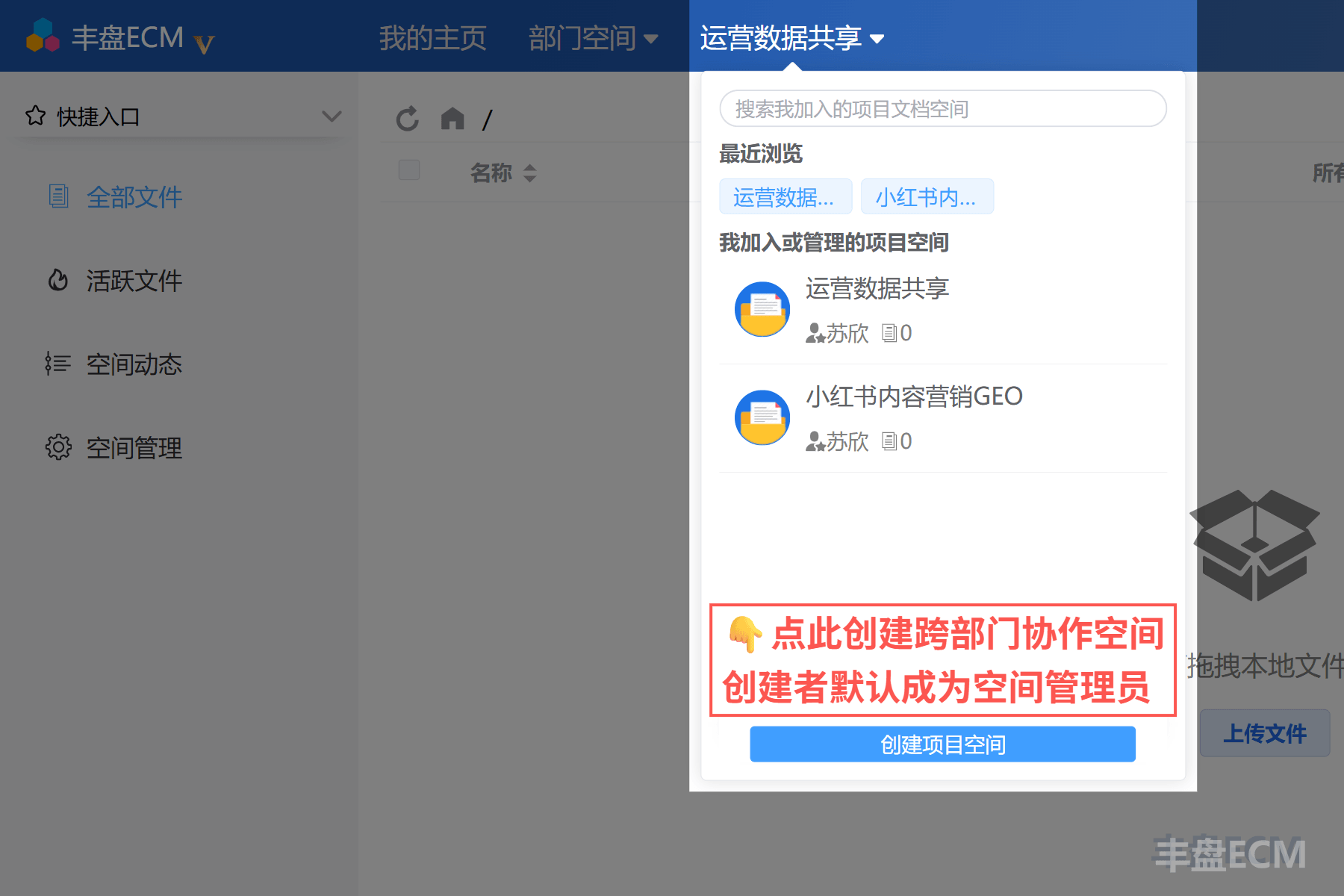
Click "Project Spaces" at the top, and the drop-down list shows the project spaces you joined or manage. If the list is long, search by keyword.
Next, start with the most basic action: upload local files to a space.
Upload files and folders
After you enter a document space, the toolbar above the file browsing area provides "New Folder", "Upload Files", and "Upload Folder" buttons. Whether you are in a personal, department, or project space, the operations work much like File Explorer on Windows or macOS:
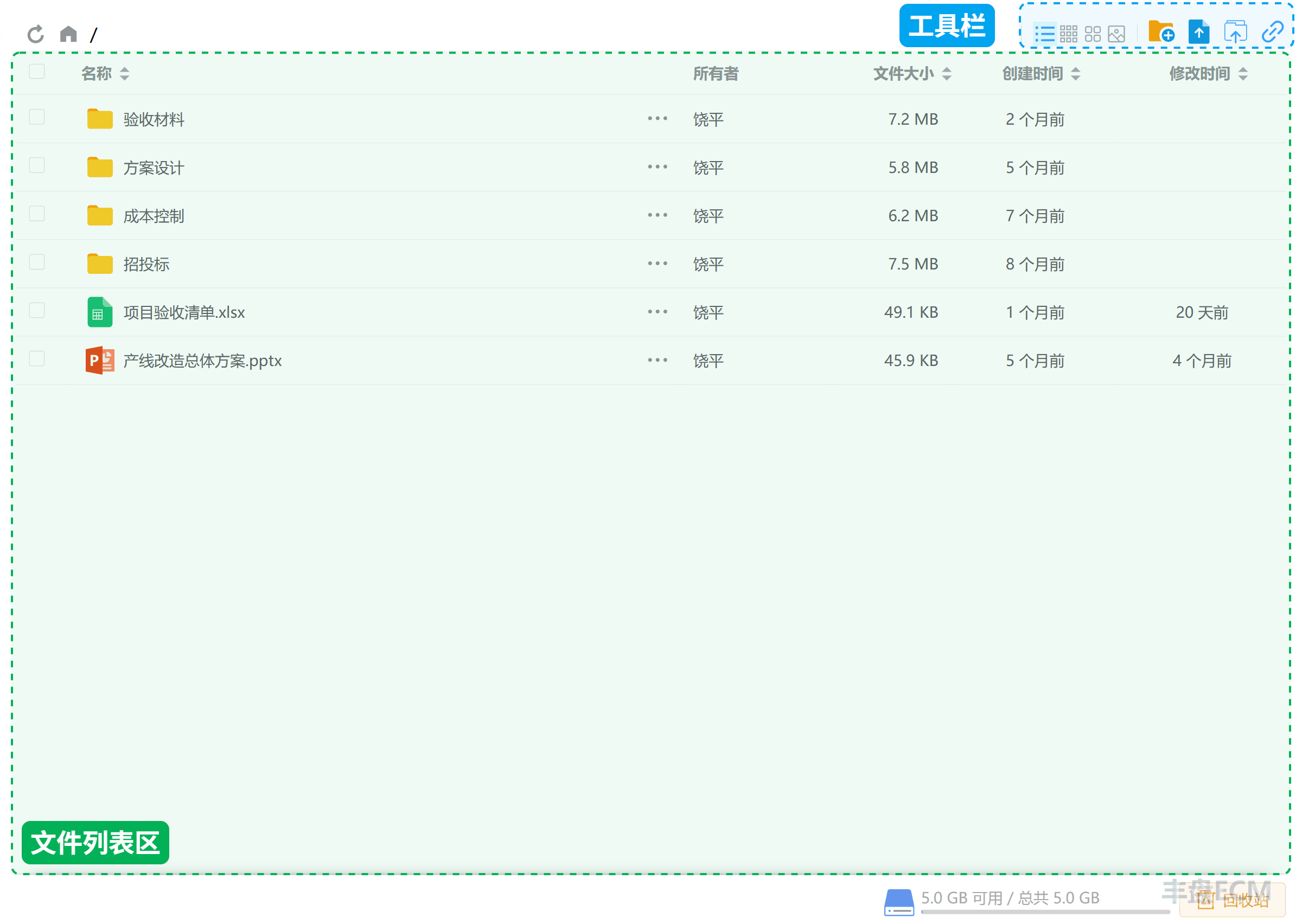
- "New Folder": creates a folder in the current folder, so you can build the structure first and then add files.
- "Upload Files": selects files from your computer and uploads them to the current folder.
- "Upload Folder": uploads an entire local folder with its subfolders, often used to import historical files in bulk.
Besides clicking the buttons, you can also drag local files or folders into the file browsing area to upload them.
How do I upload multiple folders, or files and folders together?
Browsers limit the "Upload Folder" button to one folder per click, while drag-and-drop has no such limit. To upload several folders at once, or a mix of folders and files, drag and drop is easier.
After the upload finishes, the new files appear in the file list of the current folder immediately. You can then browse, rename, or move them as you would in a local folder.
Preview file content in the browser
After you upload a file, the most common action is to open it.
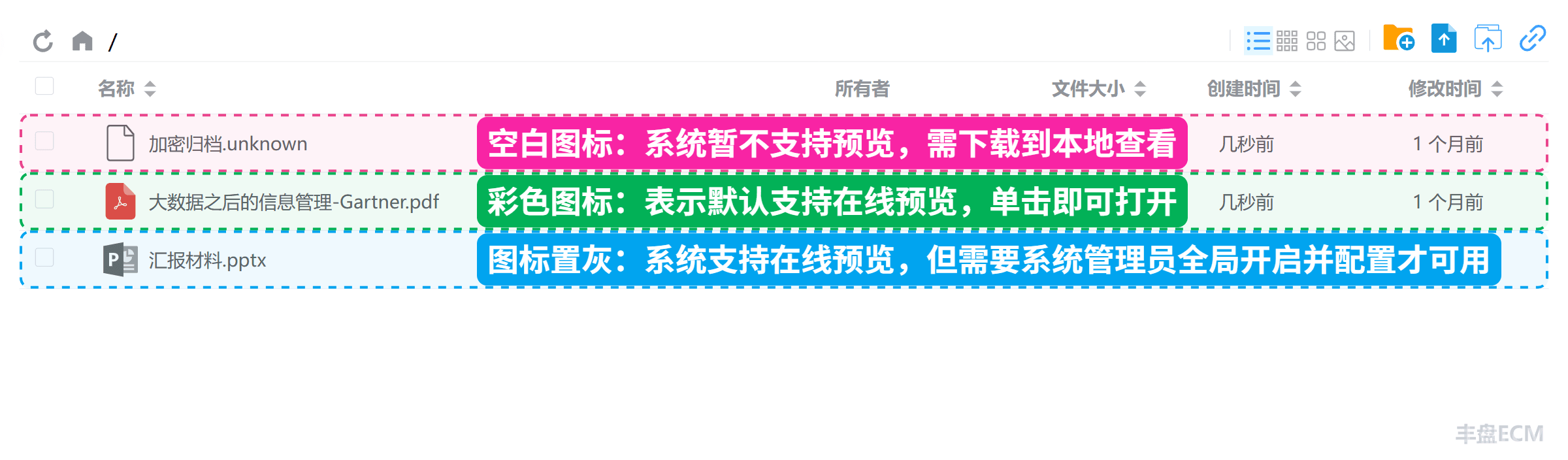
For files that the system can preview online (such as PDF, common image formats, Word, Excel, and PowerPoint files), the file icon is highlighted in color. For formats that cannot be previewed yet or are not recognized, the icon is grayed out or shows a question mark, and you must download the file to view it.
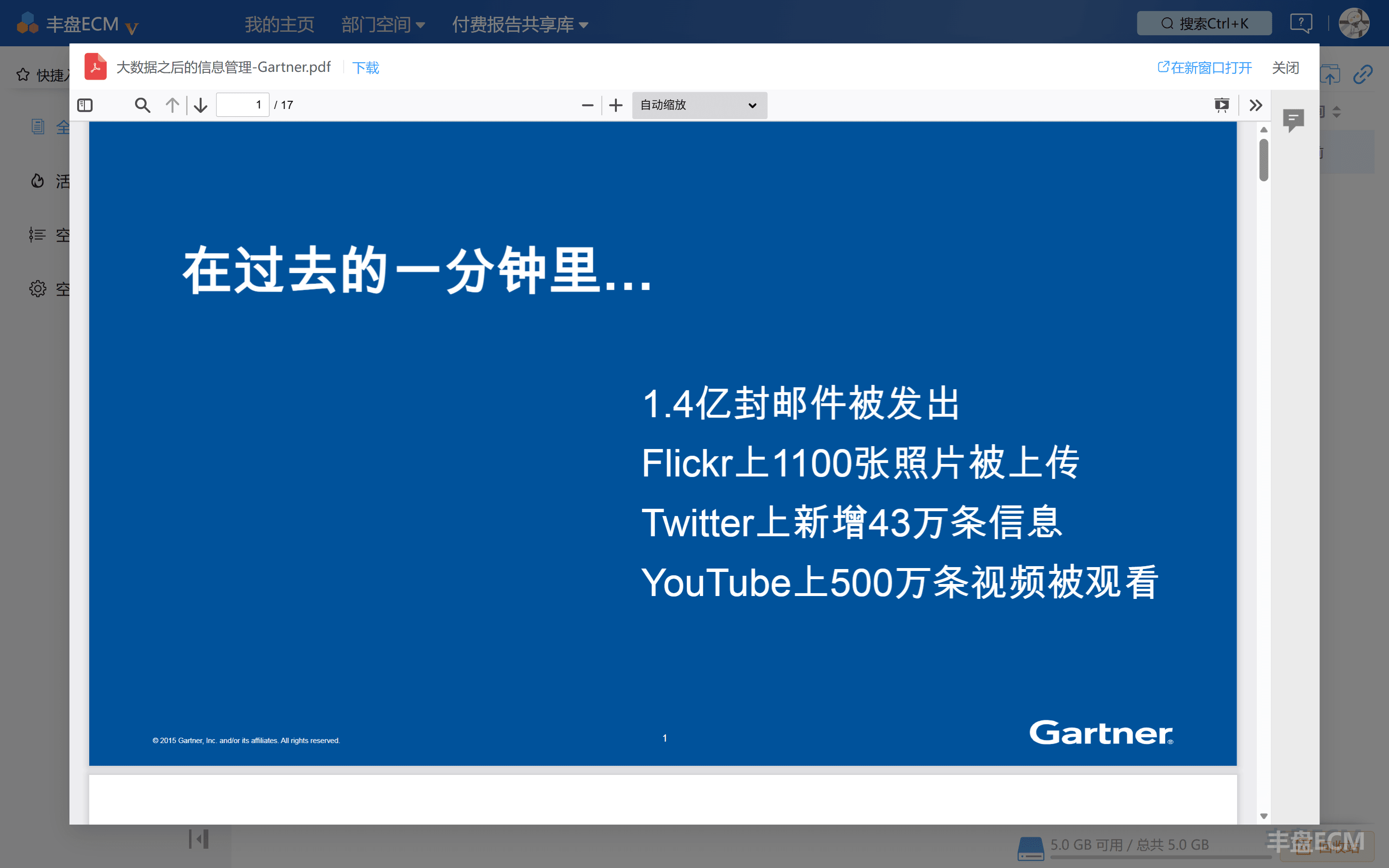
Click a previewable file to open it directly in the browser without downloading.
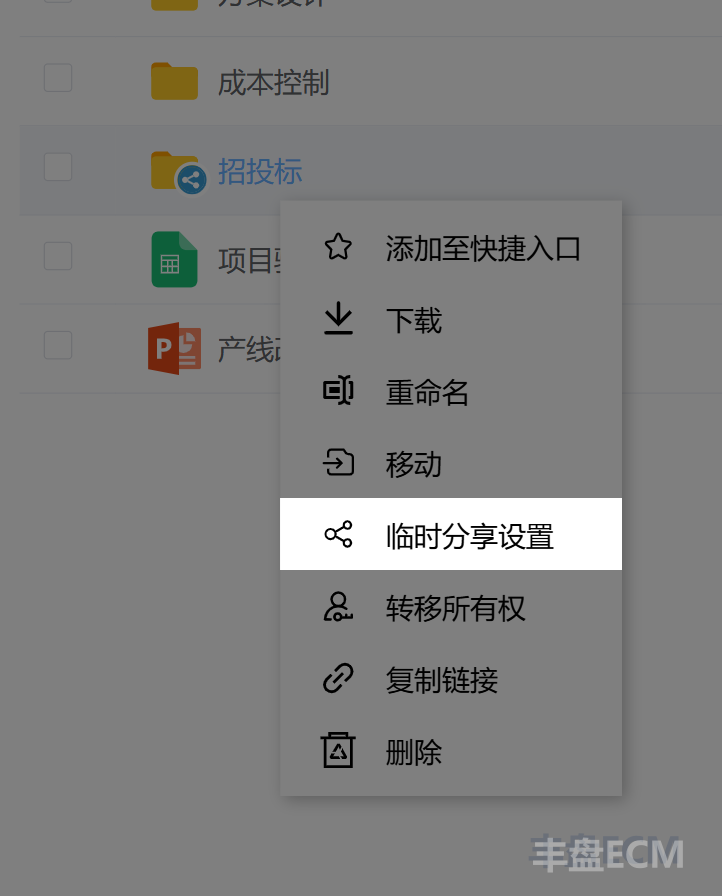
Besides the toolbar buttons, you can right-click a file or folder to use the context menu for more actions, such as moving, deleting, renaming, adding tags, and creating a temporary share link.
Create a project space for cross-department collaboration
As described earlier, department spaces are maintained by the system administrator and match the organization structure. They mainly support file sharing within a department, and regular users neither need nor can manage them. In practice, however, much work is organized flexibly by project team and often requires cross-department collaboration. 丰盘 therefore lets users create project spaces and bring members from different departments into one space, without asking the system super administrator for everything.
At the bottom of the "Project Spaces" drop-down panel, click "Create Project Space" to start.
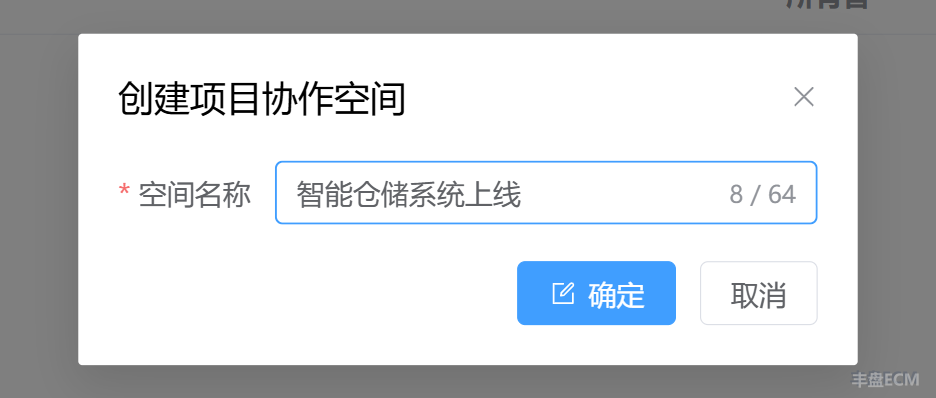
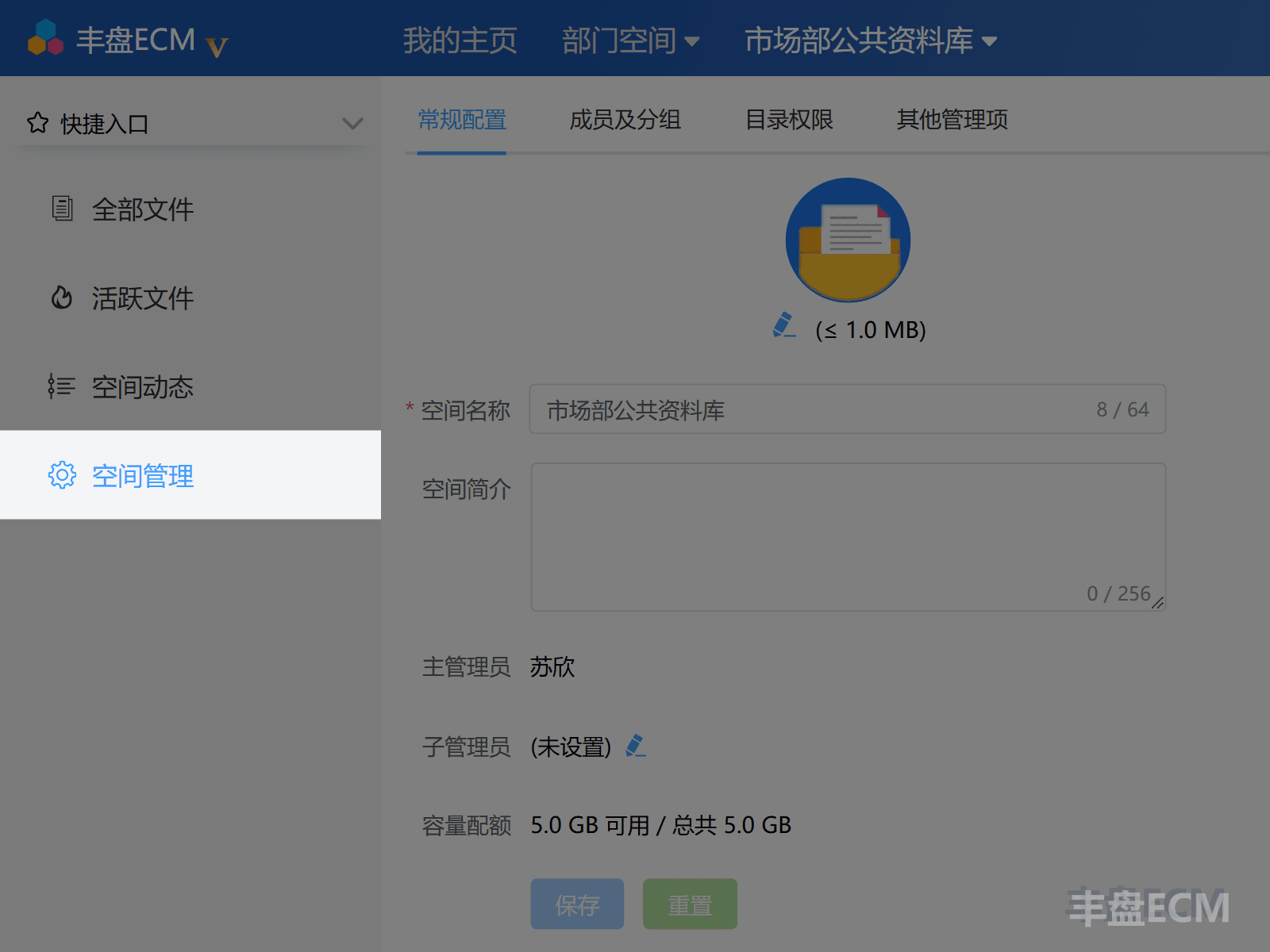
After creation, the system switches to the new project space, and you become its primary administrator. From "Space Management" in the left navigation, you can edit basic space information, add or remove members, and configure folder permissions for each user group. You can transfer the space administrator role to another member, or the system super administrator can reassign it.
In a department or project space, space administrators see an extra "Space Management" entry in the left navigation area. Regular members do not see it and can only browse the folders they are authorized to access. For details on configuring members and permissions, see Manage department and project spaces.
Share files with other users temporarily
We recommend department and project spaces for long-term file management because permissions are more standardized and ownership is clearer. Sometimes, however, you just need to send a file to a colleague for a short time, or share a file from your personal space. Creating a space and configuring member permissions is too much work for that, so link sharing is the better choice.
Right-click the target file or folder, then choose "Temporary Share Settings". The system creates a share link automatically, and you send the link to your colleague.
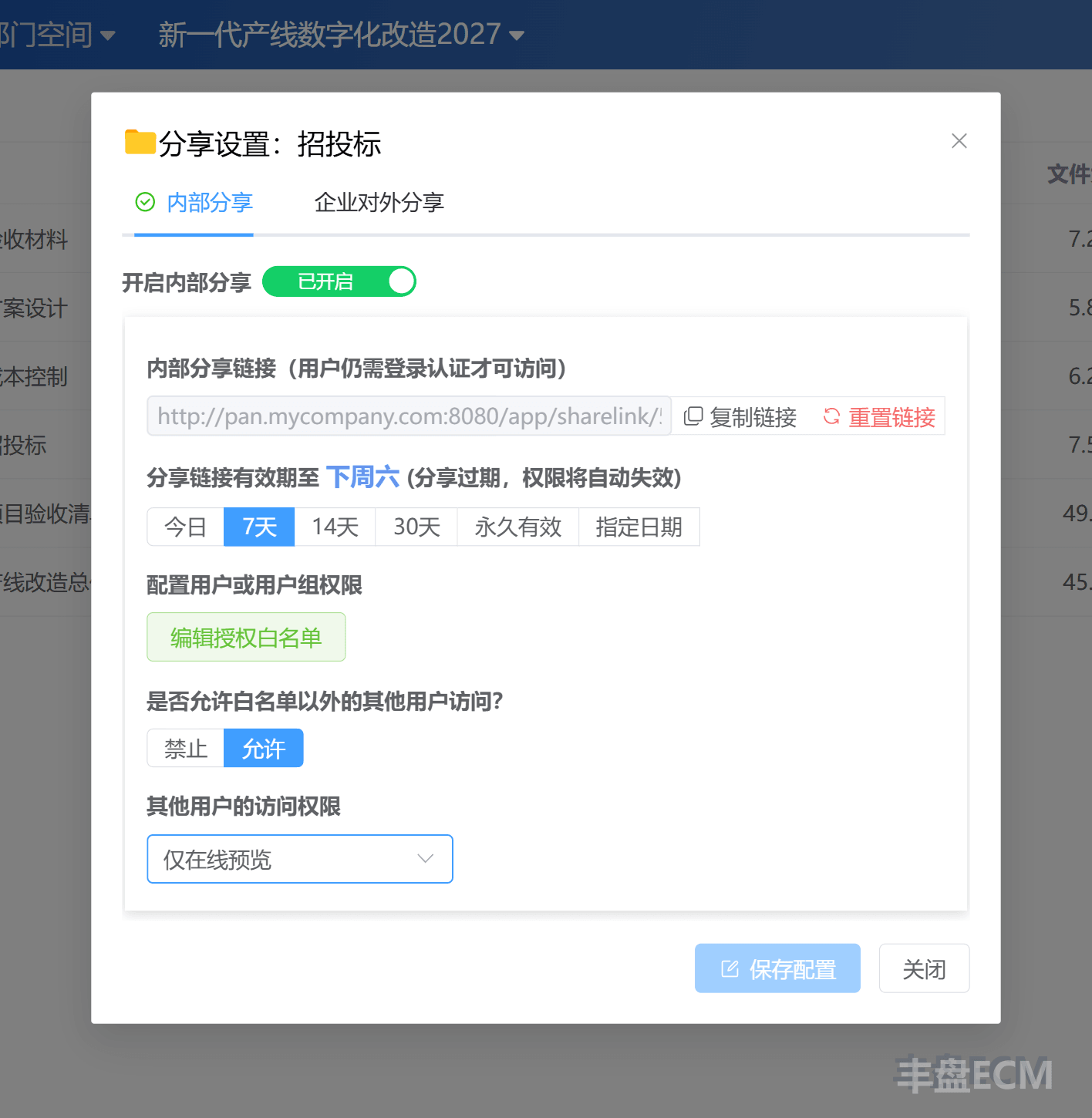
The default permission is read-only, so the recipient can preview the file or browse the folder as soon as they open the link. You can also adjust access permissions and the expiration period in the share settings. A share link points to the same file in the space, so after you update the file in 丰盘, the recipient always sees the latest version through the original link. For details, see Create time-limited share links.
Sharing outside the company
For security, link sharing in the 丰盘 Community Edition only works between authenticated internal users: recipients must sign in to the system after they click a link. To exchange files with customers and partners over the internet, use the Premium Edition external sharing plugin. It creates share links that are reachable on the internet (with password verification or email authentication) and isolates internal and external traffic through a dedicated port, so the whole system is not exposed to the public internet.
Next steps
You now know the core concepts and daily operations of 丰盘ECM. Go deeper as needed.
- Manage department and project spaces: add members, divide user groups, and configure permissions folder by folder.
- Create time-limited share links: manage share link permissions and expiration.
- Quick search for file and folder names: find files across all document spaces.
- Document versions plugin saves multiple revisions of a file: say goodbye to "final v2" and review or roll back previous versions at any time.
- File tags plugin organizes files into categories: classify files along multiple dimensions with tags.
If you run into problems, click the blue question mark button in the top-right corner of the interface to read the help for the current page.