Create time-limited share links
Two ways to share documents
There are two ways to share documents and collaborate with colleagues in 丰盘ECM.
For medium- and long-term collaboration, we recommend a department space that matches your organization structure, or a new project-level document space for cross-department collaboration. Both rely on the strong permission system in 丰盘ECM, so you can assign different permissions to different members and even configure dedicated permissions on individual folders (see Space management). Files stay in the space when employees change roles, and document management stays consistent.
Temporary, short-term sharing is a different case. Creating a space, adding members, and configuring permissions is often too much work. Sometimes you are not the space administrator and cannot grant other users temporary access. Personal spaces, which hold private employee documents, have no space management module at all, so you cannot authorize other users there either. To cover these cases, 丰盘ECM adds link sharing on top of the strict space permission system: more flexible, far simpler permissions, and faster to use.
Share temporarily from the context menu
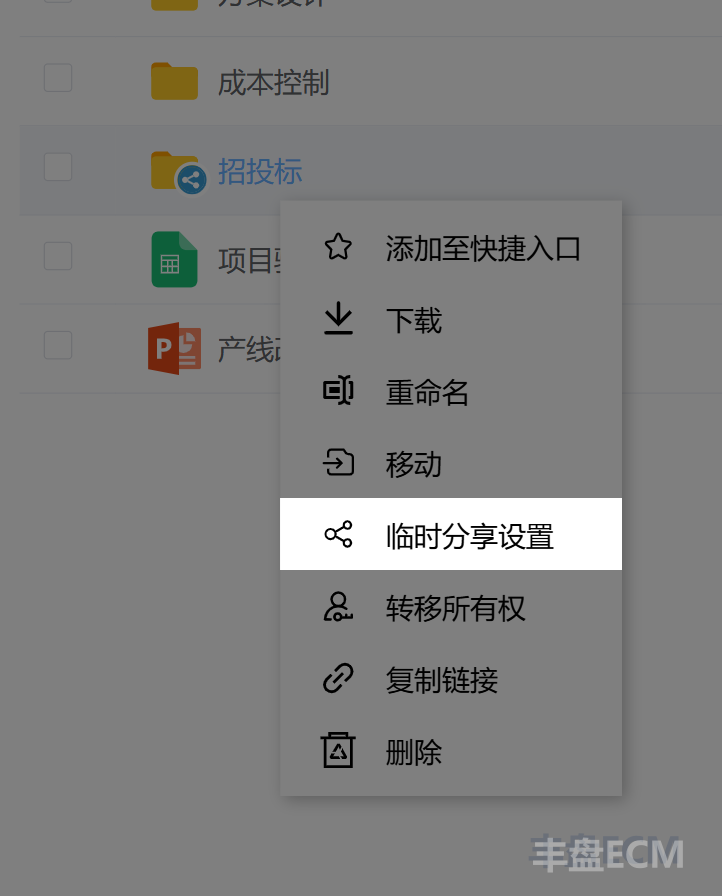
To share a single file or an entire folder with a colleague, right-click the file or folder and select "Temporary share". In the sharing settings panel, turn on the share switch. The system creates a read-only share link and copies it to your clipboard, so you can paste it into a message. When the recipient opens the link, a previewable file opens in the online preview, other files show a download button, and a shared folder opens as a browsable folder tree.
External sharing
For security, link sharing in the 丰盘ECM Community Edition only works between authenticated internal users: recipients must sign in before they can open the link. We also do not recommend exposing the system directly to the public internet. To share material with external partners or customers over the internet, use the external sharing plugin in the Premium Edition. It creates publicly reachable share links that use password verification or email sign-in, with no internal account required. The plugin isolates intranet and internet traffic on a dedicated port, which is far safer than exposing the whole system to the public internet.
Adjust link sharing permissions
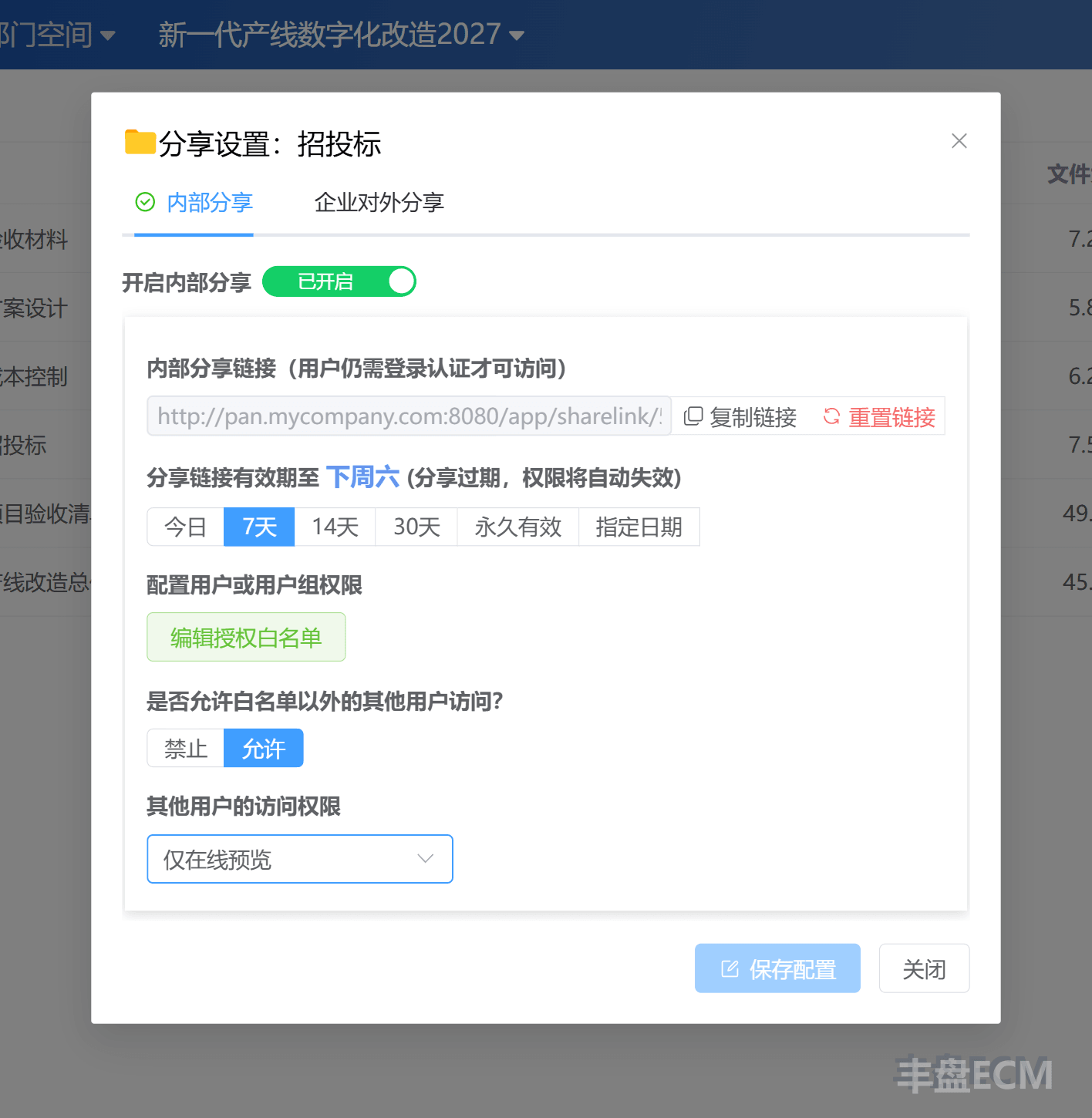
To change the permissions of a share link, open the sharing settings from the context menu.
In the sharing settings panel, you can set a time limit for the link. When the link expires, the system destroys it automatically, with no action needed from you. You can also set the default permission for users who open the link, or grant a dedicated permission to specific users.
Link sharing includes several preset permission configurations, so you can set permissions quickly for everyday ad hoc sharing.
Manage the links I created
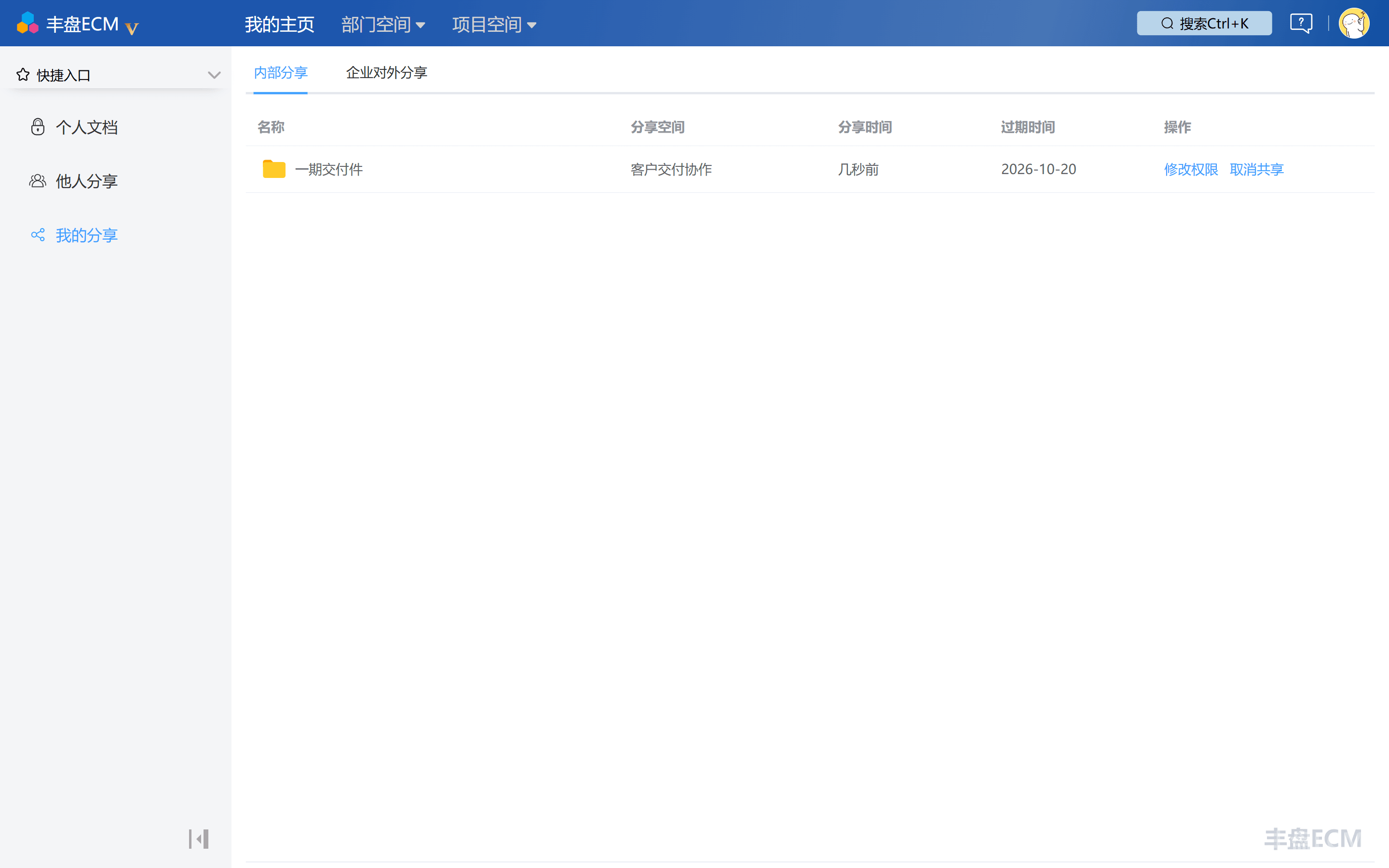
It is easy to lose track of what you have shared. Open "My Home / My Shares" to see every resource link you have shared with other users, and adjust or turn off any of them.
View links shared by others
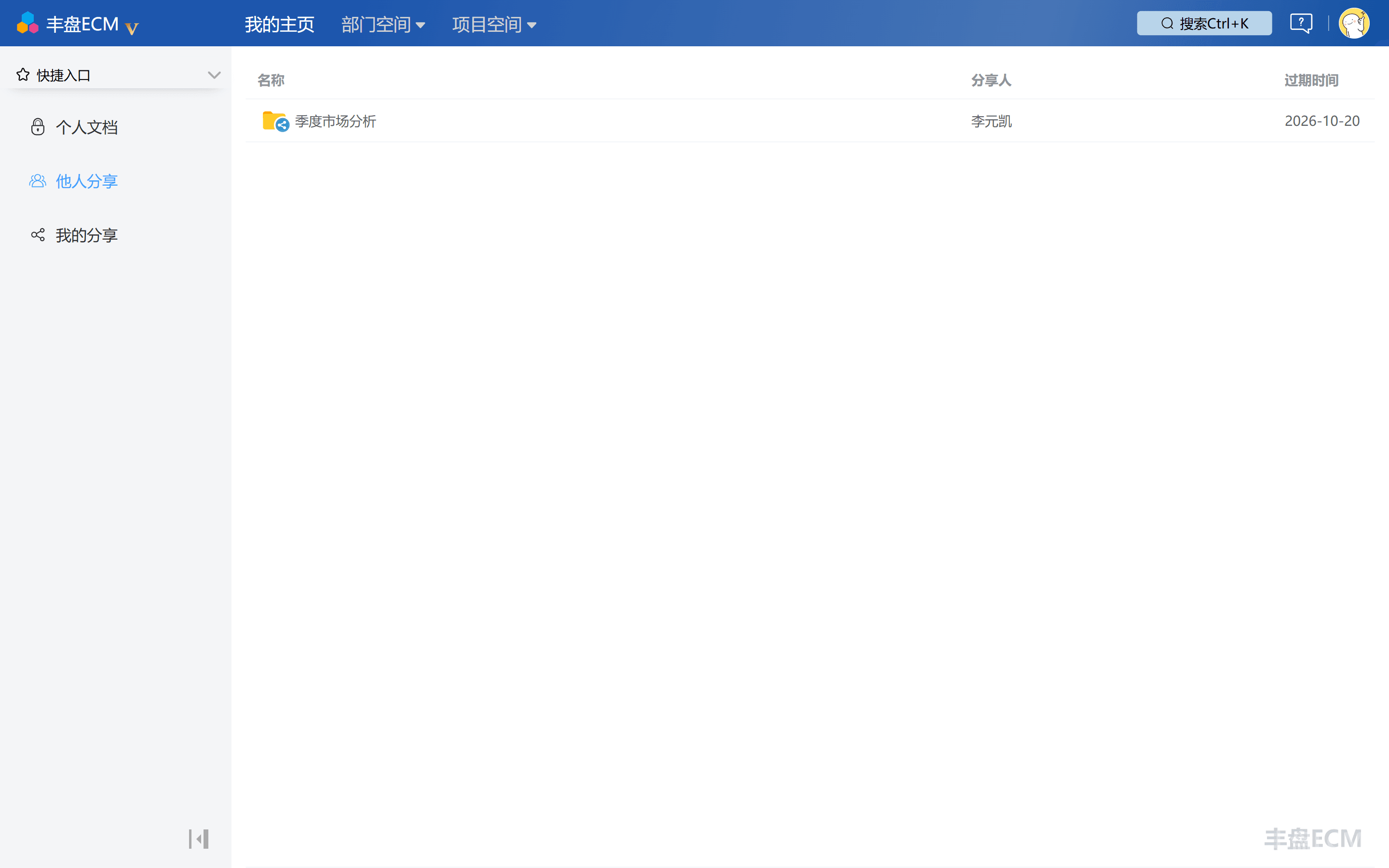
Links that others share with you are often buried in chat history. To see a complete list of links that other users have shared with you, open "My Home / Shared with Me".