External sharing plugin: send files to partners and customers
Premium Edition license required
This feature is an optional paid plugin in the Premium Edition. Community Edition customers and Premium Edition customers who have not purchased it can create at most 5 short-lived share links of no more than 14 days. Sign in to the 丰盘 service portal with an administrator email account to confirm that you have a Premium Edition license and that the license includes this plugin. If you are interested or have questions, contact us or ask your account manager.
Enterprise private file systems are usually deployed on the intranet for security, but employees often need to share material with external customers and partners.
Exposing the whole file system to the public internet without a firewall, a WAF, and other protections poses a serious security risk. External users who hold internal accounts can also cause permission mistakes that expose material beyond their rights. Deploying a second file system duplicates storage and forces users to copy material by hand. Switching to a public cloud drive creates other problems: shares may remain accessible after a project ends, files can spread across the internet, recipients must create accounts with Baidu, Alibaba Cloud Drive, or similar services, and fast downloads of large files may require a paid VIP membership.
丰盘ECM takes a different approach: it isolates intranet and internet traffic on two separate ports. IT administrators configure a dedicated port for external sharing. Users outside the company reach a small part of the system through that port to view shared material, with no internal account. At the network level they cannot reach other functions of the system, so access is isolated at the port level. At the software level, the system splits its APIs: the external port exposes only a small set of essential endpoints, roughly 1/20 of the full intranet API, which effectively shrinks the attack surface. In network security, the less information and the fewer endpoints you expose, the higher the security level.
Prerequisites
A system super administrator must enable and configure this feature in the Admin Console before it works. Go to the Admin Console to configure it.
Turn on sharing
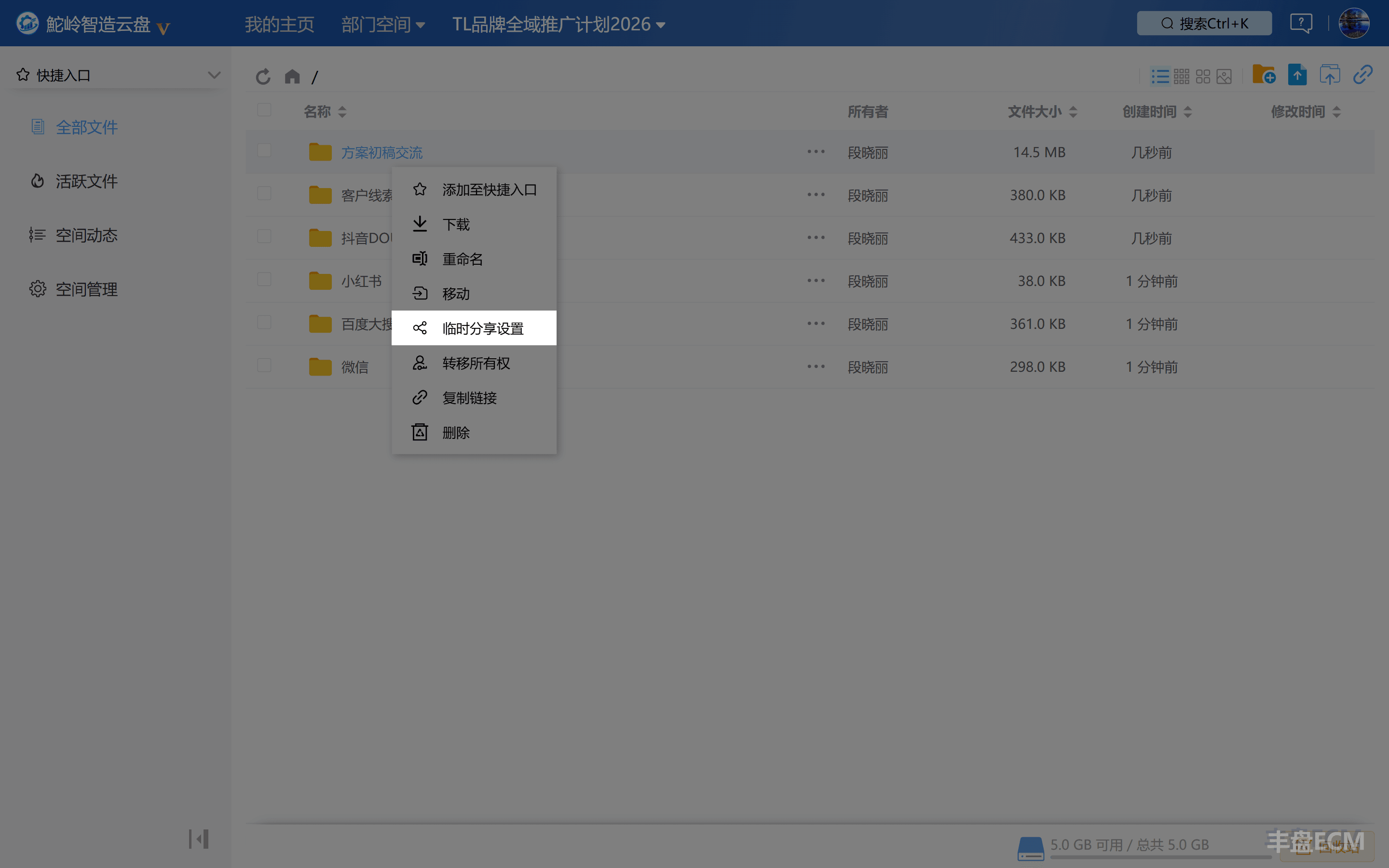
Select the folder to share and click its sharing settings to open the configuration dialog. (File sharing works the same way and is not repeated here.)
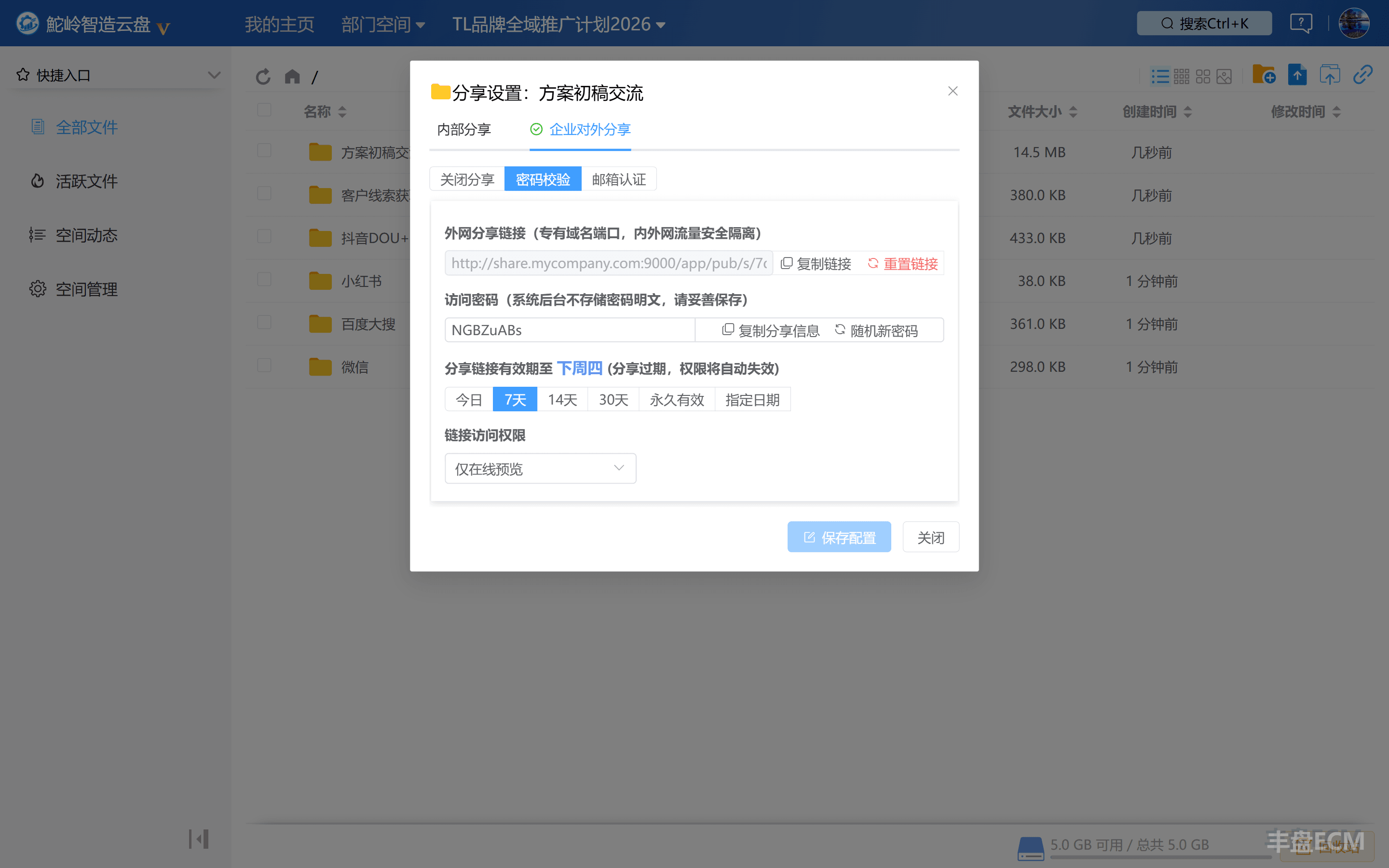
Switch to the enterprise external sharing tab. Two options are available: "Password verification" and "Email verification".
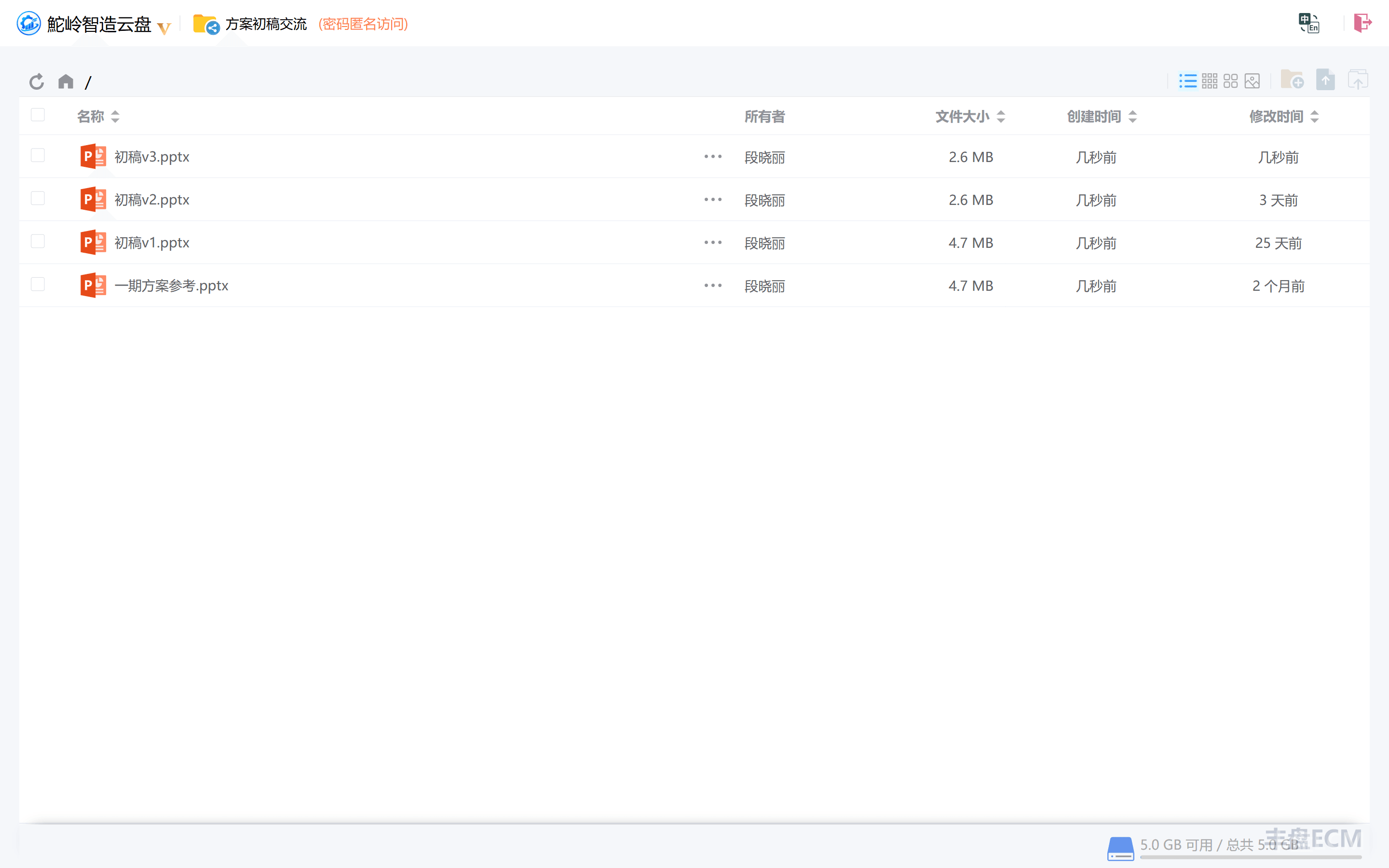
Fixed static password verification
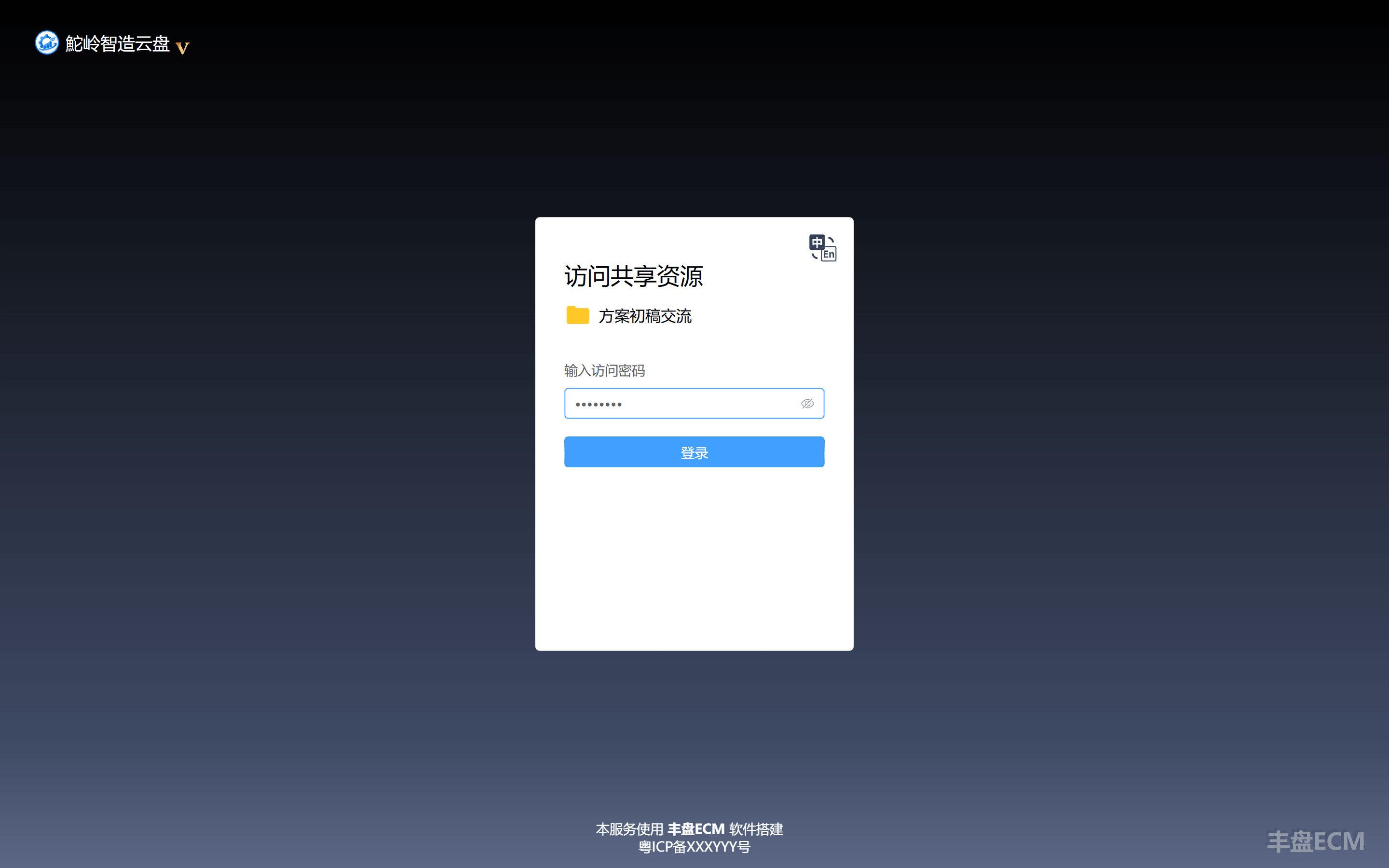
Password verification suits anonymous sharing. It works like the access code of Baidu Netdisk or Alibaba Cloud Drive: recipients open the material without creating an internal account.
Click "Password verification", and the system creates a share link and a share password and copies them to your clipboard, ready to send to external guests.
Email verification code
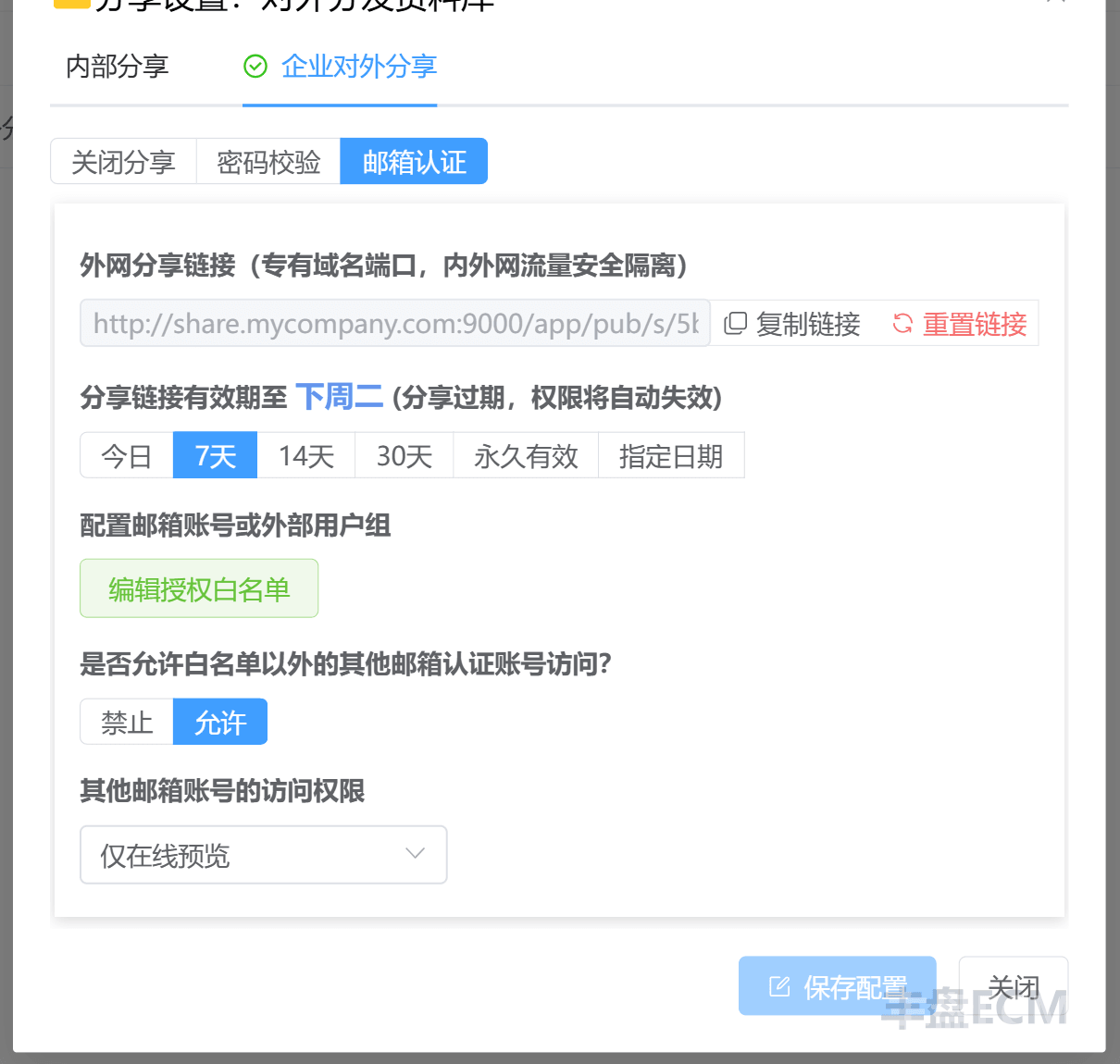
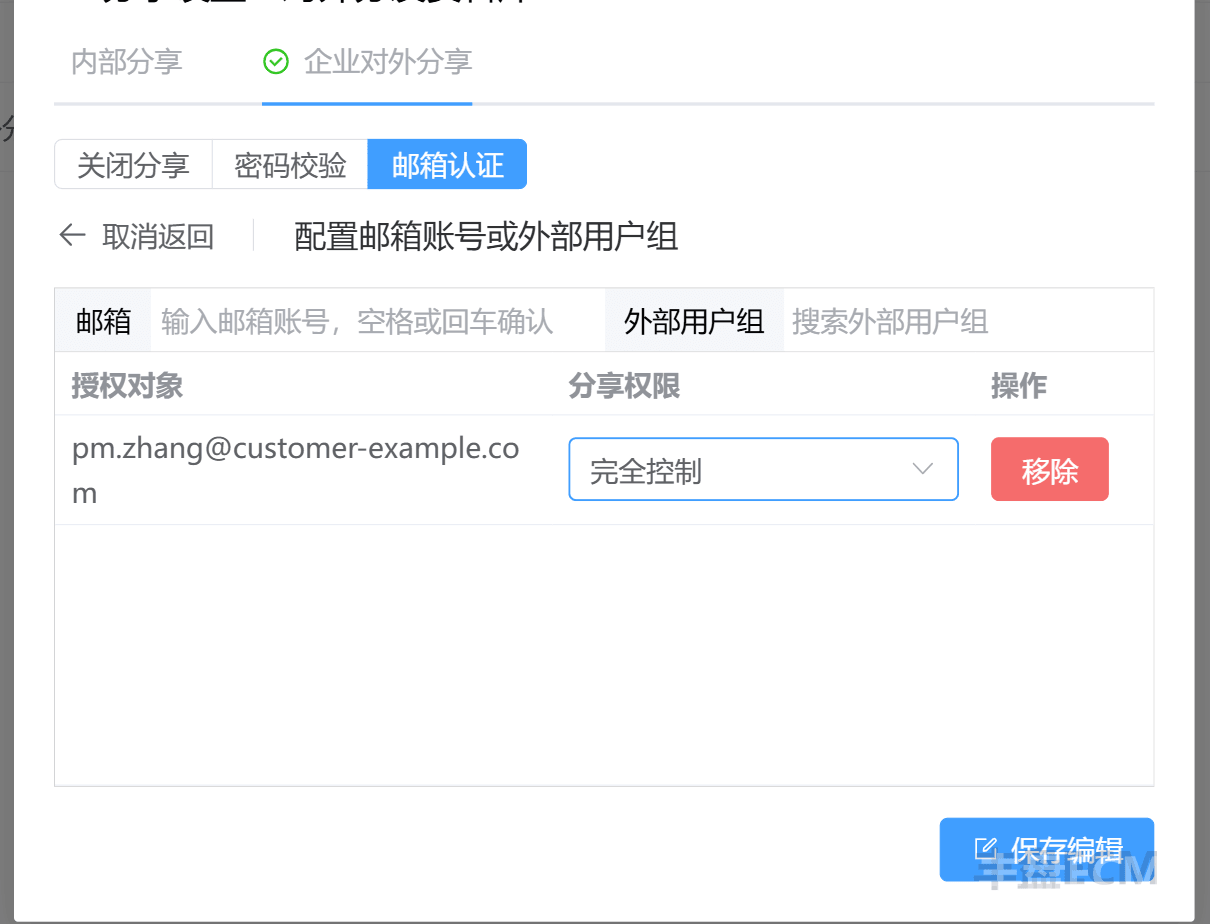
A fixed password cannot tell who is accessing the material, and it supports only online viewing or downloading. When you need finer control over access, or want to allow more collaborative operations such as uploads and edits, enable email verification. Visitors can use a personal mailbox such as QQ Mail or 163 Mail, or a mailbox at their own company.
Instead of entering mailboxes one by one, you can also search for and add an "external user group" to the allowlist, which grants access to a whole group of external contacts at once.
| Image 1: Email verification enabled, default permission for everyone. | Image 2: Full control granted to a project manager. |
|---|---|
 |  |
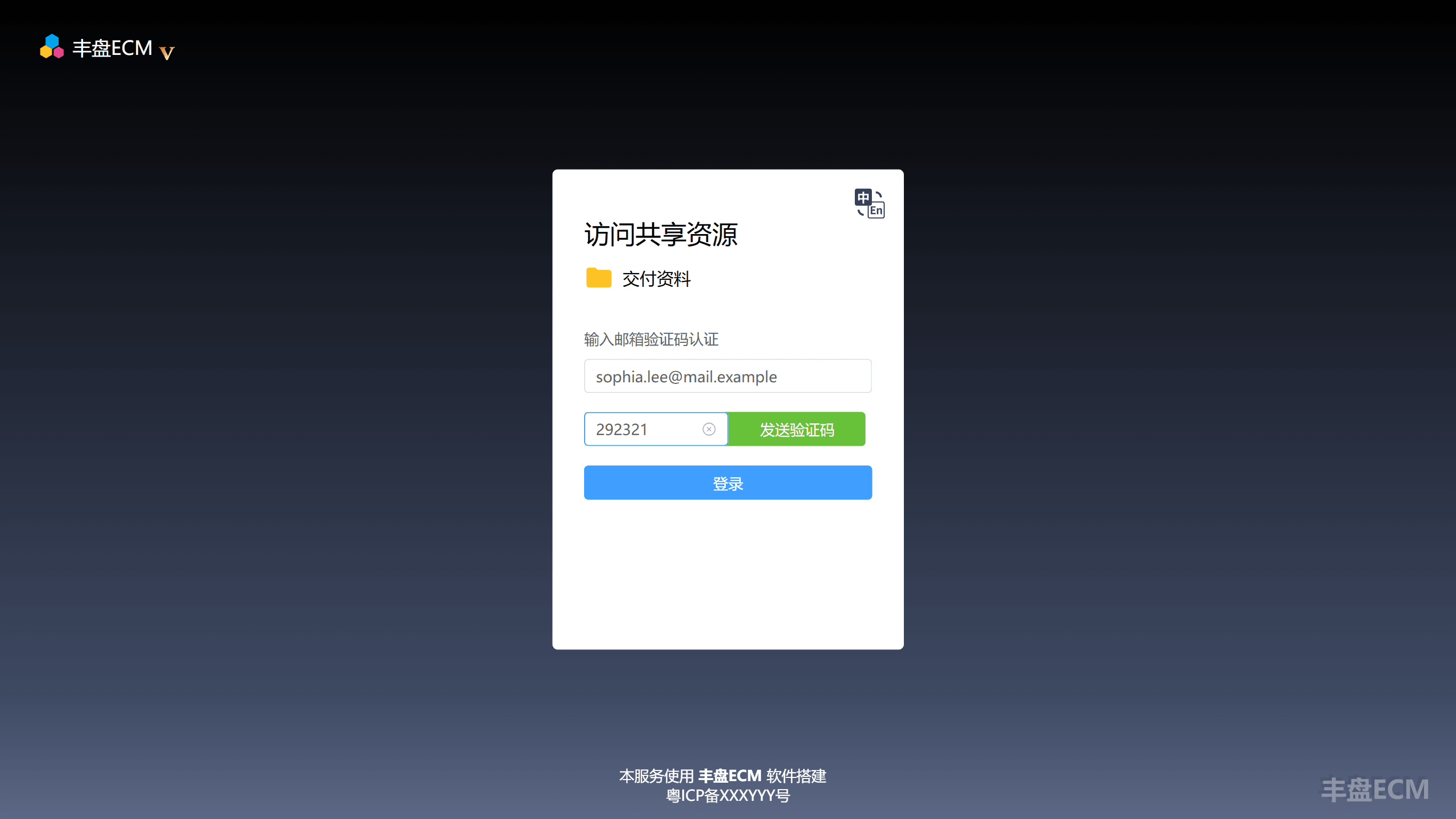
Click "Copy link" and send the link to external users. They open the shared page in a browser, enter their own email address, and click "Send code". 丰盘 then emails them a 6-digit code. They enter the code, click "Sign in", and open the material.
Permission control for space administrators
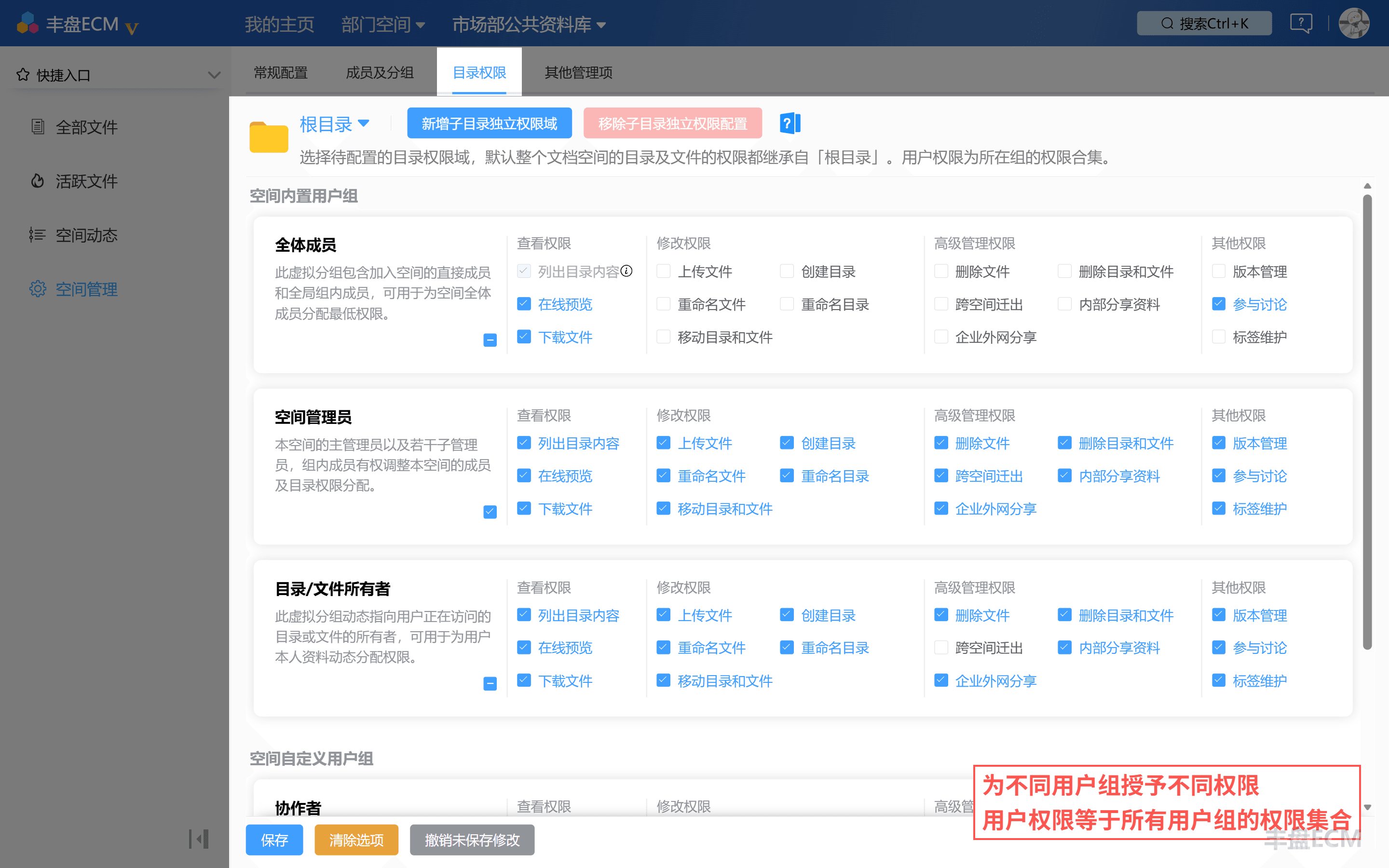
By default, only space administrators and folder owners of department and project spaces can start enterprise external sharing. Users can also start external sharing in a personal space they fully control. A space administrator can change the "Enterprise external sharing" permission in "Space Management / Folder Permissions" and grant it to specific user groups.