Integrate 丰盘ECM with WeCom
WeCom is the integrated professional collaboration platform that the Tencent WeChat team built for enterprise customers. It offers the same communication experience as WeChat, a rich set of free OA application plugins, and interoperability with WeChat messages, mini programs, and WeChat Pay, helping enterprises work and manage more efficiently.
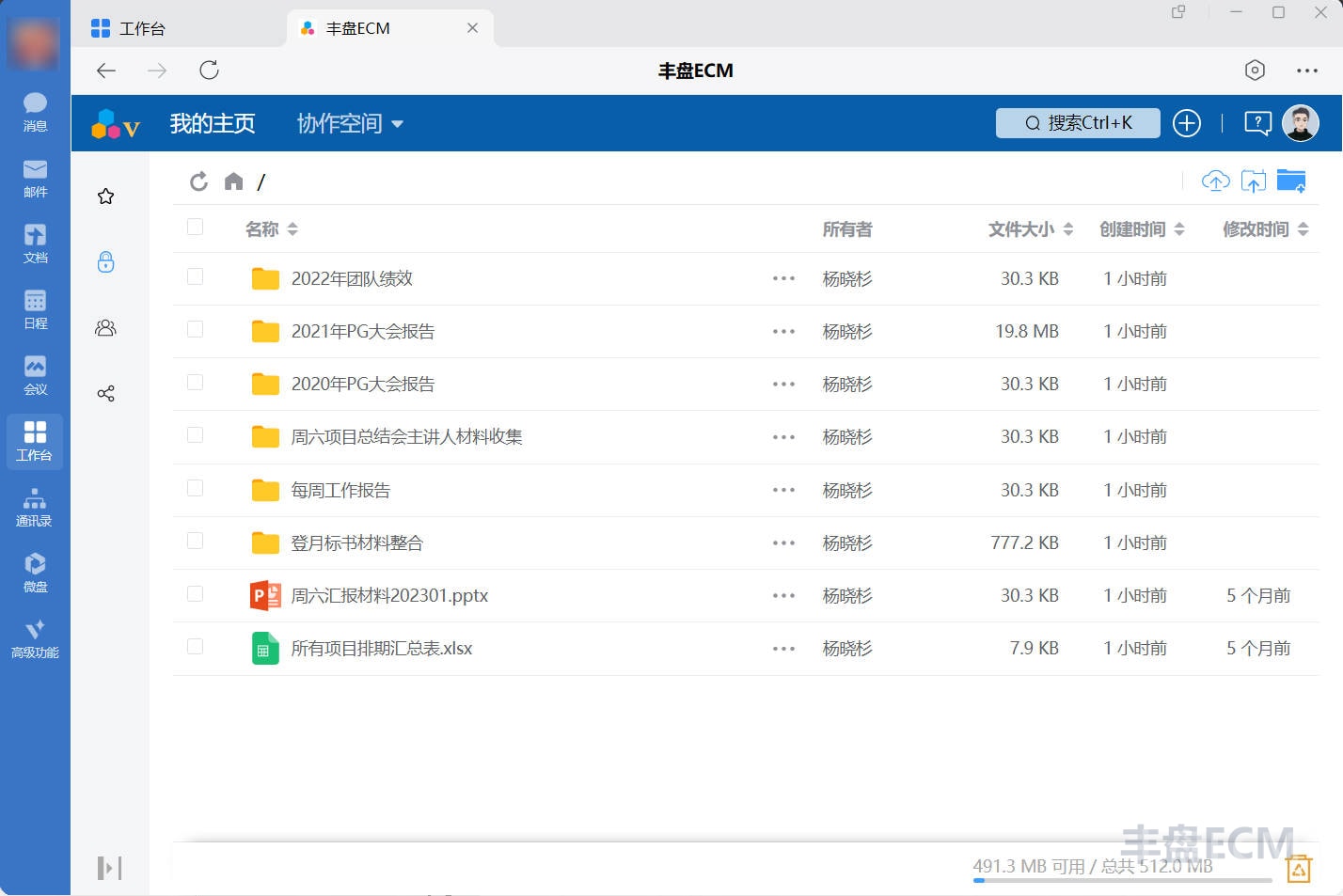
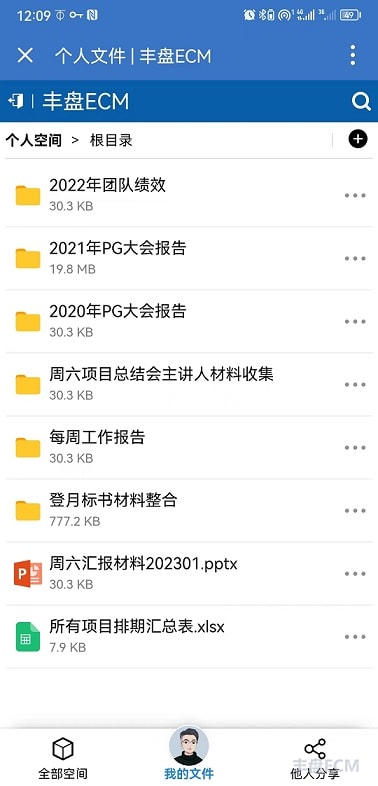
At the request of many customers, 丰盘 v23.9 Premium Edition adds authentication integration with WeCom. Once an administrator completes the configuration, employees can scan a QR code to sign in to 丰盘ECM with their WeCom account, without needing to remember another password. Their accounts are linked, and they can also open 丰盘ECM with one click from the WeCom workbench.
Important restrictions
Because of Tencent WeCom security restrictions, you need a domain with an ICP filing from the Ministry of Industry and Information Technology (MIIT) to access 丰盘ECM (check filings in the MIIT ICP/domain filing management system). The entity certified for the domain must be the same as, or affiliated with, the entity certified for your WeCom account; otherwise you cannot configure the WeCom backend (see WeCom: domain configuration guide for internal app development). The host that runs 丰盘ECM must also use a static public IP when it accesses Tencent WeCom servers. You can allowlist several static public IPs but not an IP range. If the host reaches the internet through a dynamically assigned public IP that you cannot configure in the WeCom backend in advance, WeCom authentication integration will not work.
Configure Tencent WeCom
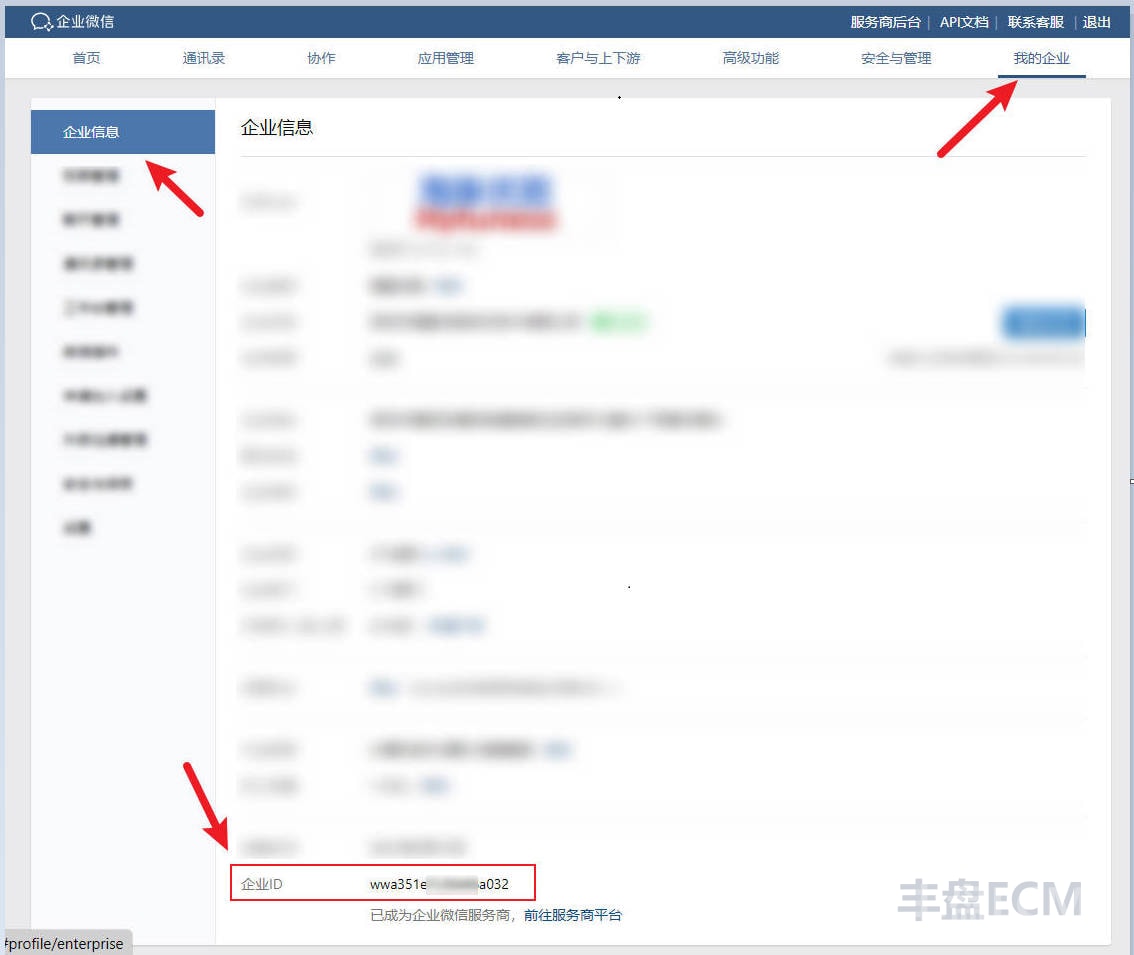
Copy the enterprise ID (CorpID) field to Notepad
Sign in to the WeCom admin backend with a WeCom administrator account. On the "My Enterprise / Enterprise Info" page, find the "Enterprise ID" string and copy it to Notepad for later use.
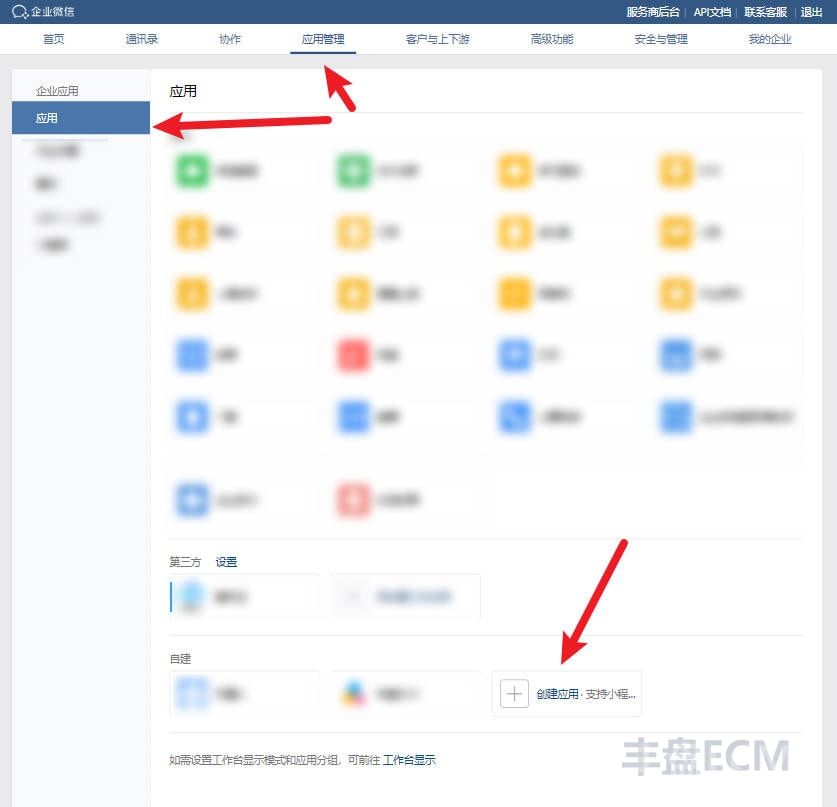
Create a custom app that points to 丰盘ECM
WeCom supports custom internal apps that point to the URL of an existing IT system on the intranet, which links the systems together. Go to the "Custom" section of "App Management / Enterprise Apps" and create an internal app named 丰盘ECM. You can also use a custom name and logo.
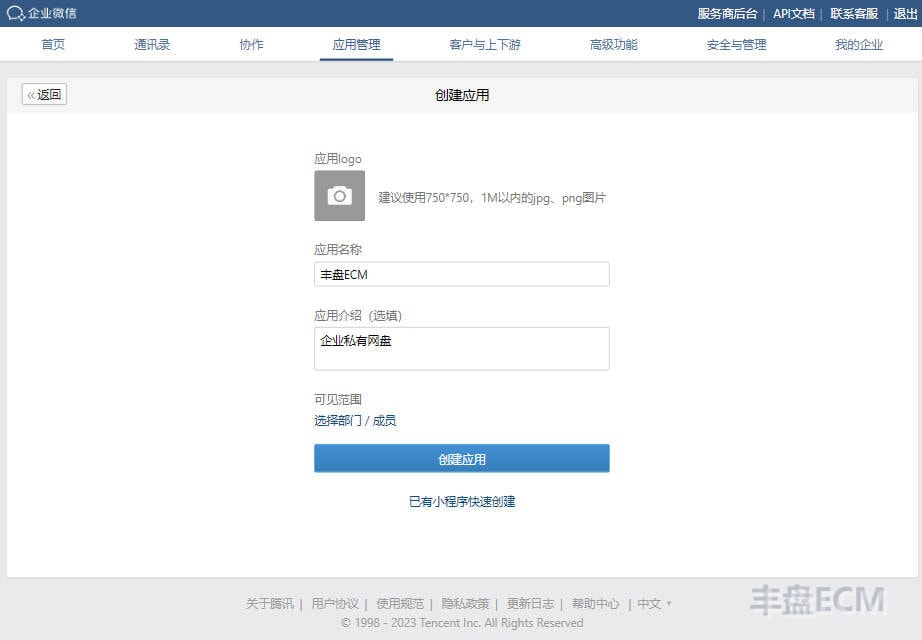
(Right-click to download the 丰盘ECM logo with a light blue or white background.)


Copy the AgentId and Secret fields to Notepad
After you create the app, click its icon to open the detailed configuration page. Copy the app's AgentId string to Notepad, then click the view button next to Secret to get the secret and save it to Notepad for later use. The app ID and secret pair is the identity that 丰盘ECM uses when it calls WeCom service APIs from your server.
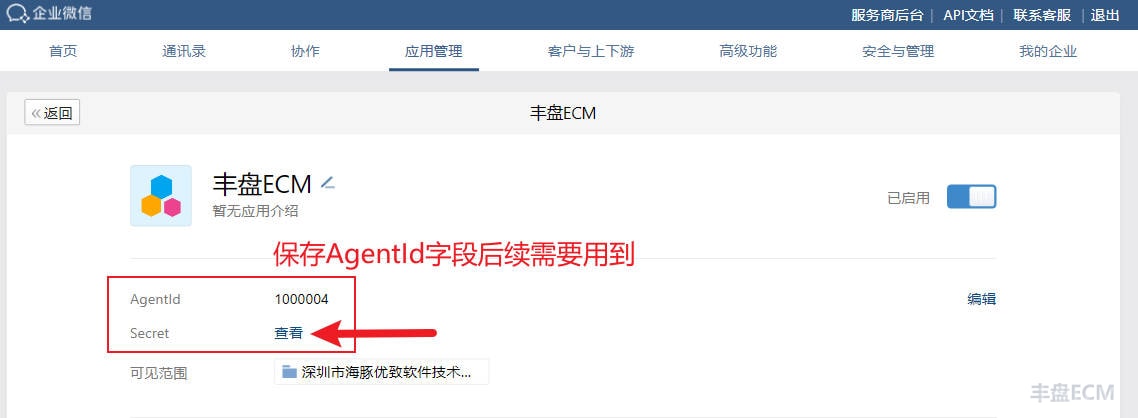
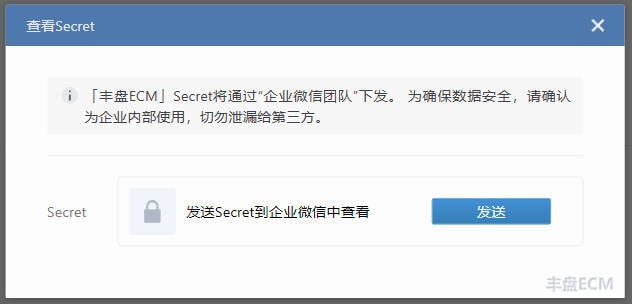
Configure the trusted domain and trusted IP
For security, WeCom requires that the domain bound to a custom app (for example, the URL used to access 丰盘ECM) has an ICP filing, and the entity certified for the domain must be the same as, or affiliated with, the entity certified for WeCom. For example, if you plan to use pan.mycompany.com:8000, the ICP filing for pan.mycompany.com must match your WeCom certification. You can check it in the MIIT ICP/domain filing management system.
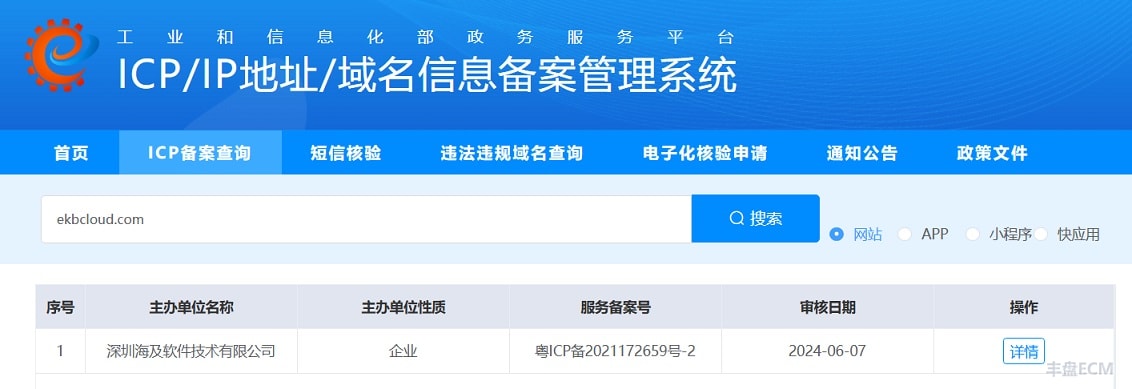
Once the trusted domain is ready, find the developer API configuration options at the bottom of the app's detailed configuration page.
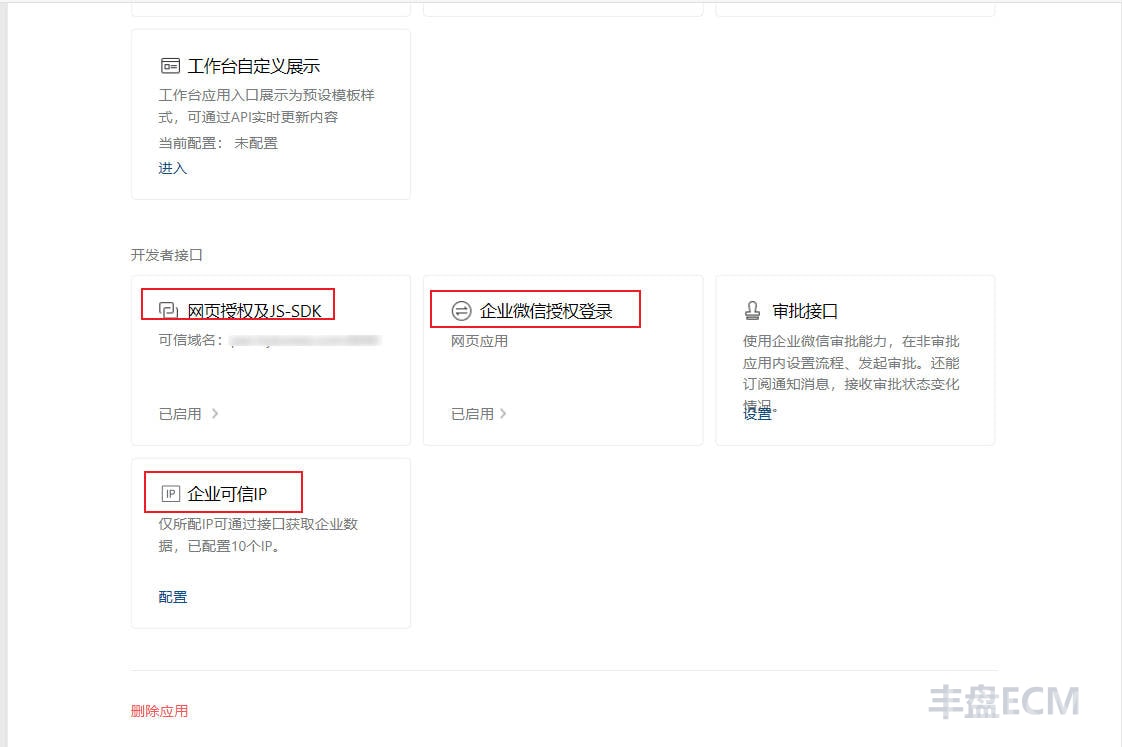
Open the "Web Authorization and JS-SDK" configuration page and enter the trusted domain and port. Tencent WeCom servers then access a specific TXT file at that address over the internet to verify that you control the domain. The domain also must have an ICP filing before trusted verification passes.
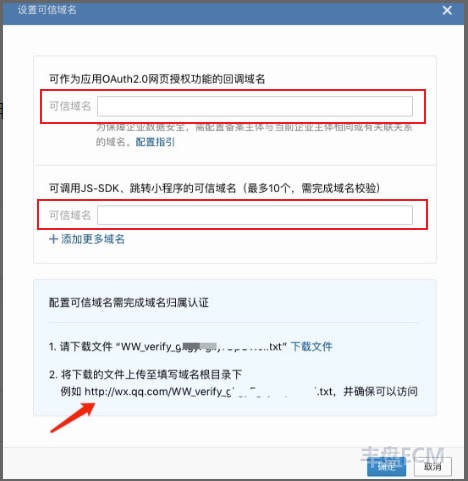
If the host that runs 丰盘ECM is already exposed on the internet and can be reached by Tencent servers (which is not very secure), you can use that host for verification. Otherwise, prepare a temporary host that the internet can reach. You can buy a pay-as-you-go host on a public cloud for less than one yuan per hour; see Buy a cloud host on Alibaba Cloud, Tencent Cloud, or another public cloud and build a 丰盘 demo in 5 minutes. Verification is a one-time task, and you can release the temporary host afterward.
Download the verification TXT file shown on the page. Keep the file name unchanged, upload it to the public host to be verified, and point the domain's DNS record to that host's IP address. The example assumes port 8000; replace 8000 if you use another port.
# If you run this on the 丰盘ECM host, stop 丰盘ECM first to avoid a port conflict
sh /opt/xpan/tools/xpc.sh stop

# Create a temporary directory and upload the verification file you just downloaded into it
mkdir -p ~/wecomauth

# If the temporary host does not have Docker, install it with either curl or wget
# Skip this step if you verify on the 丰盘ECM host
sudo curl https://releases.rancher.com/install-docker/20.10.sh --output docker-install.sh && sudo bash ./docker-install.sh --mirror Aliyun

sudo wget https://releases.rancher.com/install-docker/20.10.sh -O docker-install.sh && sudo bash ./docker-install.sh --mirror Aliyun

# Start a temporary proxy container that maps the working directory to the web root and exposes port 8000 publicly
# The verification file should now be reachable by IP or domain in a browser
# http://public-ip:8000/WW_verify_skdfkeixlasdklfsldf.txt
# http://pan.mycompany.com:8000/WW_verify_skdfkeixlasdklfsldf.txt
docker run --rm -p 8000:80 -v ~/wecomauth/:/usr/share/nginx/html/ nginx

# Return to the Tencent WeCom admin backend and start domain verification...

# After verification succeeds, remove the temporary container and directory
rm -rf ~/wecomauth/Tip
WeCom needs internet access to the file server domain only during verification, which requires the domain's DNS record to point to a public IP address. Verification is a one-time task. After it completes, the administrator can point the domain back to a private intranet IP without affecting daily use, which avoids exposing the file server to the internet and improves security.
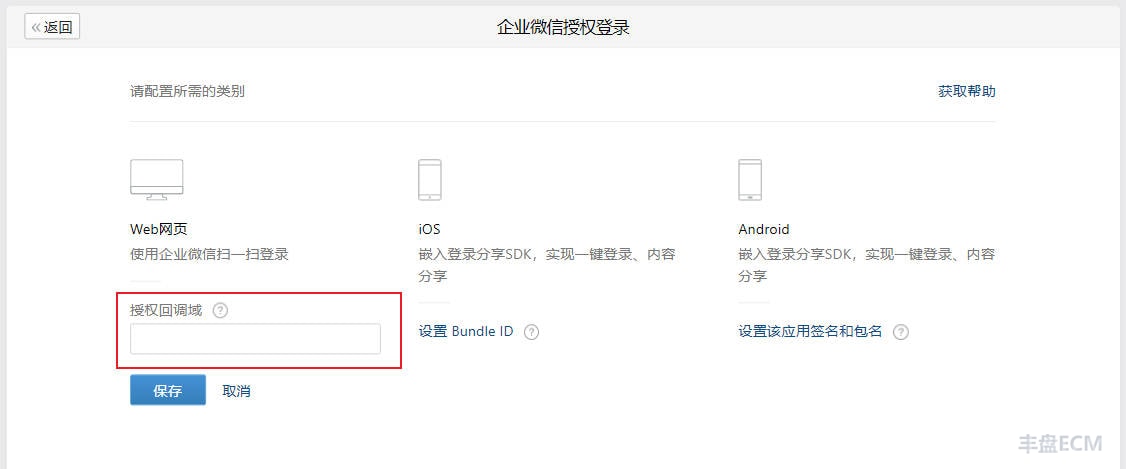
Next, open the "WeCom Authorization Sign-in" configuration page and configure the same callback domain and port, for example pan.mycompany.com:8000. 丰盘ECM authenticates through web pages, so configure only the first option here.
Finally, configure the "Enterprise Trusted IP" allowlist. This address is not necessarily the same as the one used to verify the trusted domain: it is the NAT egress IP that the 丰盘ECM host uses when it connects to Tencent WeCom servers. Tencent uses this IP allowlist as a firewall to block other unconfigured requests. This IP address does not need to be reachable by Tencent WeCom or the public internet.
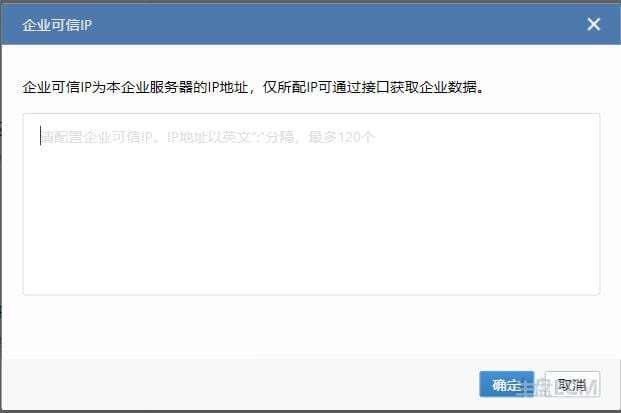
If the host has only one NAT or public IP address, run the following command on the server to get it. If your data center uses a NAT IP pool, ask the network administrator for all public IP addresses assigned to your organization and add them all to the WeCom trusted IP list.
# Get the IP address the server uses for outbound access
curl cip.ccConfigure the workbench entry page in the WeCom client
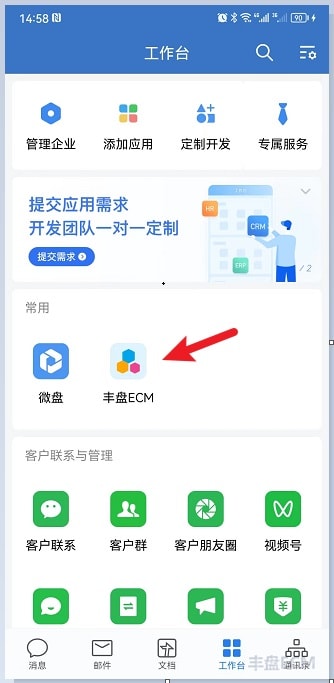
The WeCom configuration is now complete. To let users open 丰盘ECM with one click from the workbench in the WeCom desktop or mobile client, configure the app homepage, for example http://pan.mycompany.com:8000/app/.
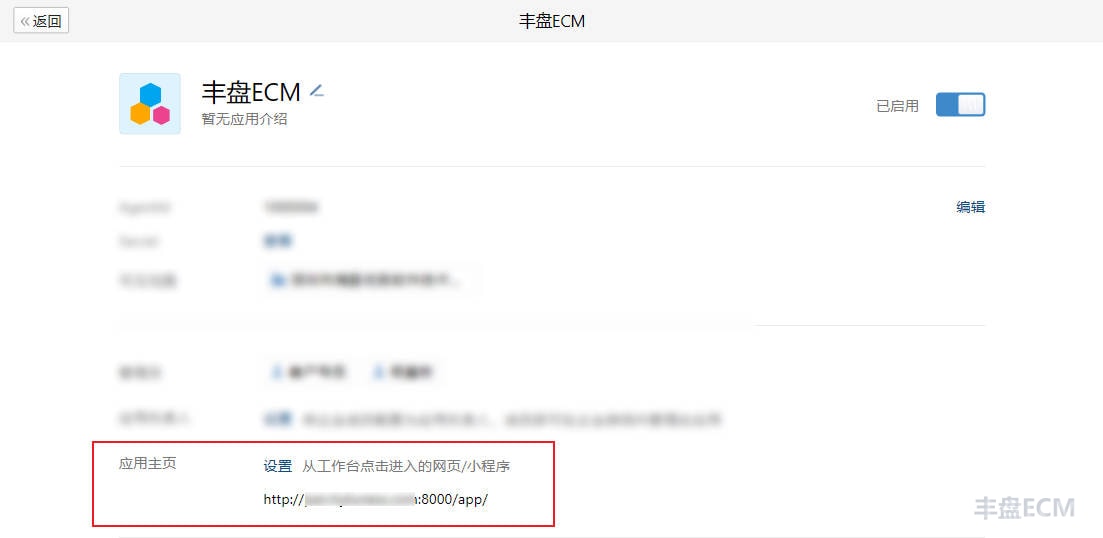
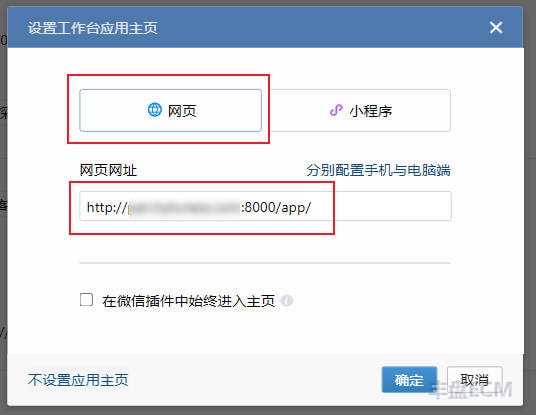
Configure the 丰盘ECM backend
After the WeCom configuration, you have three values: enterprise ID, AgentId, and secret. Sign in to the 丰盘ECM backend with a system administrator account, go to "System Management / User Management", find the WeCom integration page, enter the three values, click "Verify Configuration", and save if the check passes.
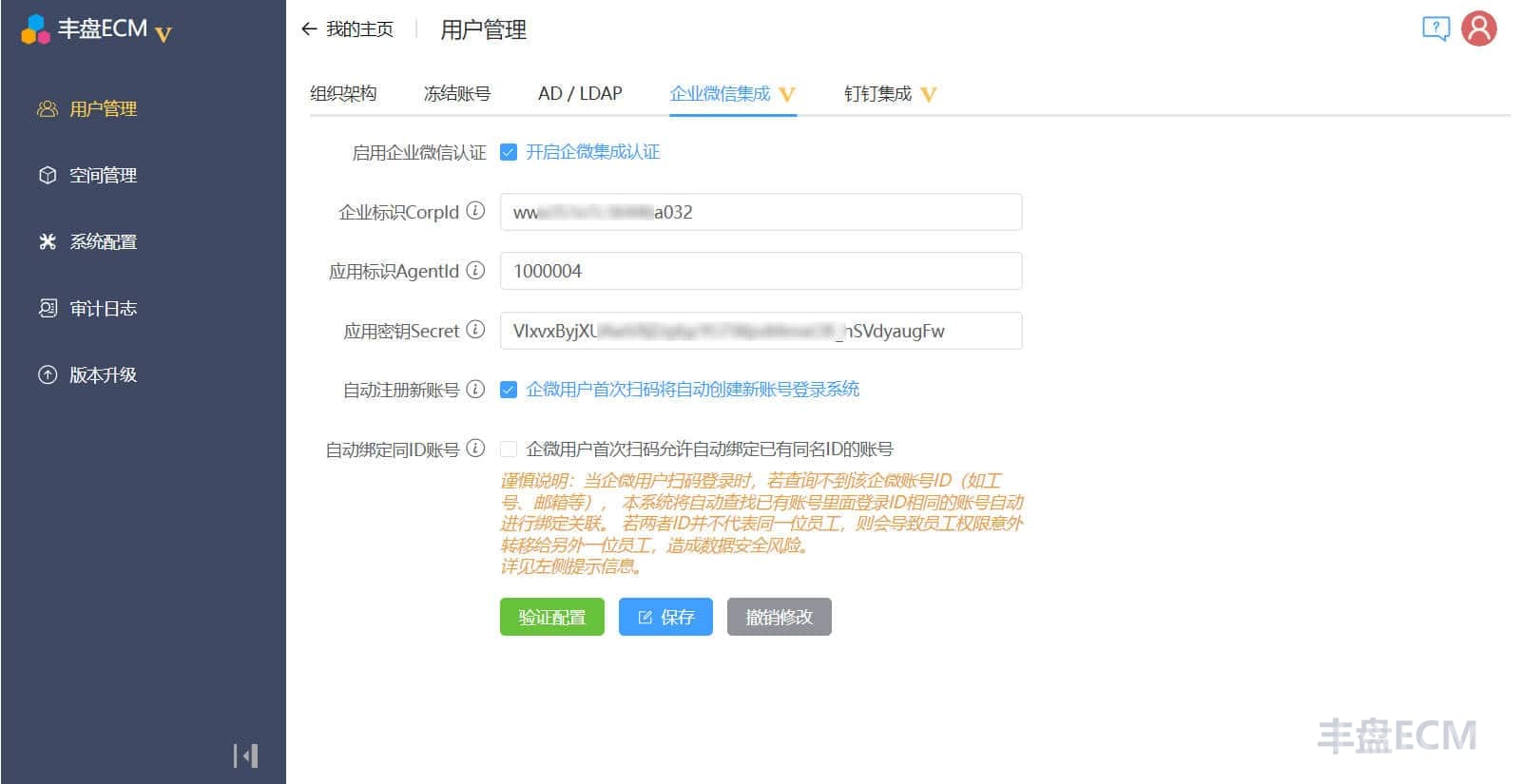
Once the WeCom values are correct, ordinary users see a WeCom sign-in entry on the sign-in page and can scan the QR code to sign in. If the user is already signed in to the WeCom desktop client, the web page signs them in with the client identity without a QR code. No password is needed at any point.
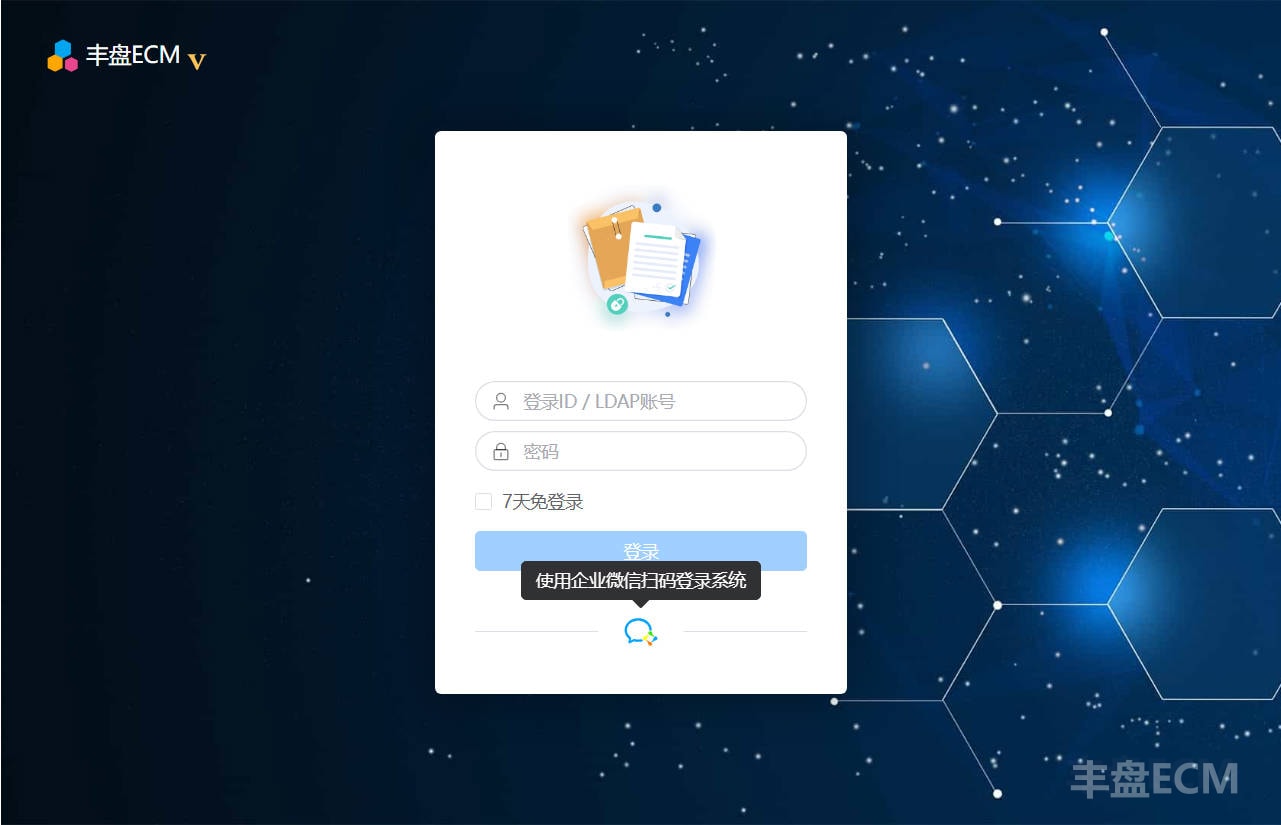
Users can also find the 丰盘ECM entry in the workbench of the WeCom desktop and mobile clients and sign in directly without a password.