Buy a cloud instance on Alibaba Cloud, Tencent Cloud, or another public cloud and build a 丰盘 demo environment in 5 minutes
If you have no Linux host available but want to deploy and evaluate 丰盘ECM quickly, rent a pay-as-you-go cloud instance from a public cloud. Such instances are billed by the hour. For a typical 2 vCPU + 8 GB memory + 5 Mb/s bandwidth configuration, one hour costs no more than 1 yuan. Public cloud networks are fast and image downloads are stable, which makes them ideal for a quick test deployment.
If your servers run a customized domestic operating system, use a complex network configuration, or sit behind traffic inspection devices on the intranet, we strongly recommend deploying on a public cloud instance first. Once you are satisfied with the product, take the time to deploy it to a production host on your intranet.
Danger
The demo system described in this section stores document data on the local disk of the cloud instance. The data is deleted when the instance is released, so do not use this setup in production. To deploy in production, see Installation and deployment.
Recommended demo instance configuration
- Billing type: pay-as-you-go
- Region: the city closest to you, or the city with the best price
- Hardware: 2 vCPU + 8 GB
- Bandwidth: fixed bandwidth ≥ 5 Mb (maximum upload speed around 512 KB/s)
- Operating system: Ubuntu 24.04 x64
- Open ports: 22, 80, 443
Demo configuration is not a production specification
The configuration above targets the lowest cost and the fastest setup, and the disk keeps the cloud default. For a production deployment, prepare the server according to the hardware requirements and supported Linux versions in Online installation in a production environment.
Step 1: Buy a pay-as-you-go cloud instance
The examples below use Alibaba Cloud and Tencent Cloud, the two most common platforms in China. You can follow the same approach on other public clouds.
Alibaba Cloud ECS instances
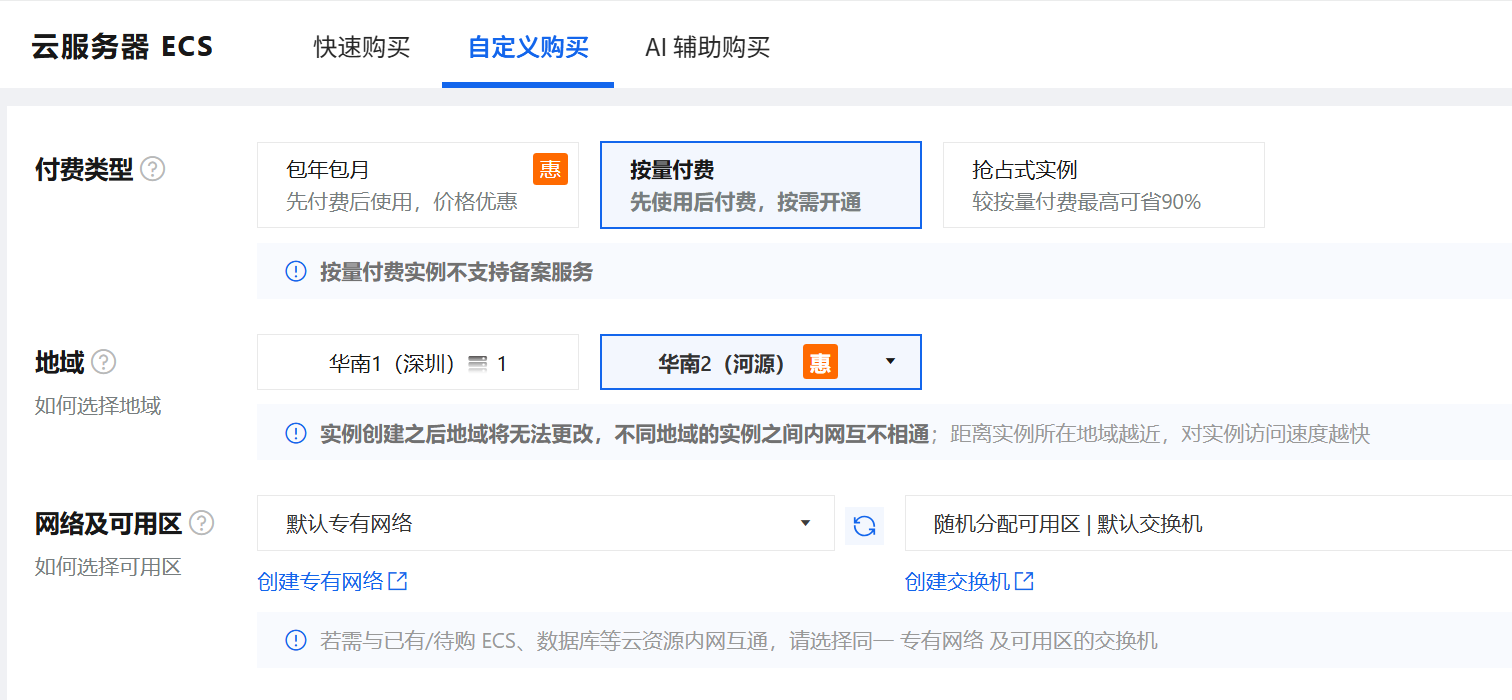
Go to the Alibaba Cloud ECS purchase page. The screenshots come from the new purchase interface; red boxes mark the settings to watch, and everything else can stay at the default.
Select the pay-as-you-go billing type. For the region, choose the city with the best current price, or the tier-1 city closest to you for the best network experience.
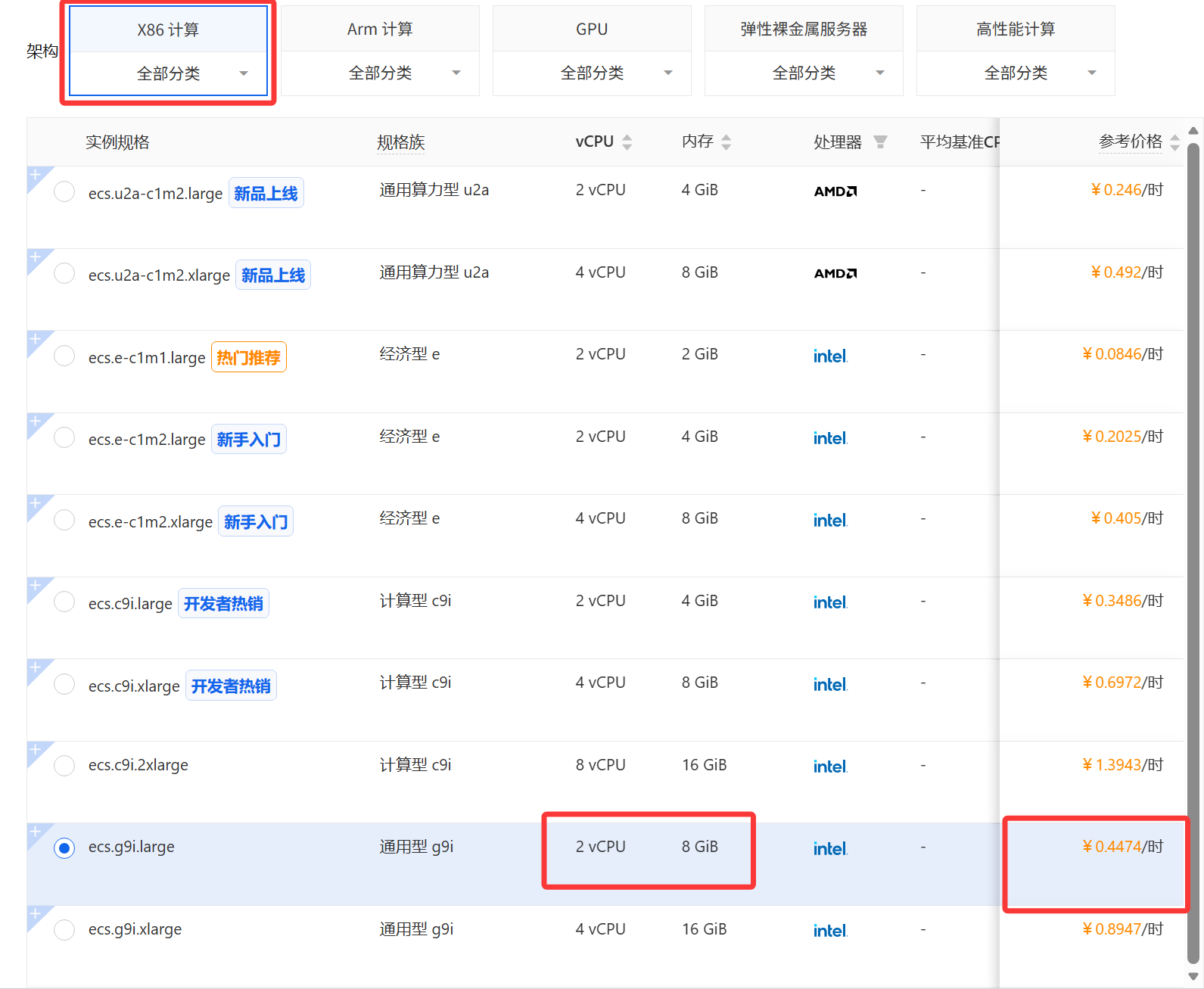
Choose an instance type with 2 vCPU and 8 GB of memory, or a larger one.
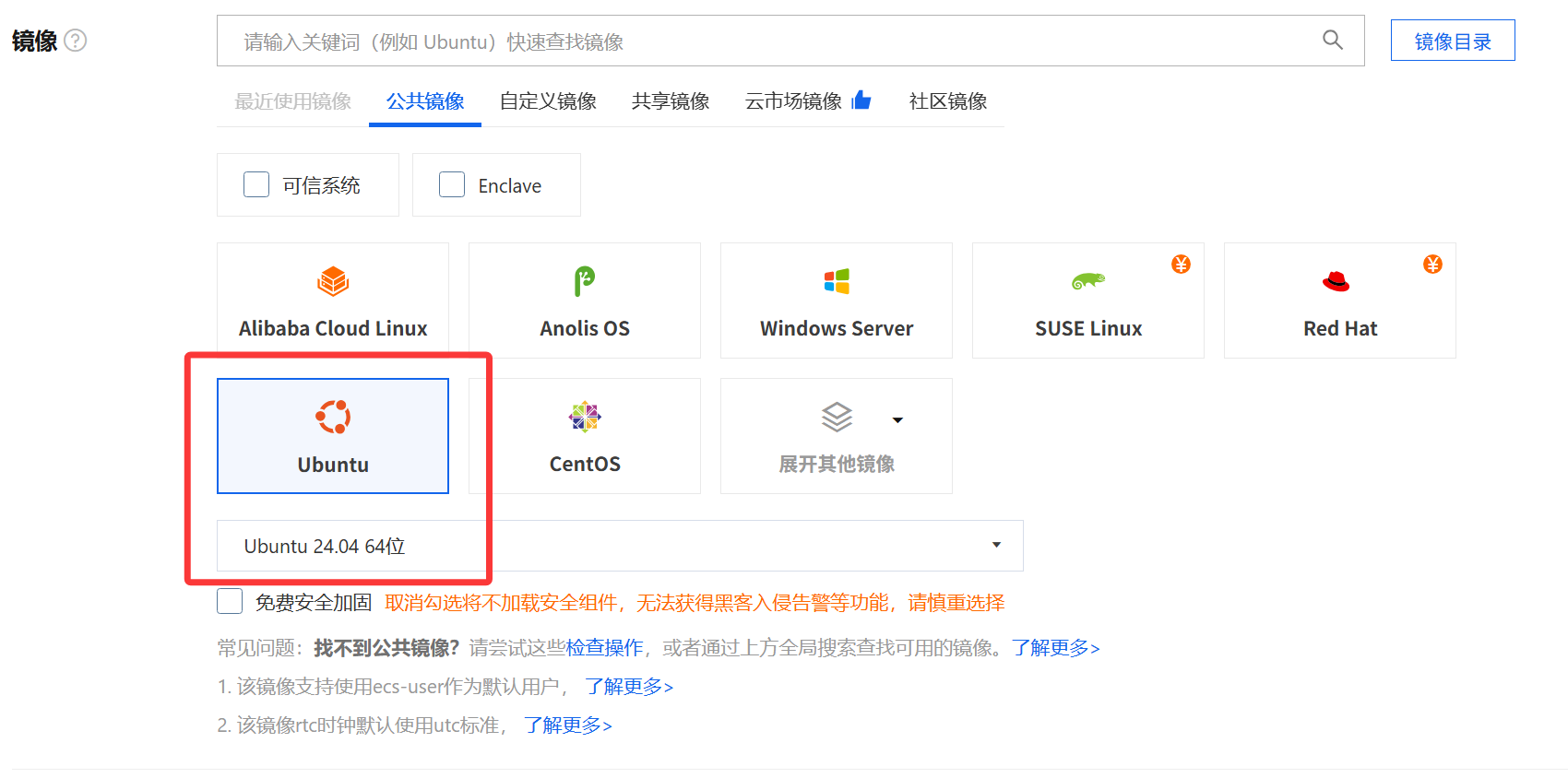
For the operating system image, use the widely adopted Ubuntu 24.04 x64.
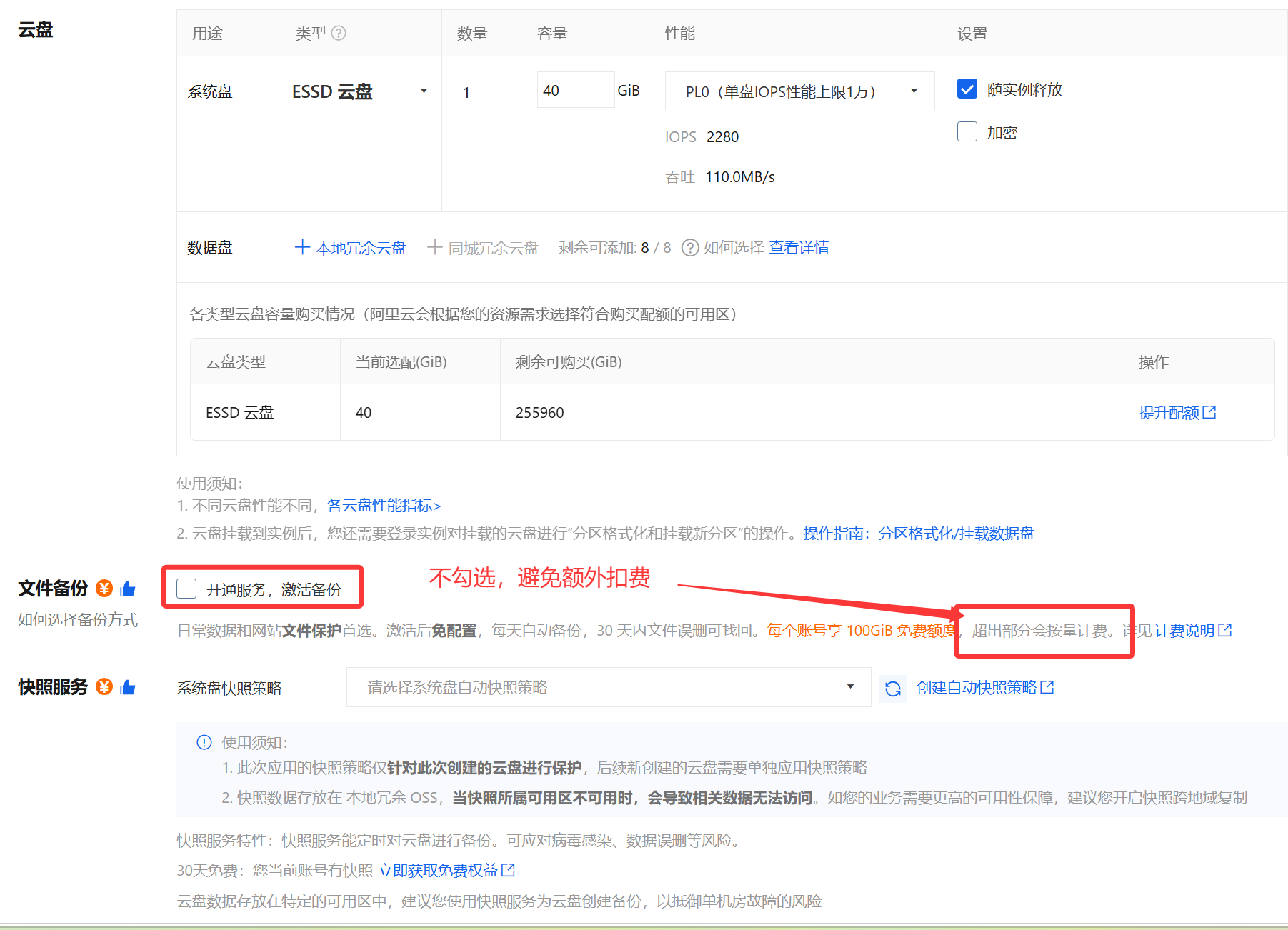
Keep the default disk capacity. Do not select file backup, which may add subscription charges.
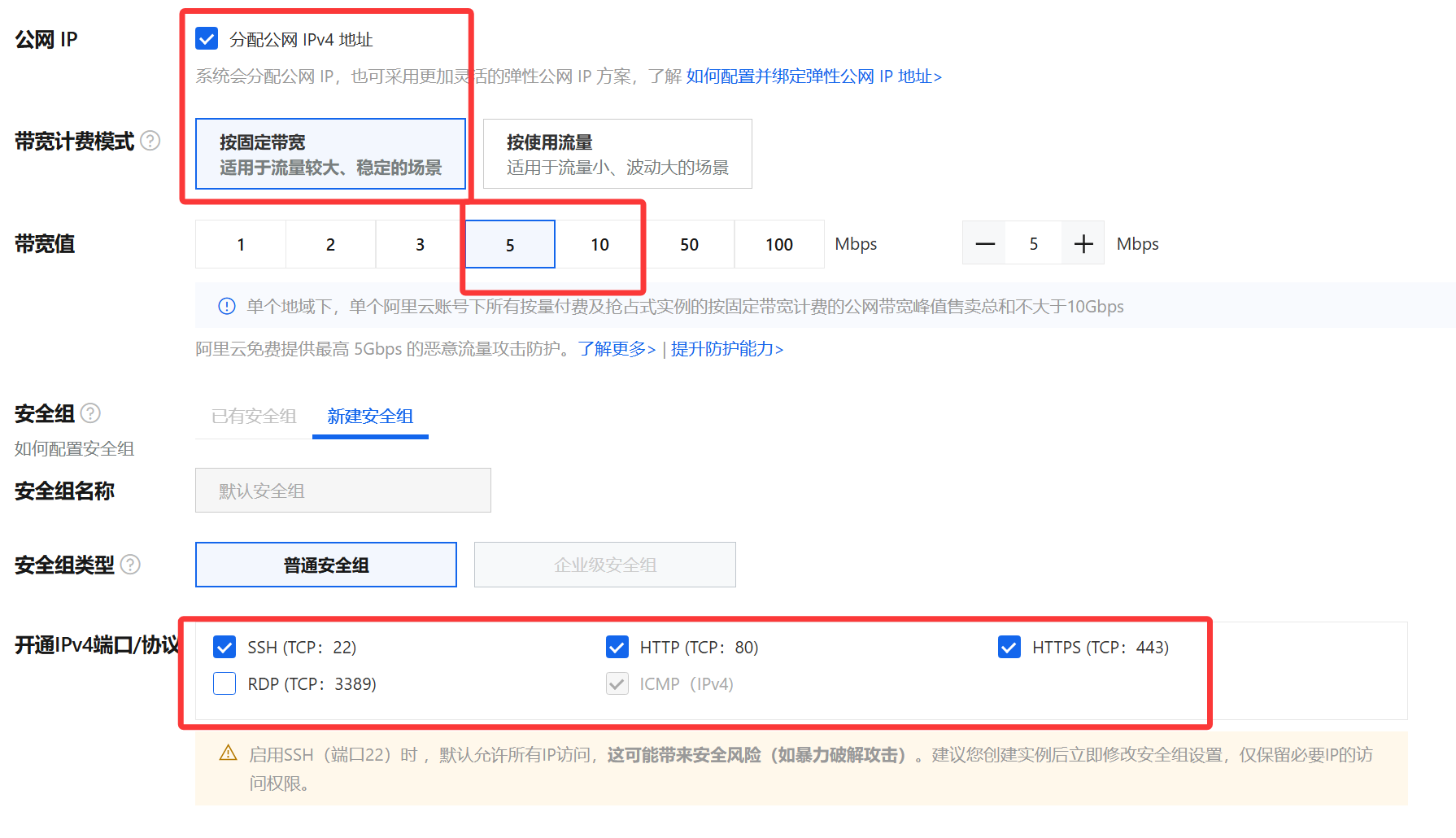
Assign a public IP address and choose fixed bandwidth, preferably 5 Mb or more, since higher bandwidth gives smoother access.
Never choose pay-by-traffic billing, or uploading large files such as ISO images during testing can run up a huge traffic bill.
Open ports 22, 80, and 443 as well, so you can access the system right after installation without configuring a firewall.
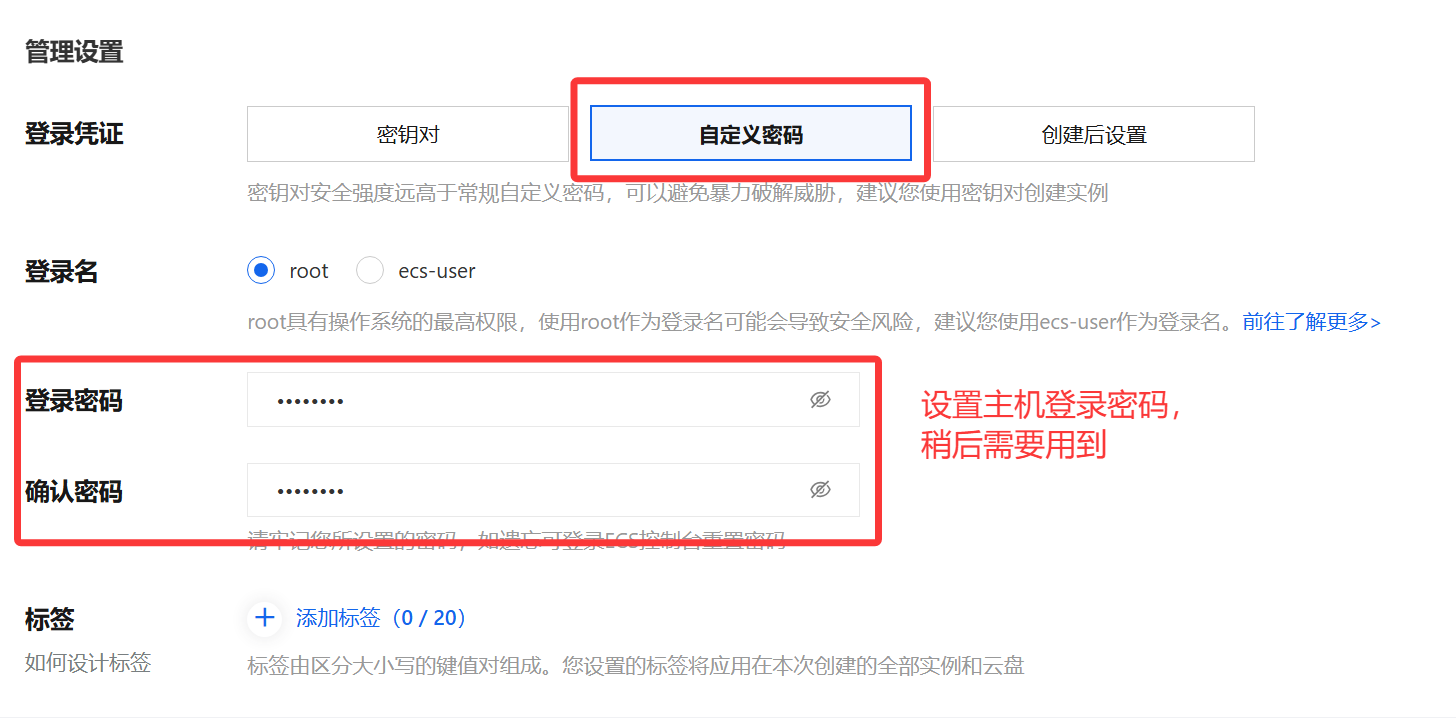
Set the instance login password; you will need it later to sign in and install the software.
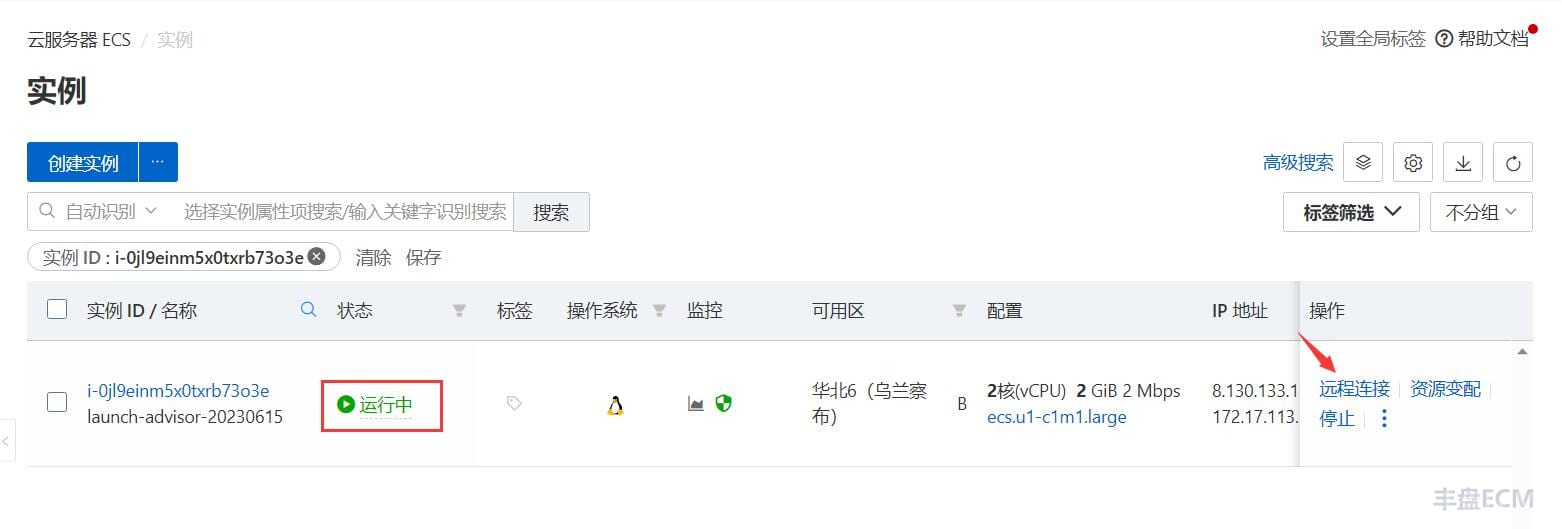
When you finish confirming the settings, click "Buy Now". Wait about 30 seconds on the ECS Instances page while the system initializes; the status changes to "Running". The instance now has a public IP address, which you will use to access 丰盘ECM.
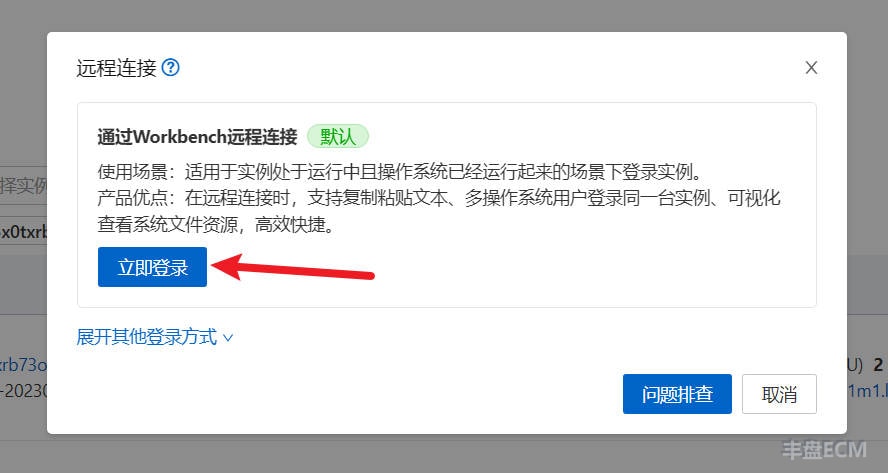
Click "Remote Connection" to open the Alibaba Cloud ECS console in your browser, then sign in to the instance with the root password you set during purchase.
Tencent Cloud CVM instances
Buying a Tencent Cloud instance works much like Alibaba Cloud.
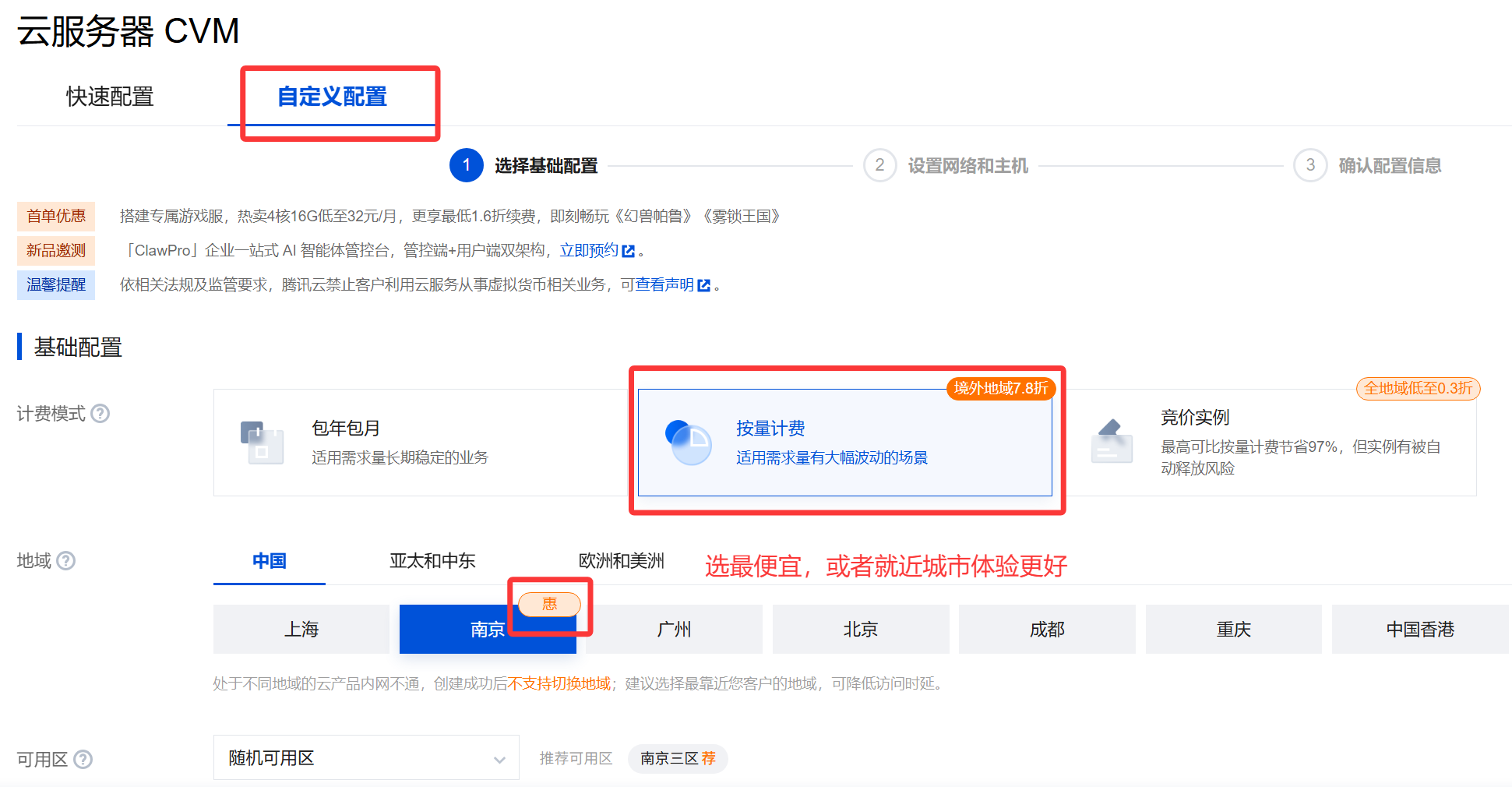
Go to the Tencent Cloud CVM purchase page, and configure the instance as shown in the screenshots below. Red boxes mark the settings to watch, and everything else can stay at the default.
Select pay-as-you-go billing. The region defaults to the city with the best current price, or you can choose the tier-1 city closest to you for the best network experience.
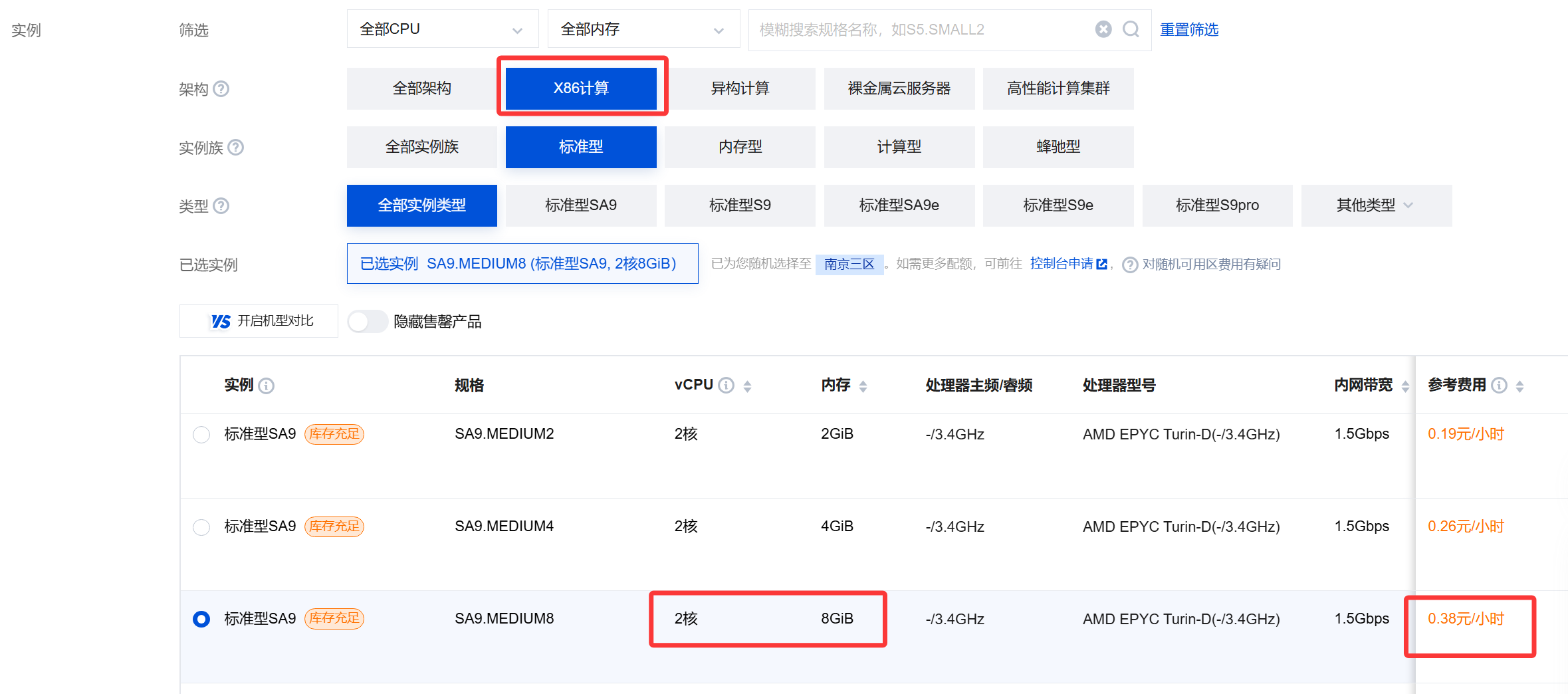
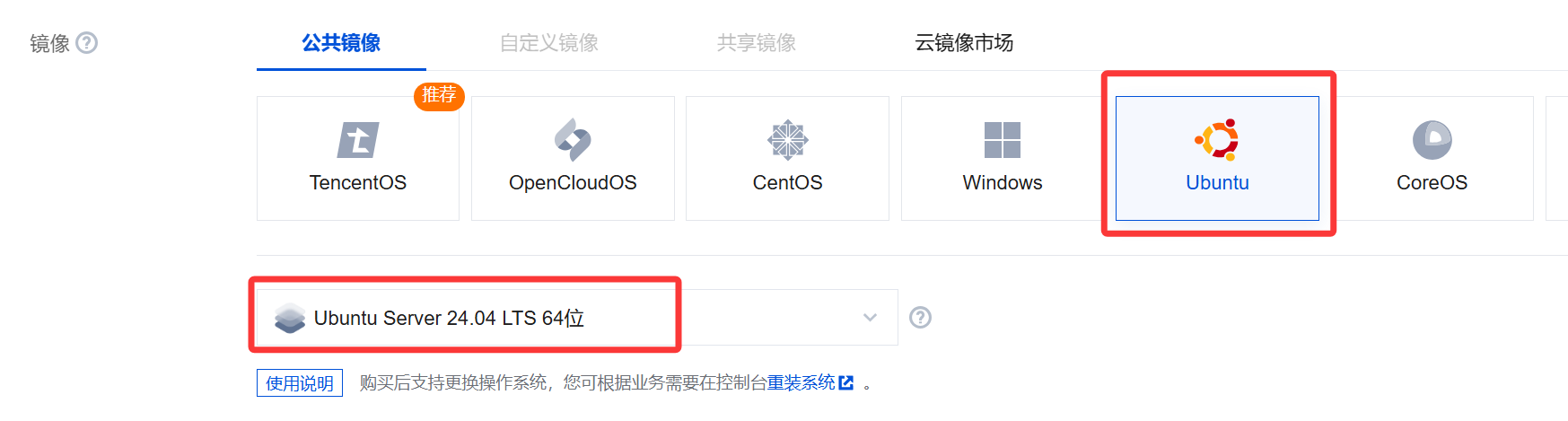
Choose an instance type with 2 vCPU and 8 GB of memory. For the system image, use the widely adopted Ubuntu 24.04 x64.
Assign a dedicated public IP address and choose fixed bandwidth, preferably 5 Mb or more, since higher bandwidth gives smoother access.
Never choose pay-by-traffic billing, or uploading large files such as ISO images during testing can run up a huge traffic bill.
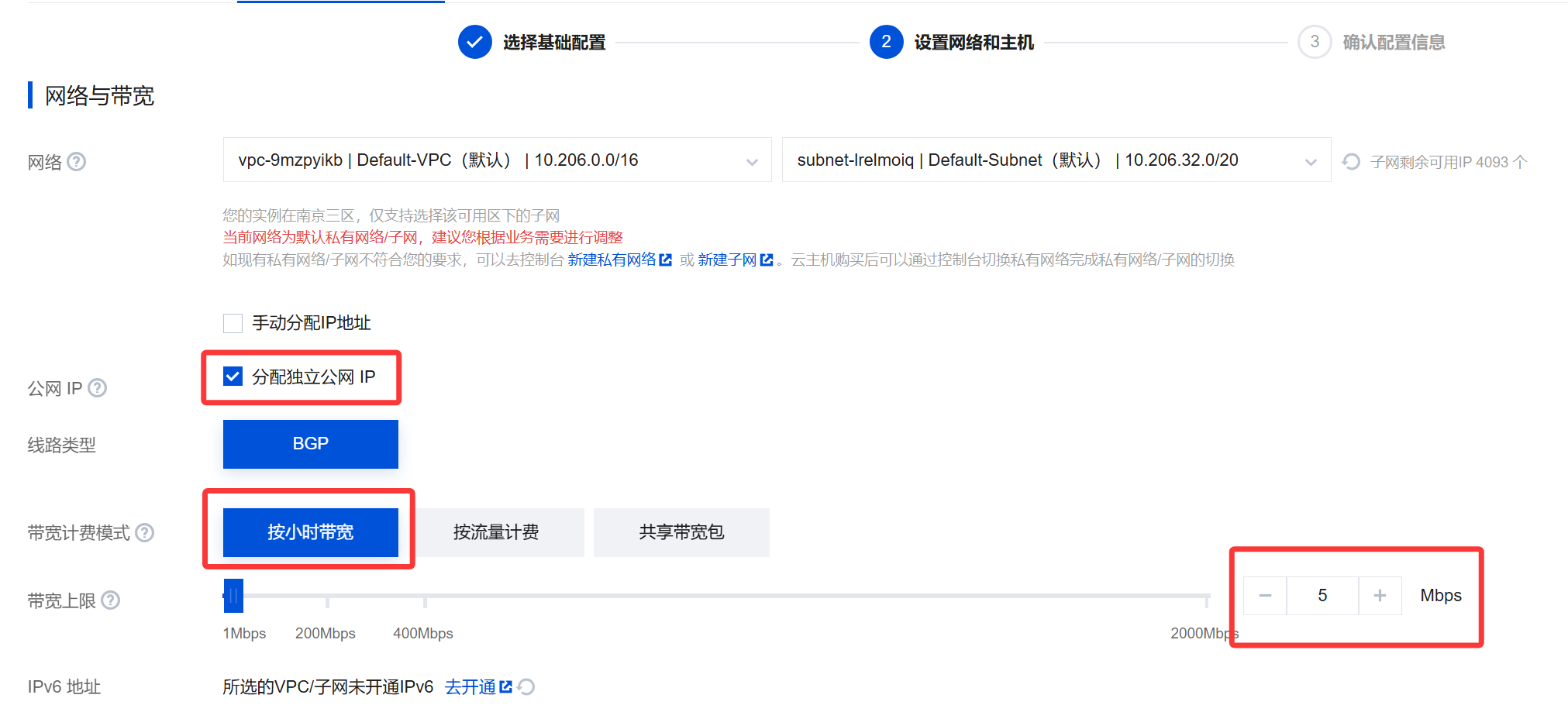
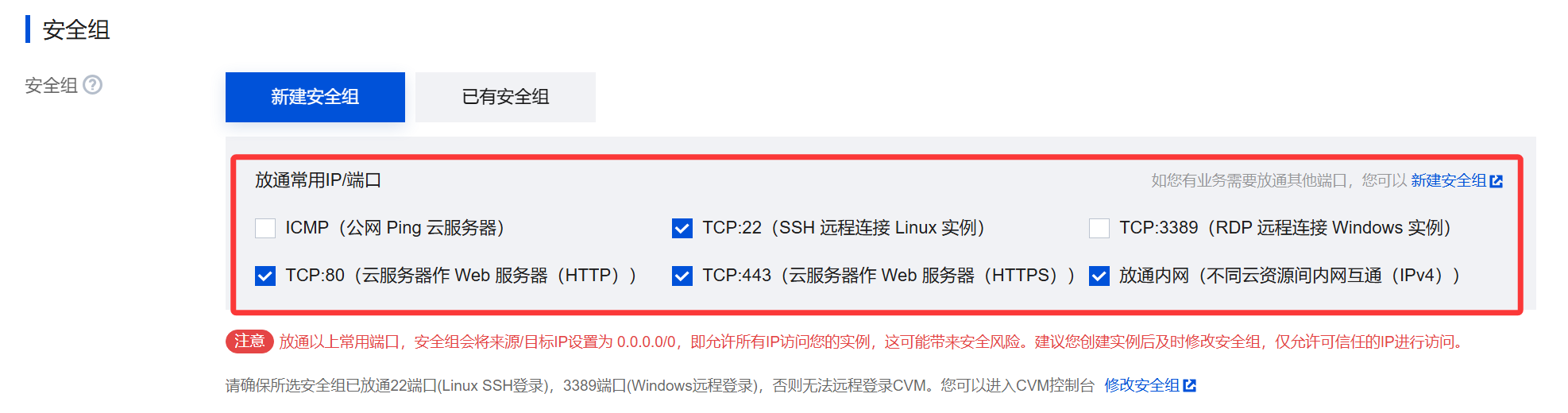
Open ports 22, 80, and 443 as well, so you can access the system right after installation without configuring a firewall.
Choose automatic password generation; the instance password is sent to you by email shortly afterward.

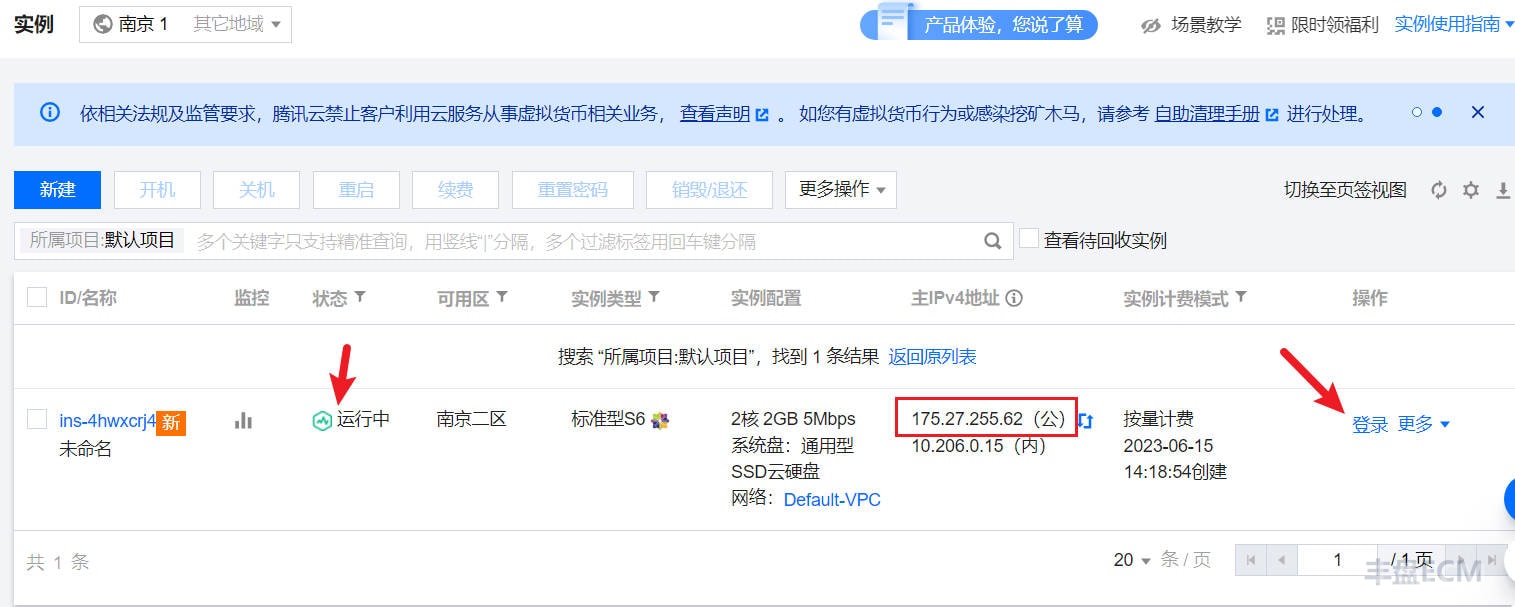
After purchase, wait about 30 seconds on the cloud instance page while the system initializes; the status changes to "Running". The instance now has a public IP address, which you will use to access 丰盘ECM.
Click "Remote Connection" to open the Tencent Cloud console in your browser, then sign in to the instance with the root password you set during purchase.
Step 2: Apply for a corporate license
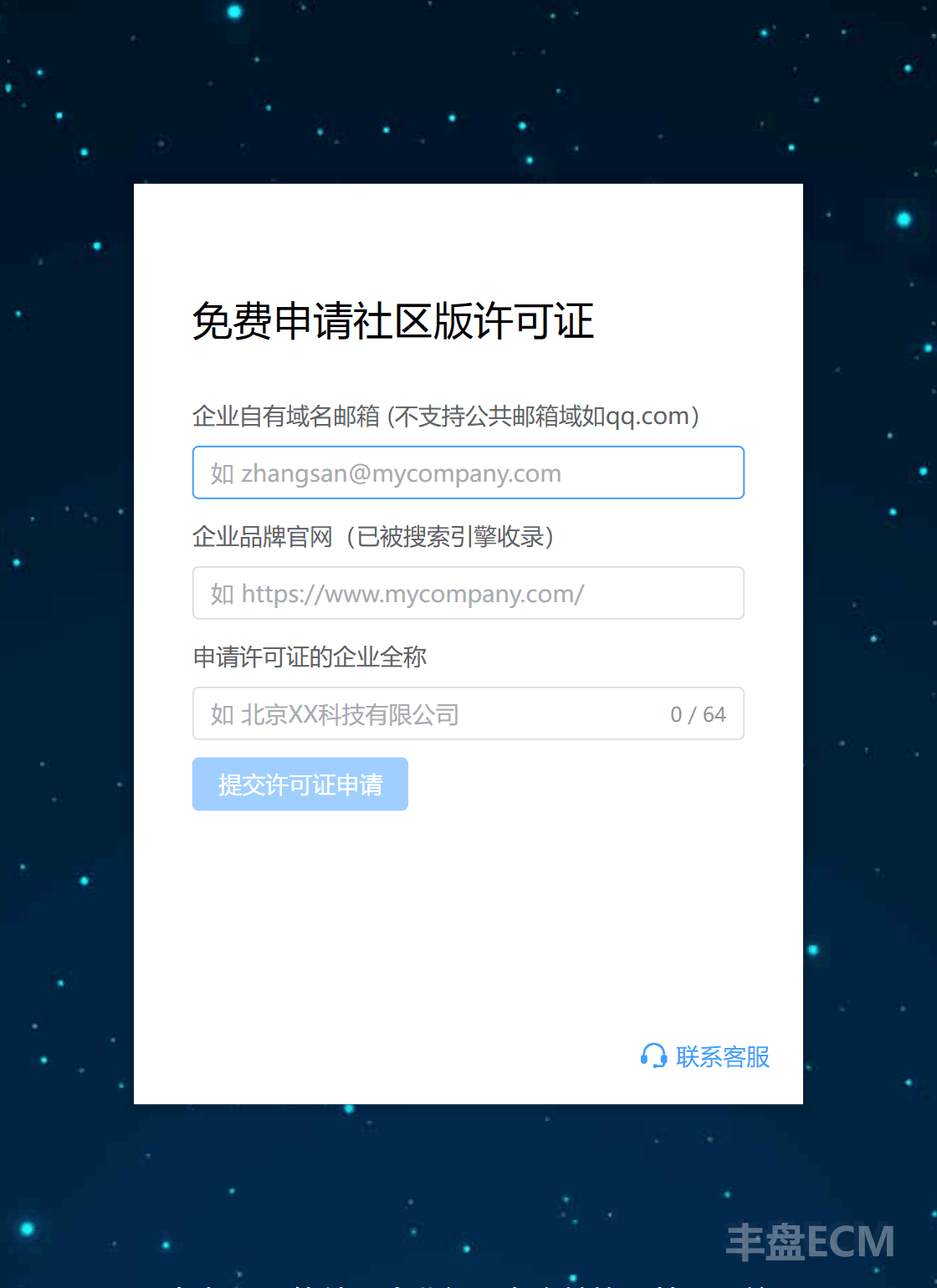
Go to the 丰盘 Community Edition license application site and sign up with your corporate email address to apply for a Community Edition license.
丰盘ECM also offers a paid Premium Edition. See the official pricing plans, or sign in to the service portal to request a 14-day Premium Edition trial.
Warning
丰盘 products are open to business customers only. We use corporate email accounts to simplify business verification, so public domains such as 163.com / qq.com / gmail.com are not supported. If your organization has no corporate email on its own domain, contact us to learn about manual verification options.
Step 3: Run the automated installation script and activate the system
Download the installation script to the current directory with the command below. Replace the license parameter in the URL (sample value XXXXXYYYYY) with the license key you received.
# Download the script with curl
# If this command fails with "command not found", use the wget command below instead
curl -fsSL -o xpan-install.sh "https://ota.ekbcloud.com/api/v1/ota/scriptfile?name=xpan-install&license=XXXXXYYYYY"

# Note that the second parameter is an uppercase letter O
wget -q -O xpan-install.sh "https://ota.ekbcloud.com/api/v1/ota/scriptfile?name=xpan-install&license=XXXXXYYYYY"Choose a mirror acceleration node based on the region where your cloud instance runs. All command groups below do exactly the same thing. Copy and run the group closest to your server location; you do not need to add or change any parameter.
sh xpan-install.shsh xpan-install.sh --mirror tencentsh xpan-install.sh --mirror huaweiCloud instances have fast network access, so installation usually finishes within 2-3 minutes.
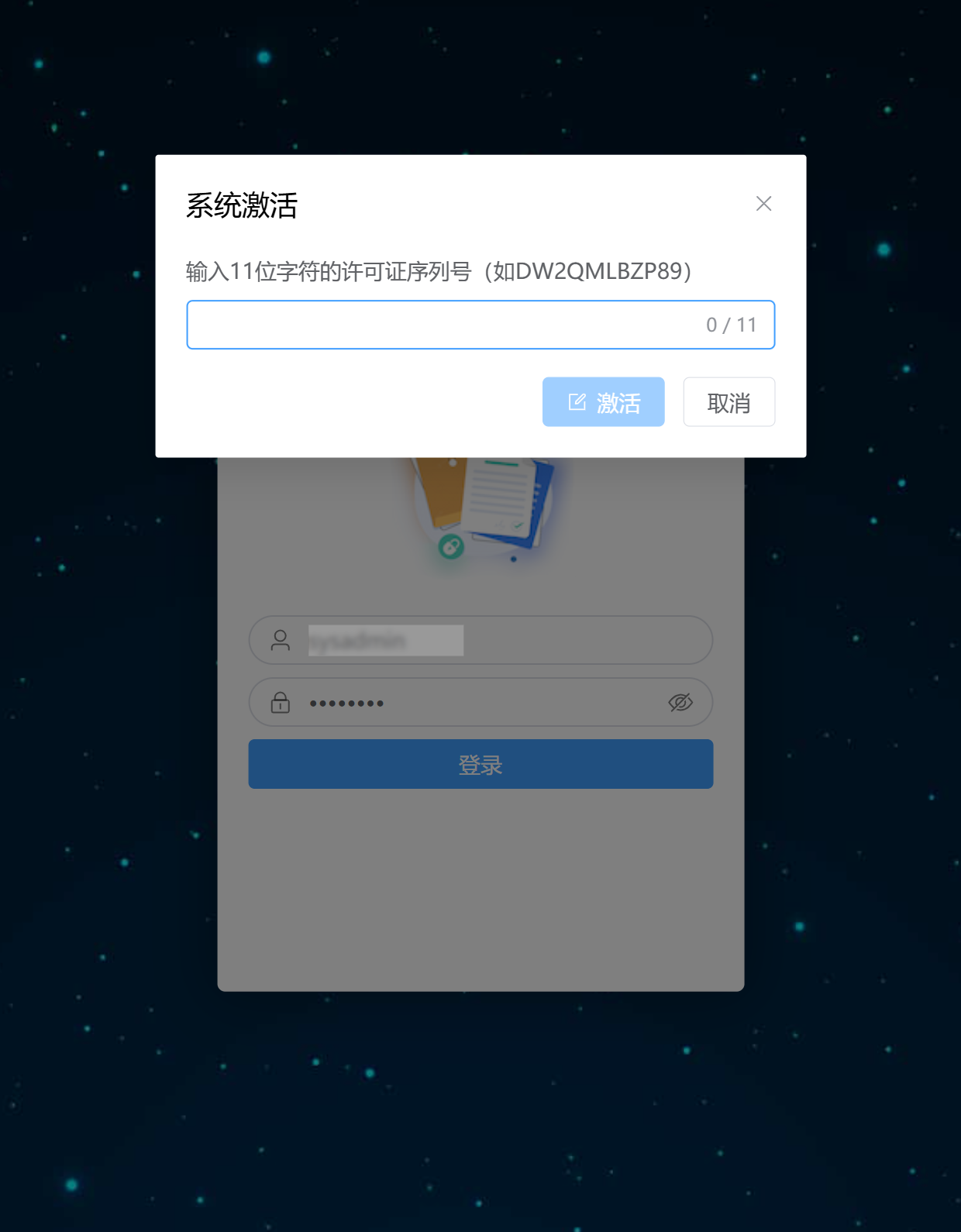
When installation finishes, open the public IP address assigned to the instance to see the 丰盘ECM sign-in page. Enter the default sysadmin account and its password; the dialog for entering the license serial number appears. Enter the license to activate the system.