Configure OnlyOffice for online preview of office documents
Microsoft remains the de facto standard for office documents, so Office 365 or an on-premises SharePoint deployment delivers the best results, but neither is free. Among open-source options, OnlyOffice and LibreOffice (originally based on the OpenOffice project) are the two most popular and most compatible choices. OnlyOffice iterates much faster than LibreOffice, so this chapter uses OnlyOffice to show how to integrate online Office preview into an enterprise file management system.
Install OnlyOffice on the server host
When the server host has enough resources, you can install OnlyOffice on the same host as 丰盘. The default integrated version is 7.5. You can also connect to an OnlyOffice instance on another host.
Sign in to the 丰盘 server terminal and run the command below to download, install, and integrate OnlyOffice, which saves you from deploying and configuring the service yourself:
sudo /opt/xpan/tools/xpc.sh add onlyofficeMinimum hardware for OnlyOffice
To integrate OnlyOffice on the local host and keep it stable, provide at least 2 GB of dedicated memory. More concurrent viewers and larger documents consume more memory, so tune resources over time based on monitoring metrics.
Enable and configure OnlyOffice in Admin Console
After the command finishes, the super administrator signs in to "Admin Console" in the web UI, goes to "File Preview / OnlyOffice Suite", and selects "Local Integration".
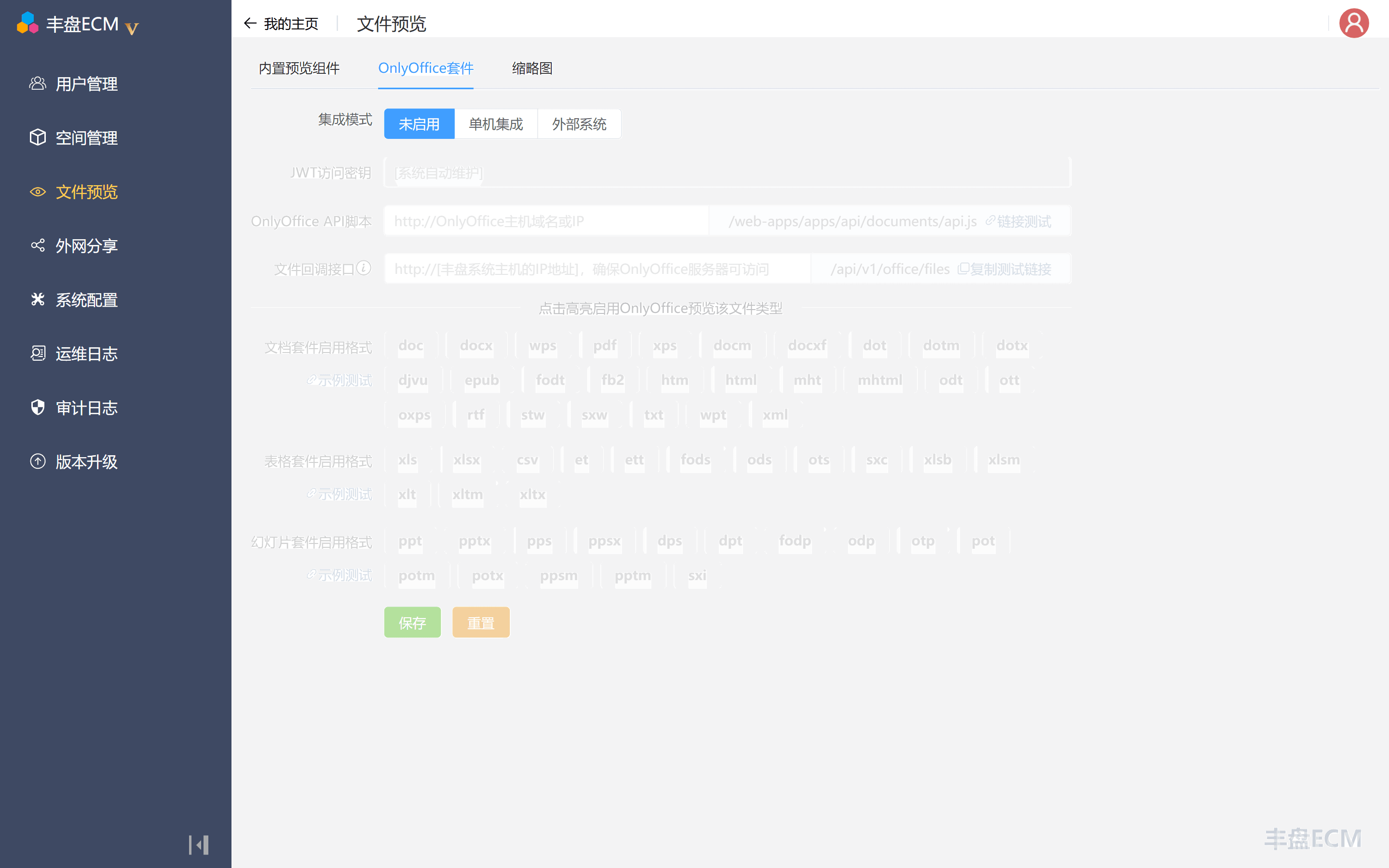
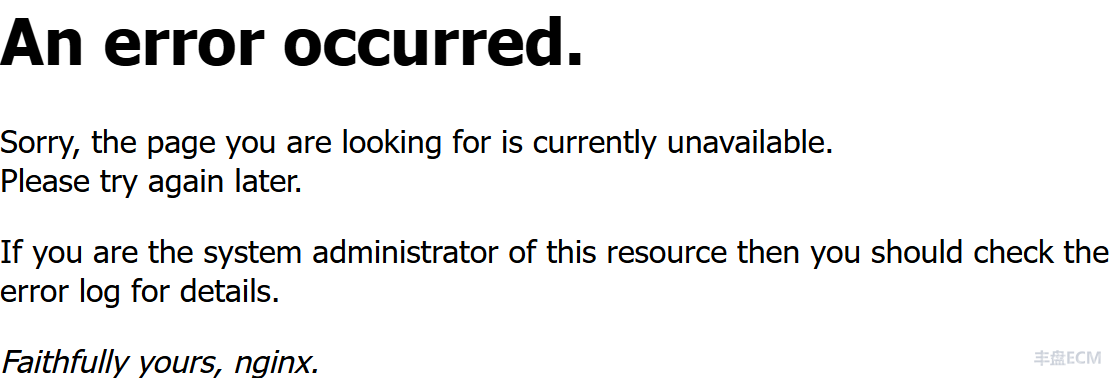
After installation, OnlyOffice usually needs 1-2 minutes to finish starting and start serving requests. Click "Test Connection". If you see the nginx gateway error below, the service is not ready yet.
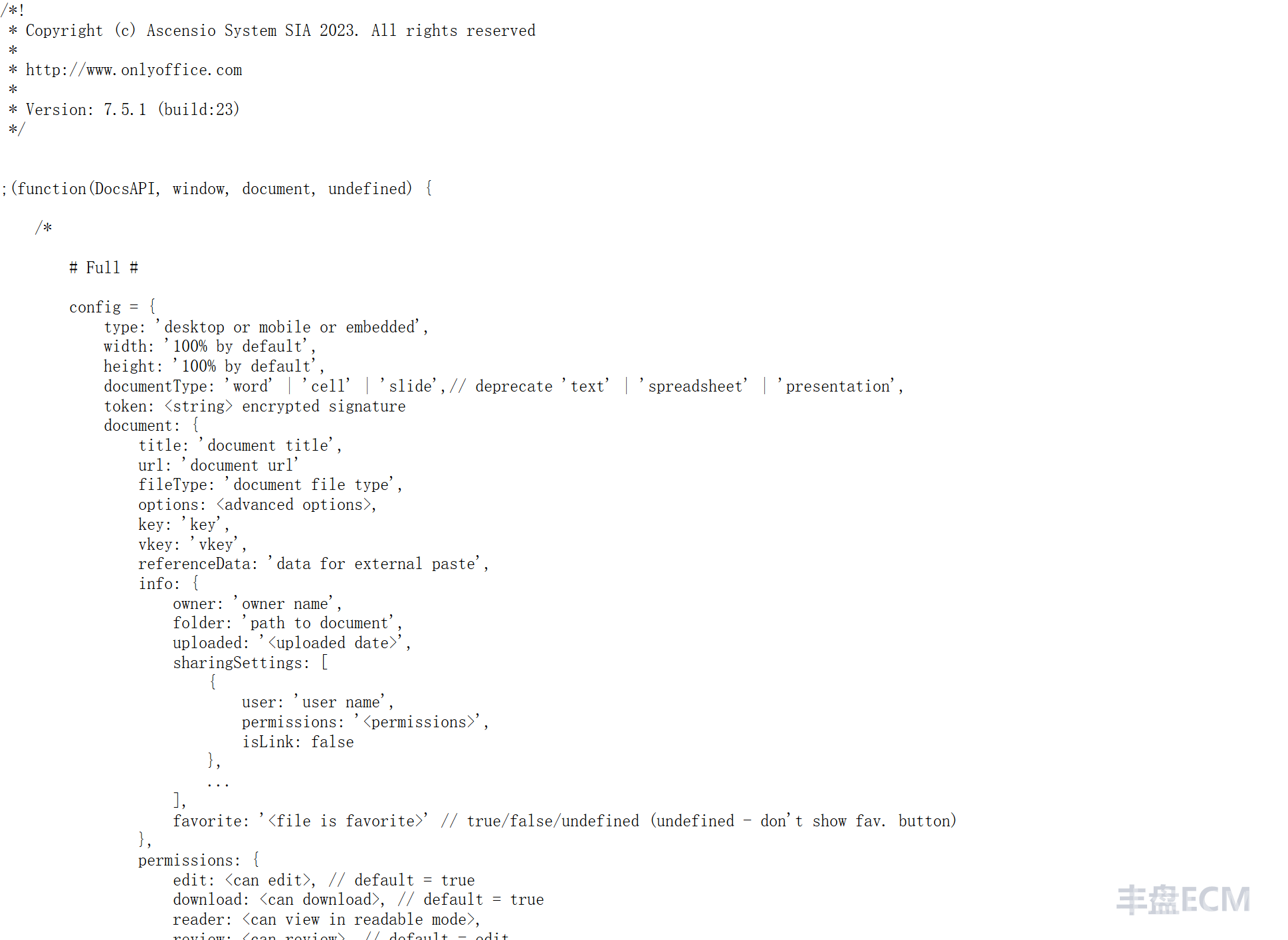
If the link shows script content like the following, the OnlyOffice service is ready.
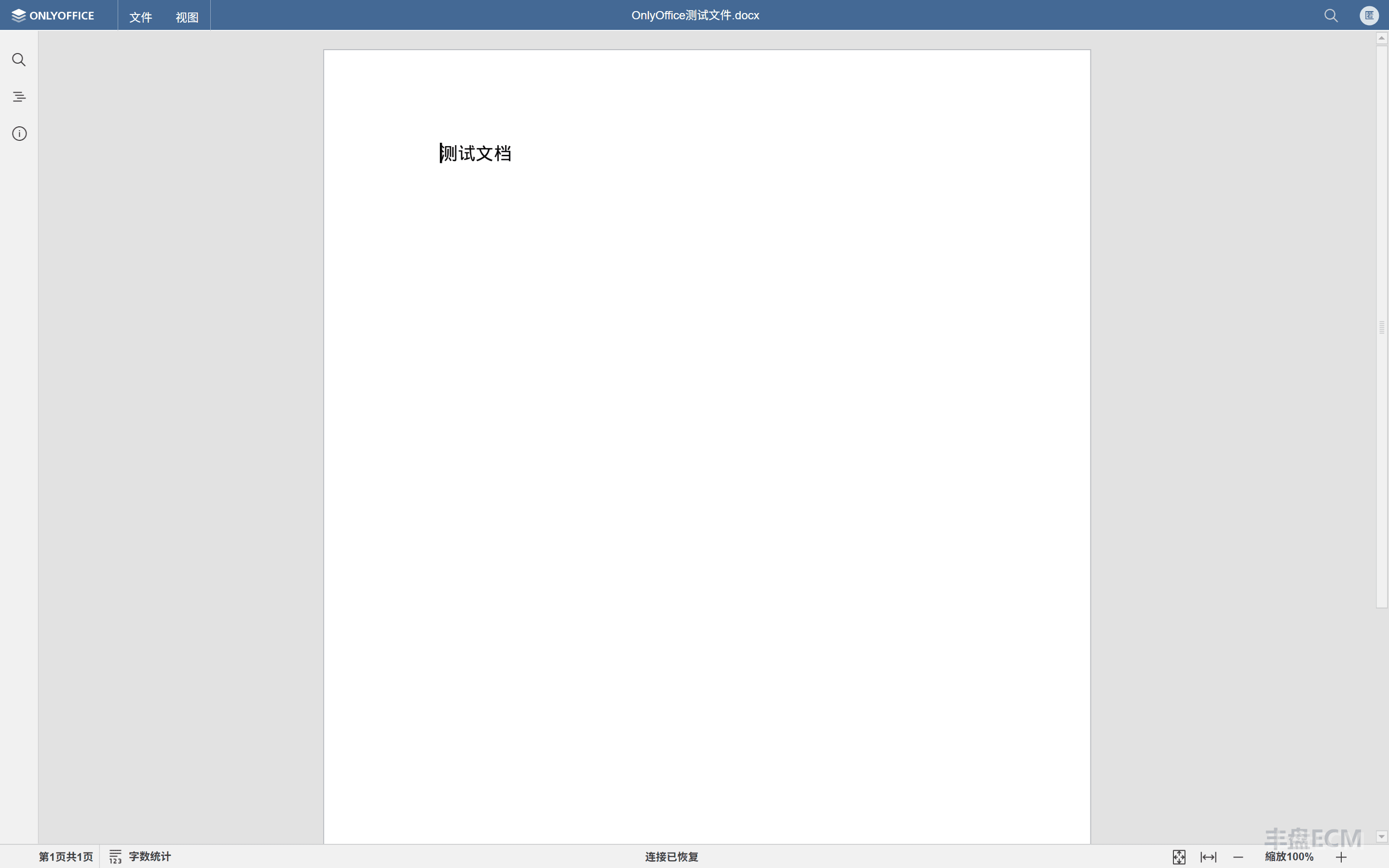
After you save the settings, click the Word, Excel, and PowerPoint sample documents to test the integration. A working setup looks like this:
Tip
After you save the settings, signed-in users must reload the page to load the latest OnlyOffice configuration. Otherwise the interface keeps using the old previewer. The OnlyOffice suite takes precedence over the built-in preview component: if an extension such as pdf is enabled in both, the system previews it with OnlyOffice. To force the built-in preview component, deselect that extension in the OnlyOffice suite.
For example, when OnlyOffice previews a PDF file, the server converts the file on the fly. The result looks better but consumes more server resources. If preview speed and low resource usage matter more, use the built-in preview component for PDF files: on the OnlyOffice suite settings page, deselect the pdf tag so it turns gray, then save.
"External System" integration mode
丰盘 supports two modes: integrating OnlyOffice locally and connecting to an external OnlyOffice instance.
Local integration installs OnlyOffice on the 丰盘 host, inside a closed network. It consumes the resources of the 丰盘 system itself, so the host needs a reasonably good configuration. In return, you skip tedious configuration work such as installing the OnlyOffice service, encryption keys, and HTTPS certificates, and because everything runs in the same closed network, security is higher. This is our recommended first choice.
Connecting to a separately deployed OnlyOffice system gives that system dedicated host resources, lets you use other versions such as 6.4 or later and 7.x freely, and allows finer OnlyOffice configuration. The same instance can also be shared with other IT systems that support OnlyOffice.
The configuration process is similar to local integration and is not repeated here.