Integrate 丰盘ECM with Alibaba DingTalk
Alibaba DingTalk is the enterprise intelligent mobile office platform built by Alibaba Group for business communication and collaboration. It helps Chinese enterprises and small and medium businesses worldwide adopt a people-centric management style and a simple, efficient, secure, and enjoyable digital way of working.
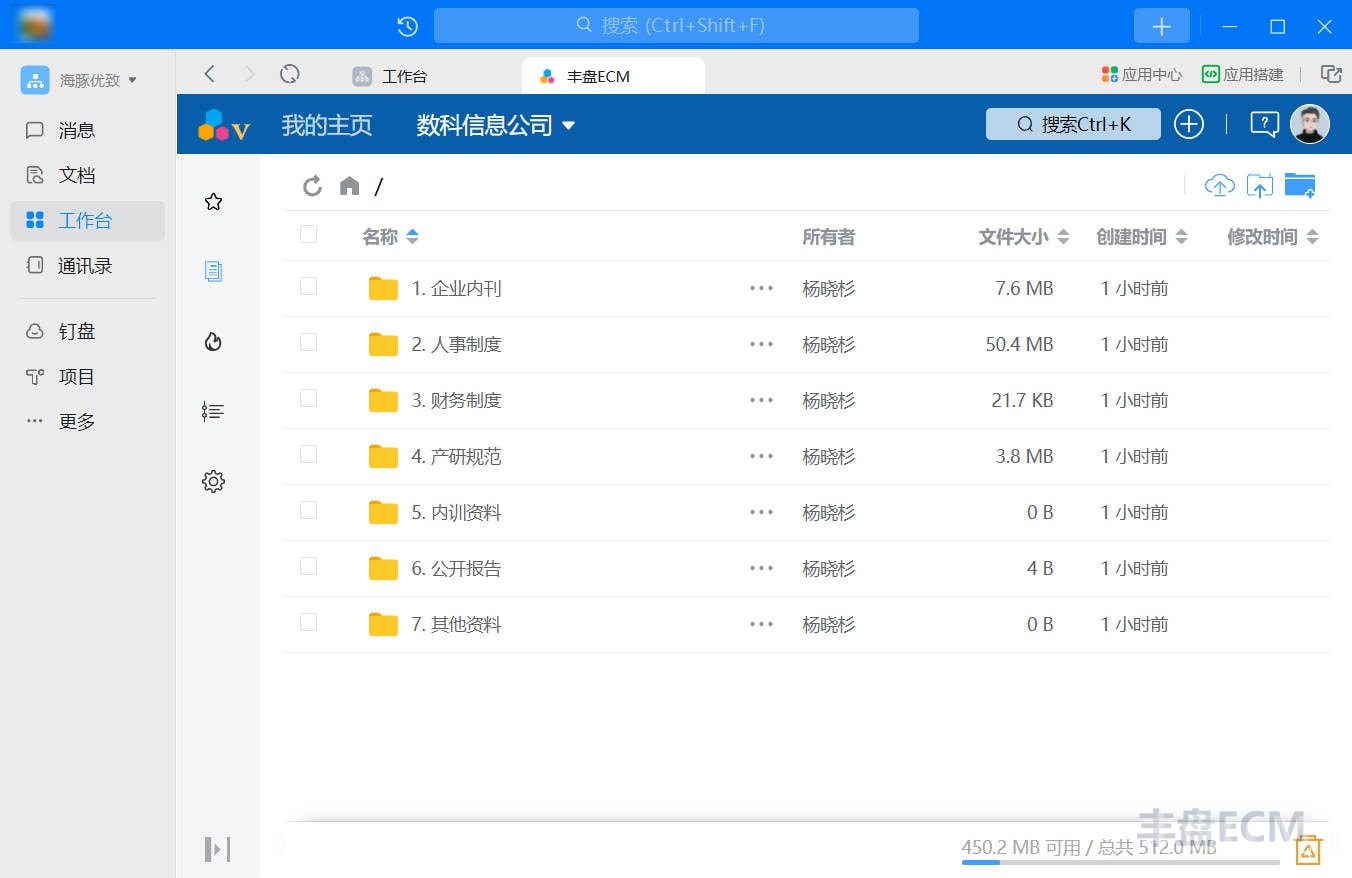
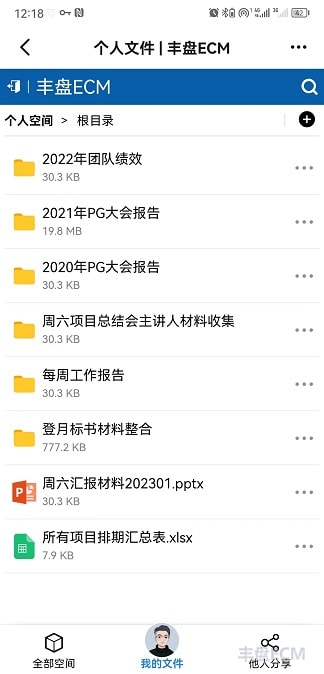
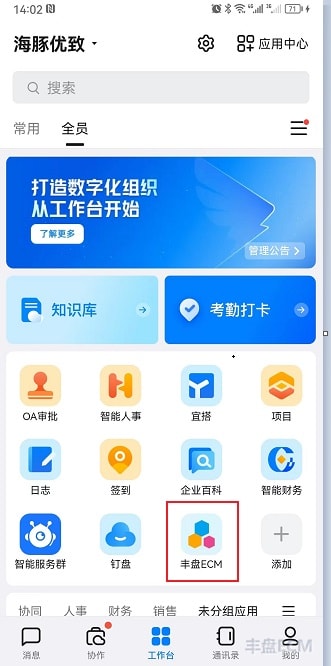
At the request of many customers, 丰盘 v23.9 Premium Edition adds authentication integration with Alibaba DingTalk. Once an administrator completes the configuration, employees can scan a QR code to sign in to 丰盘ECM with their DingTalk account, without needing to remember another password. Their accounts are linked, and they can also open 丰盘ECM with one click from the DingTalk workbench.
Configure the Alibaba DingTalk developer platform
Create an internal app that points to 丰盘ECM
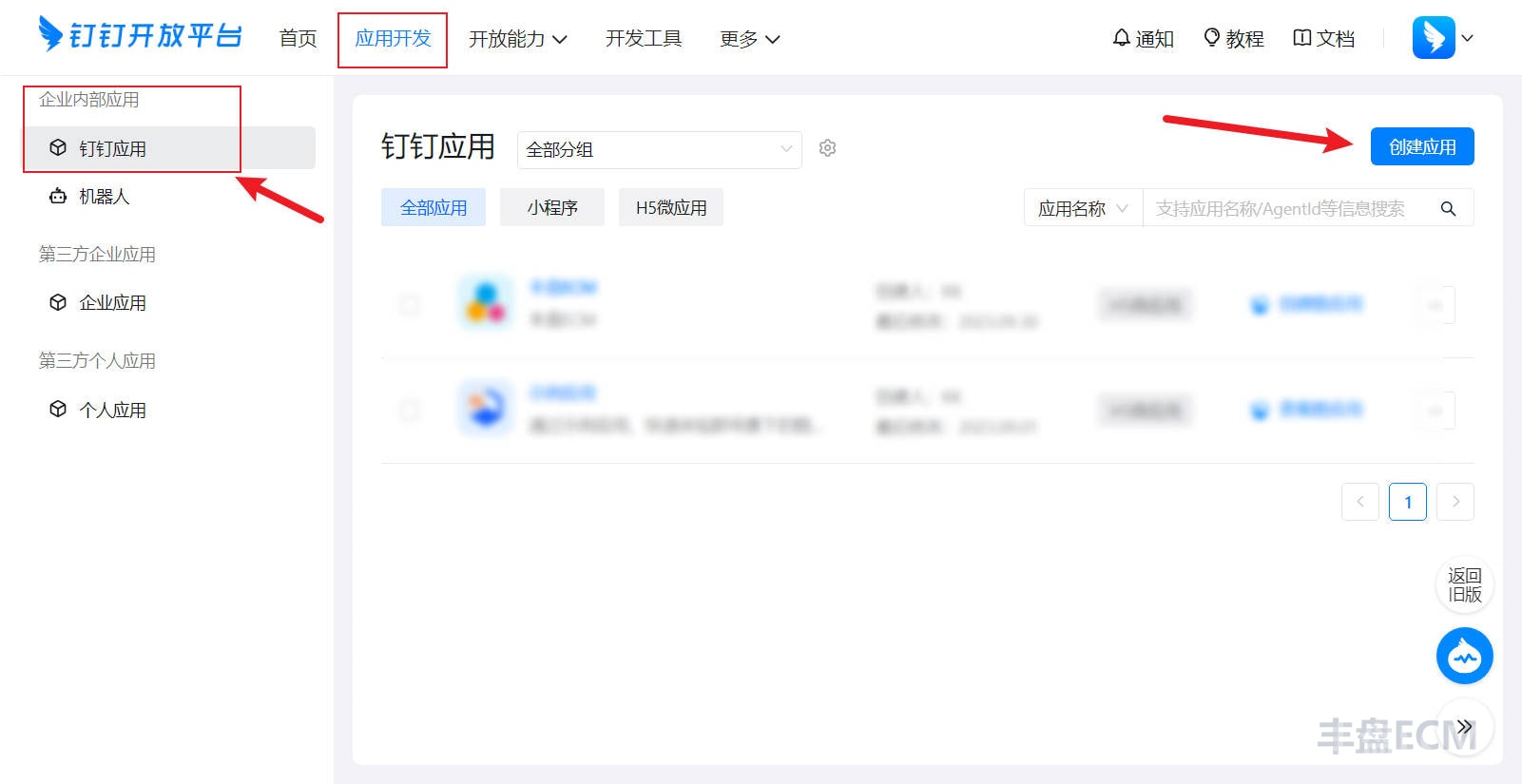
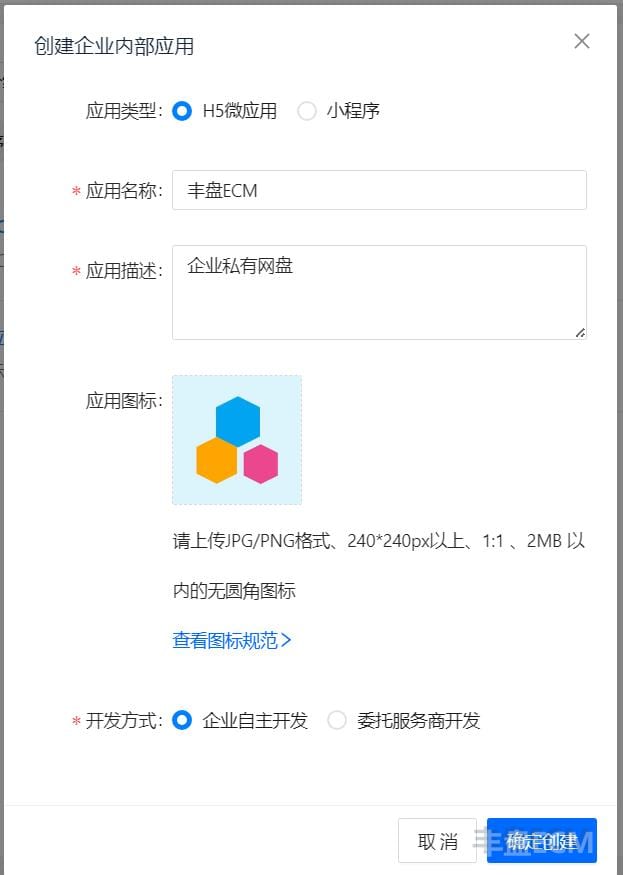
DingTalk supports custom internal apps that point to the URL of an existing IT system on the intranet, which links the systems together. Open the app development page of the DingTalk developer console (dingtalk.com), click "Create App", choose the H5 micro app and the enterprise self-development mode, and fill in the basic app information. You can also use a custom name and logo.
(Right-click to download the 丰盘ECM logo with a light blue or white background.)
| Light blue background logo | White background logo |
|---|---|
 |  |
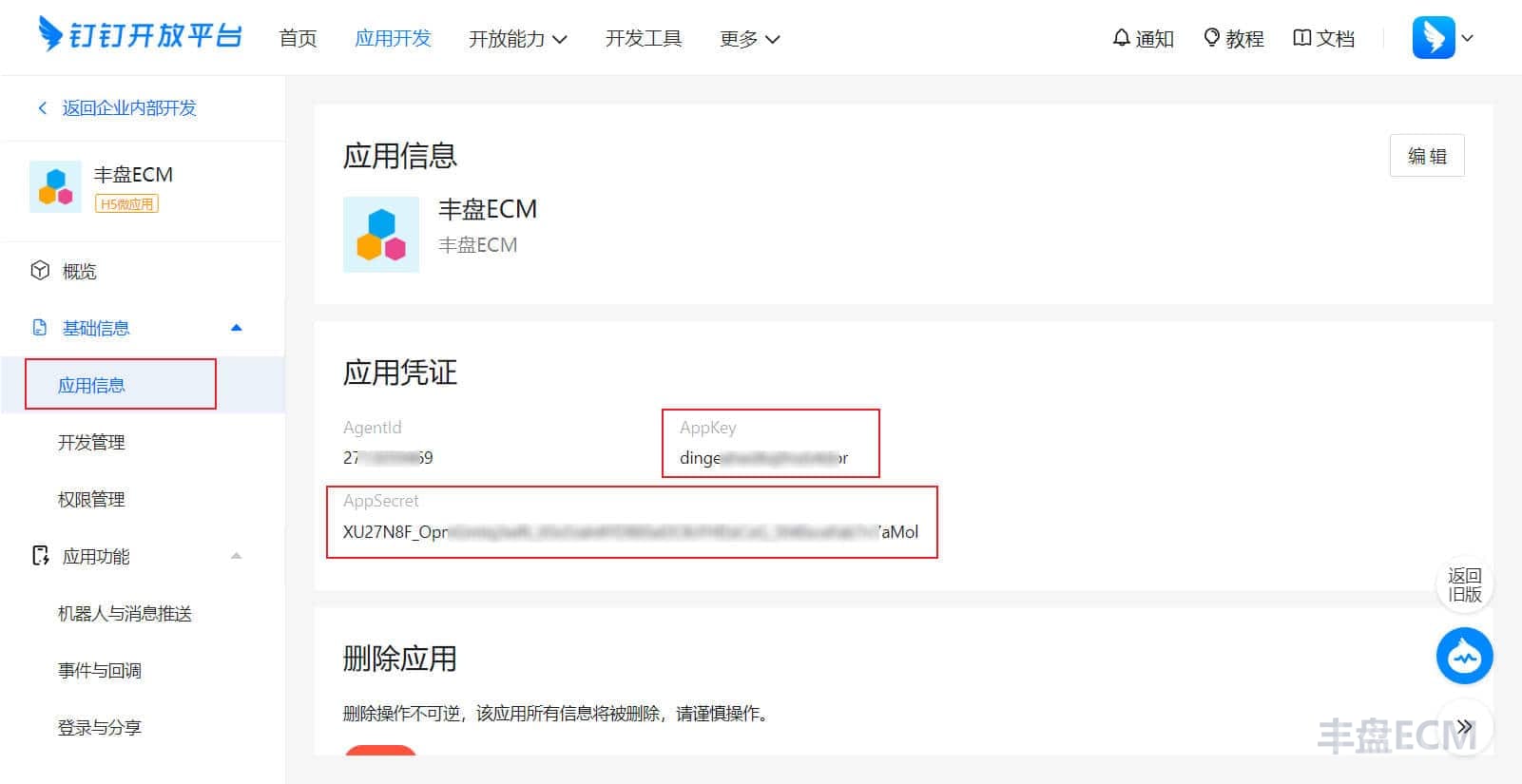
Copy the AppKey and AppSecret fields to Notepad
After you create the app, click its icon to open the detailed configuration page. On the app information page, copy the AppKey and AppSecret values to Notepad for later use. The app ID and secret pair is the identity that 丰盘ECM uses when it calls DingTalk APIs from your server.
Configure the authorized sign-in callback URL
For security, DingTalk requires administrators to specify the URLs that may receive a redirect. This prevents phishing attacks where a legitimate site A redirects to a malicious site B after a successful DingTalk authentication. Only the specified URLs are allowed; DingTalk blocks all others.
On the "App Features / Sign-in and Sharing" page, open "Sign-in Integration" and enter the domain and port you plan to use, for example http://pan.mycompany.com:8000/app/.
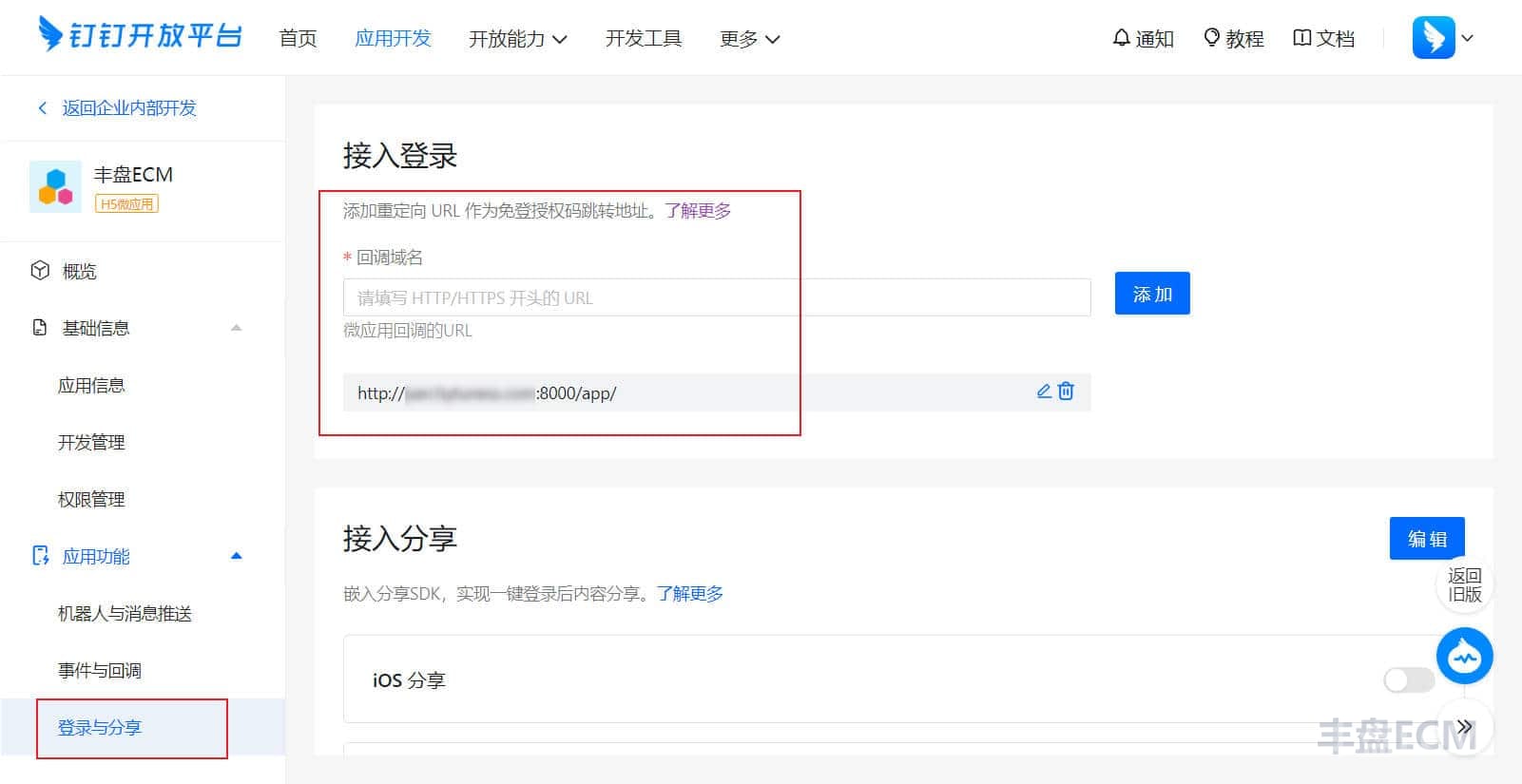
Info
DingTalk does not currently verify the real information behind the domain, so a regular domain that points to a private intranet IP is enough.
Grant the required app permissions
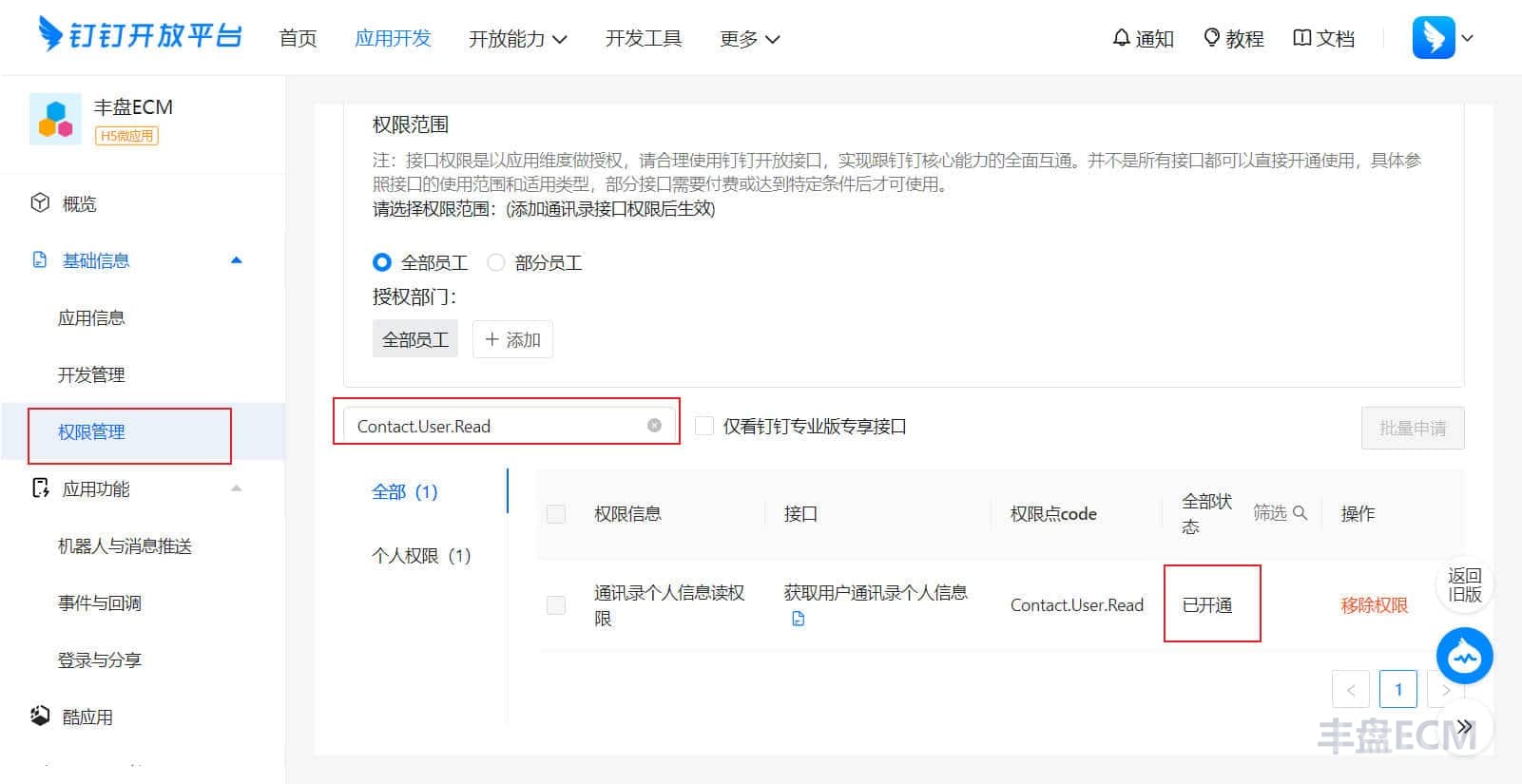
DingTalk lets enterprise administrators set different permissions for each app, which prevents malicious apps from over-collecting employee data. For privacy, 丰盘ECM only requests the fields it needs: name, userId, unionId, and email (optional). Grant the following permissions manually on the "Basic Info / Permission Management" page.
| Permission and scope code | Notes |
|---|---|
| Read personal information in contacts (Contact.User.Read) | Required. Gets the user's unionId. |
| Permission required to call OpenApp APIs (open_app_api_base) | Required. Gets the user's userId. |
| Read member information (qyapi_get_member) | Required. Gets the user's name. |
| Email and other personal information (fieldEmail) | Optional. Gets the user's email. |
Configure the app homepage address
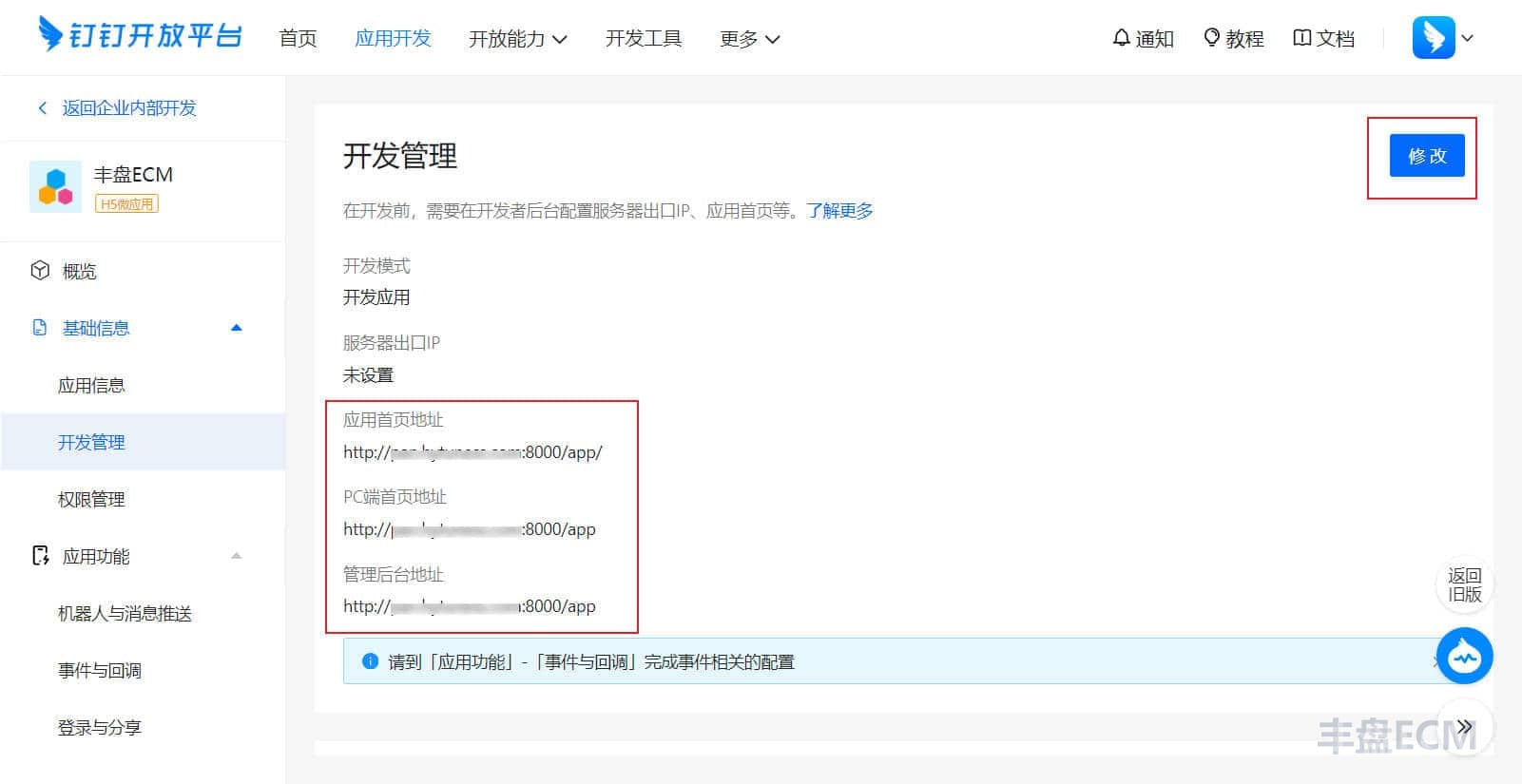
On the "Basic Info / Development Management" page, configure the 丰盘ECM entry that DingTalk users see in the workbench, so they can sign in with one click without remembering the URL. This address must match the domain and port of the sign-in callback, for example http://pan.mycompany.com:8000/app/.
Publish the app
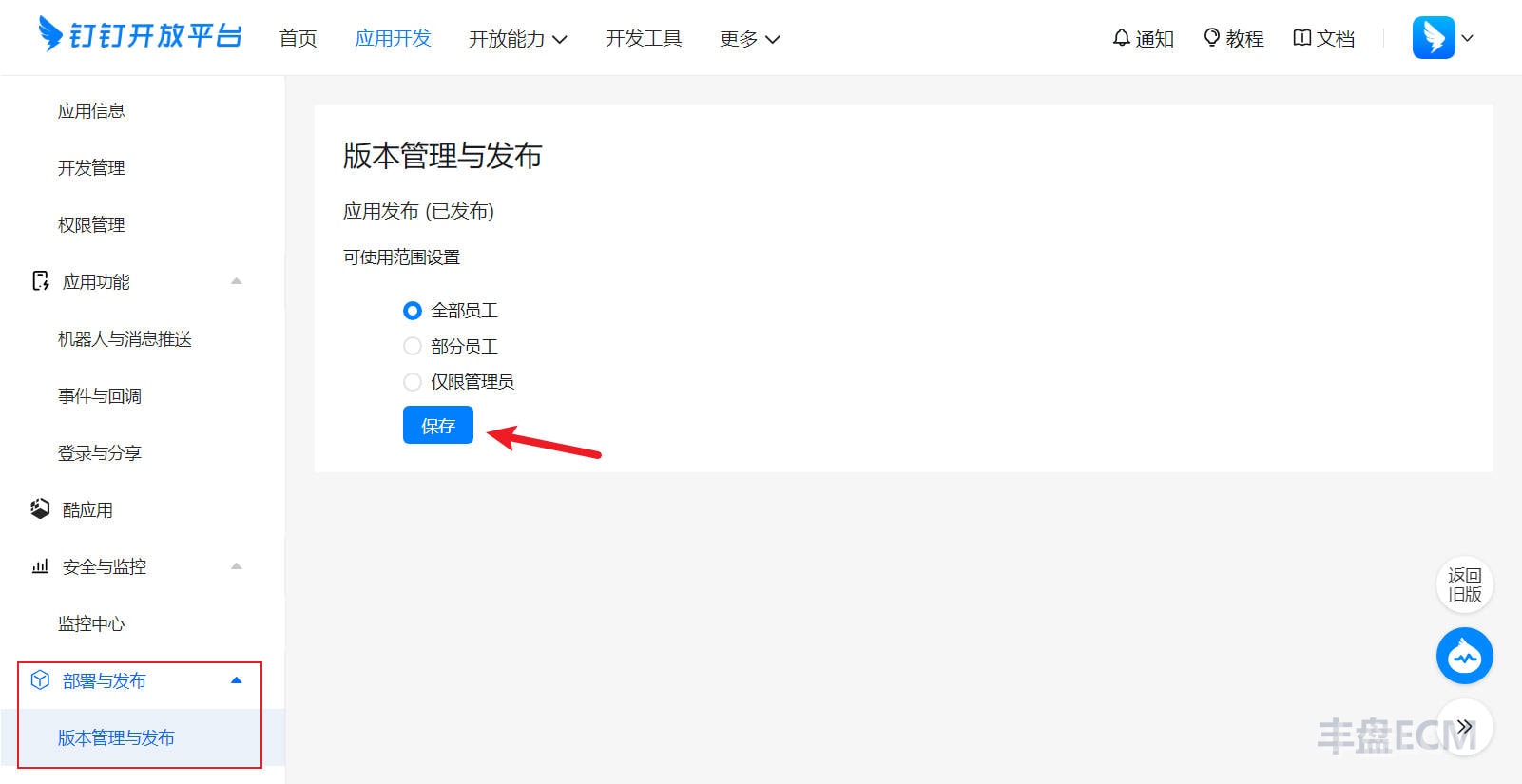
After the configuration, publish the app on the "Deployment and Release / Version Management and Release" page. Employees see the app entry in the DingTalk client only after you publish it.
Configure the 丰盘ECM backend
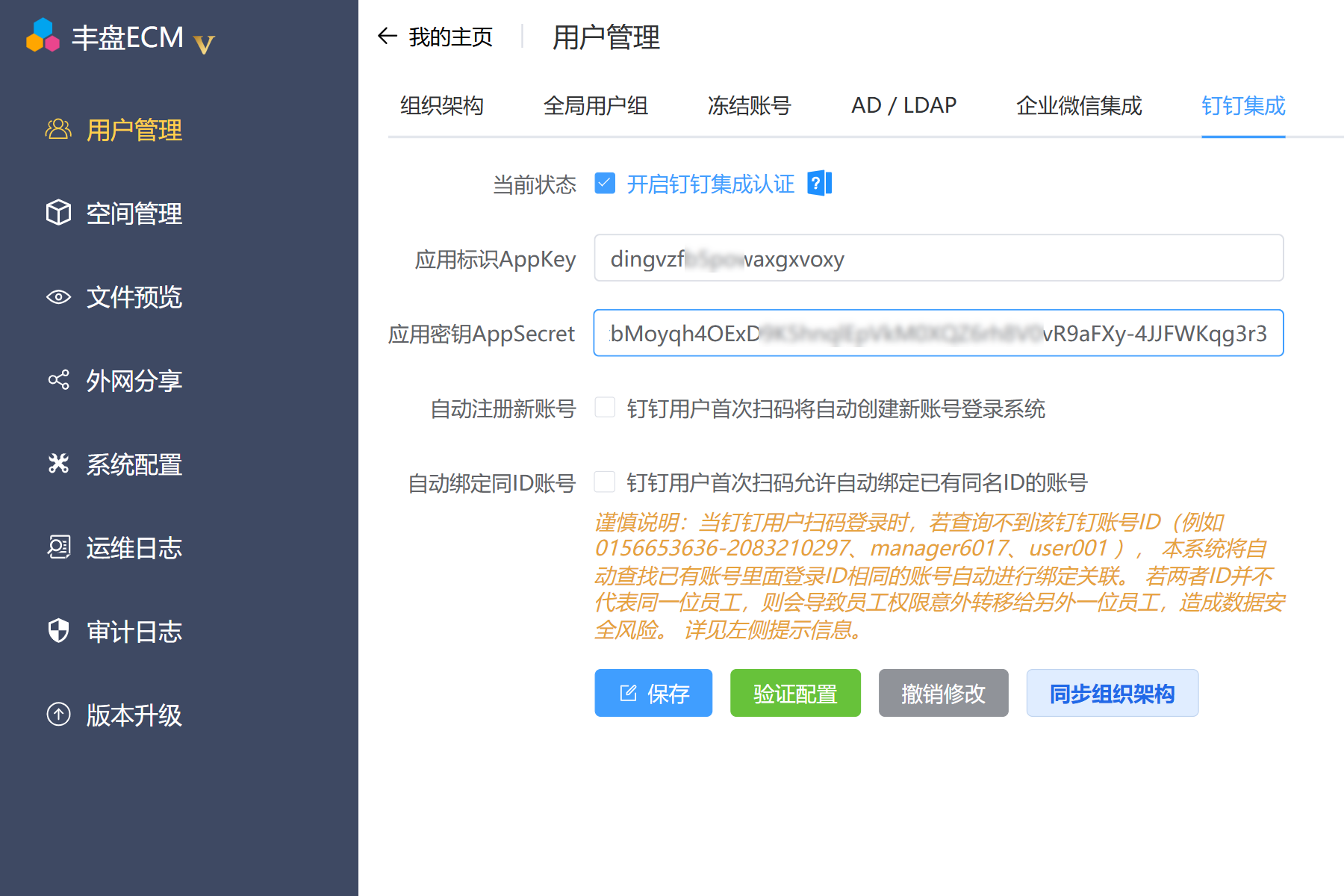
After the DingTalk open platform configuration, you have two important values: AppKey and AppSecret. Sign in to the 丰盘ECM backend with a system administrator account, go to "System Management / User Management", find the DingTalk integration page, enter the two values, click "Verify Configuration", and save if the check passes.
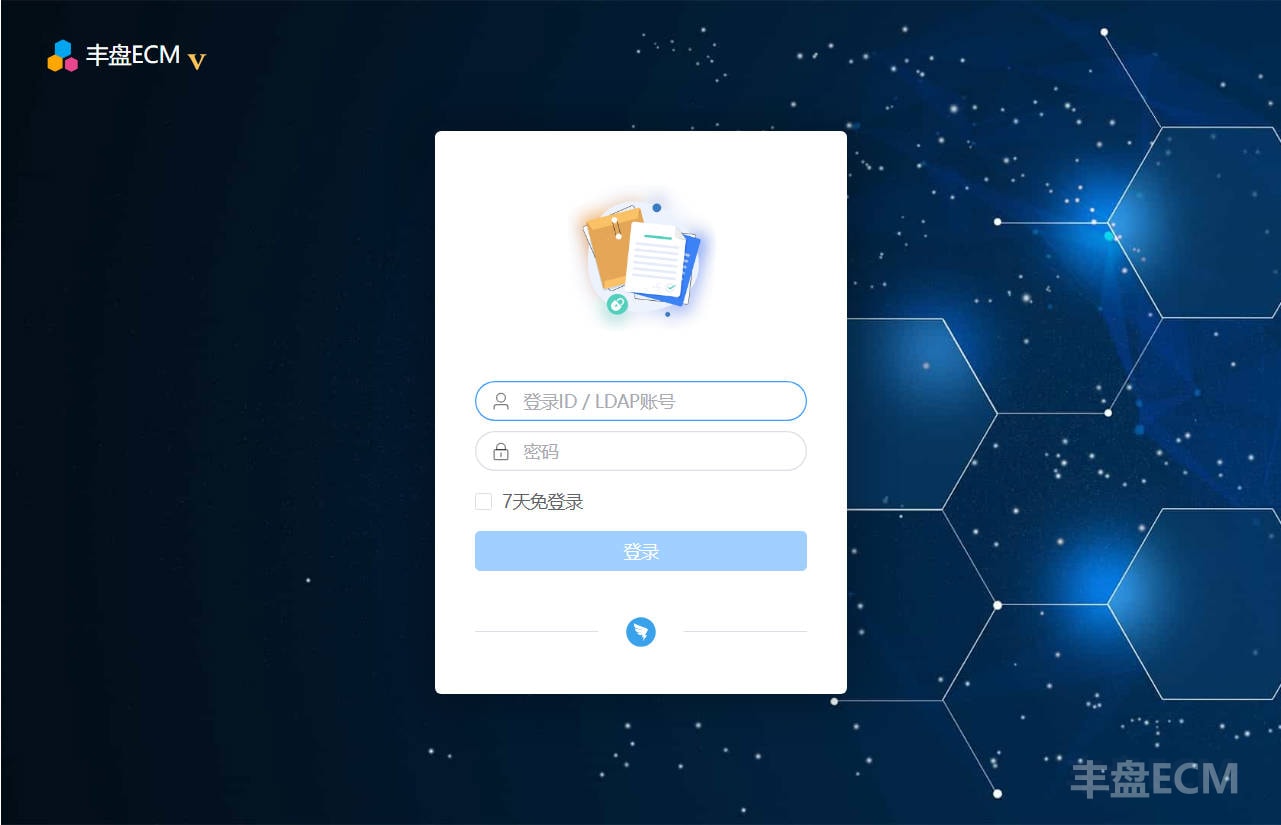
Once the DingTalk values are correct, ordinary users see a DingTalk sign-in entry on the sign-in page and can scan the QR code to sign in. If the user is already signed in to the DingTalk desktop client, the web page signs them in with the client identity without a QR code. No password is needed at any point.
Users can also find the 丰盘ECM entry in the workbench of the DingTalk desktop and mobile clients and sign in directly without a password.