Deploy a 丰盘 demo environment on Windows or macOS with Docker Desktop
丰盘ECM is built on Docker, and Docker officially recommends Linux as the deployment environment for server software.
If you only have Windows or macOS at hand and want to try and evaluate 丰盘ECM, you have two options. One is to create a Linux virtual machine on your computer with virtualization software such as VirtualBox, Hyper-V, or VMware and deploy there. The other is to set up a Docker runtime on Windows or macOS with Docker Desktop, and then deploy 丰盘ECM on top of it.
Danger
The demo system in this chapter stores document data inside the container instead of persisting it on the Windows or macOS host. If the container is deleted or destroyed, the data is lost. Do not use it in production. To deploy in production, see Online installation.
Step 1: Install Docker Desktop
Docker Desktop is Docker's development environment for running Docker on Windows and macOS. For instructions on installing Docker Desktop on macOS, Windows desktop systems such as Windows 10, and Windows Server, see the official documentation.
Step 2: Download the base image (about 113 MB)
After installing Docker Desktop, open a Windows or Mac terminal and run docker version. If the command returns no error, Docker is running correctly. If it reports an error, restart Docker Desktop.
Run the following commands in the terminal to download the Linux host environment for the demo system and enter the Linux shell. These commands use port 8000 on your computer; if the port is already in use, change it to another one.
# This demo uses port 8000, and you can change it to another port
docker run -d -it --name xpan-demo --privileged -p 8000:80 docker:dind &&
# Enter the shell of the demo image subsystem
docker exec -it xpan-demo shStep 3: Apply for an enterprise license
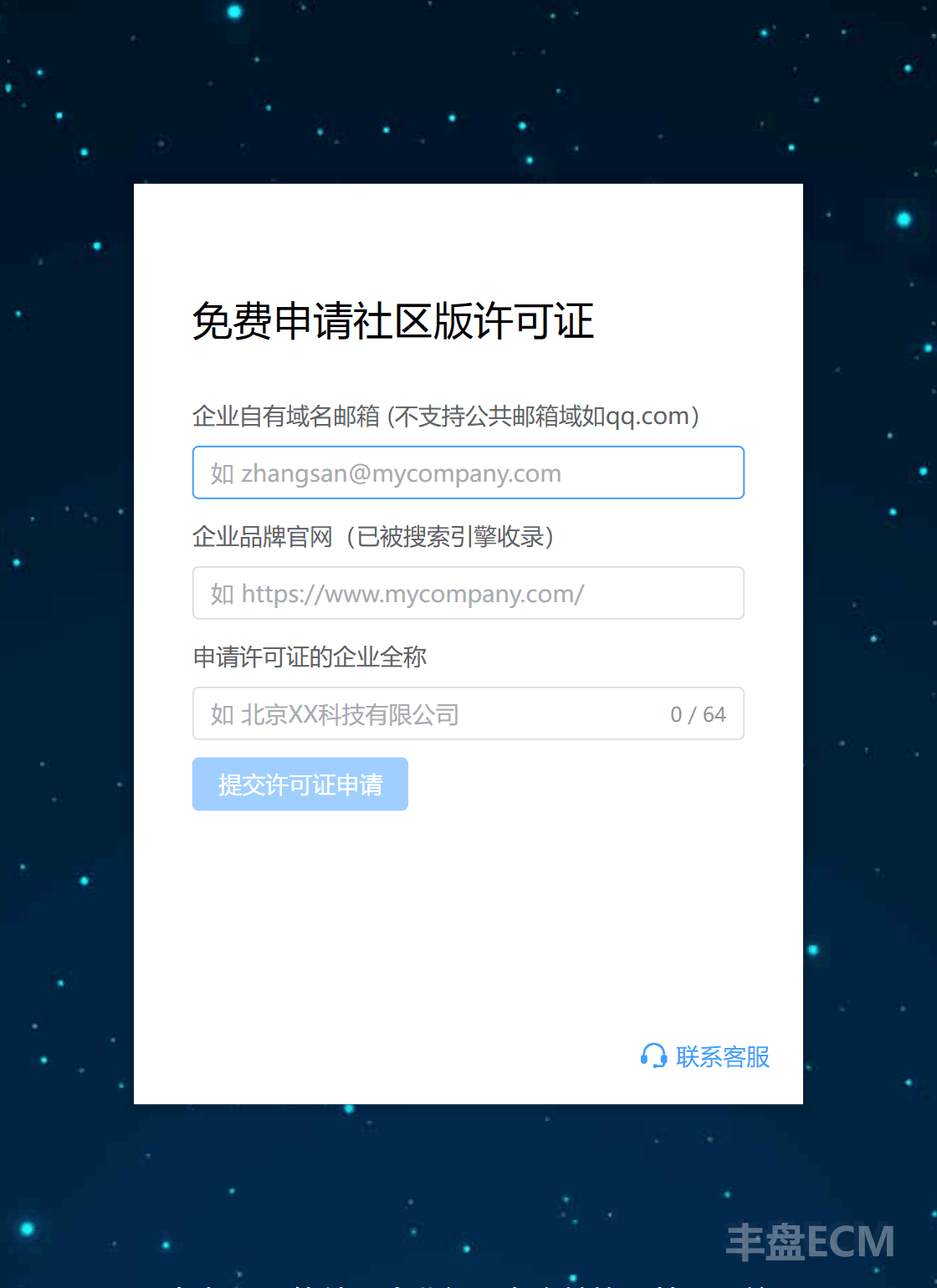
Go to the 丰盘 Community Edition license application site and sign up with your business email to apply for a Community Edition license.
Warning
丰盘 products are available to business users only. We use business email accounts to simplify company verification, so public email services such as 163.com / qq.com / gmail.com are not supported. If your organization has no business email on its own domain, click Contact us to learn about other manual verification options.
Step 4: Run the automated install script and activate the system
Download the install script to the current folder with the command below. Replace the license parameter in the URL (the sample value XXXXXYYYYY) with the license key you received.
# Download the script with curl
# If this command fails with "curl: command not found", use the wget command below
curl -fsSL -o xpan-install.sh "https://ota.ekbcloud.com/api/v1/ota/scriptfile?name=xpan-install&license=XXXXXYYYYY"

# Note that the second parameter is an uppercase letter O
wget -q -O xpan-install.sh "https://ota.ekbcloud.com/api/v1/ota/scriptfile?name=xpan-install&license=XXXXXYYYYY"Run the 丰盘 automated install script and accept the default install options by pressing Enter. Because Docker is already installed on the host, the script skips the Docker installation step and only downloads the 丰盘ECM images, so it finishes quickly.
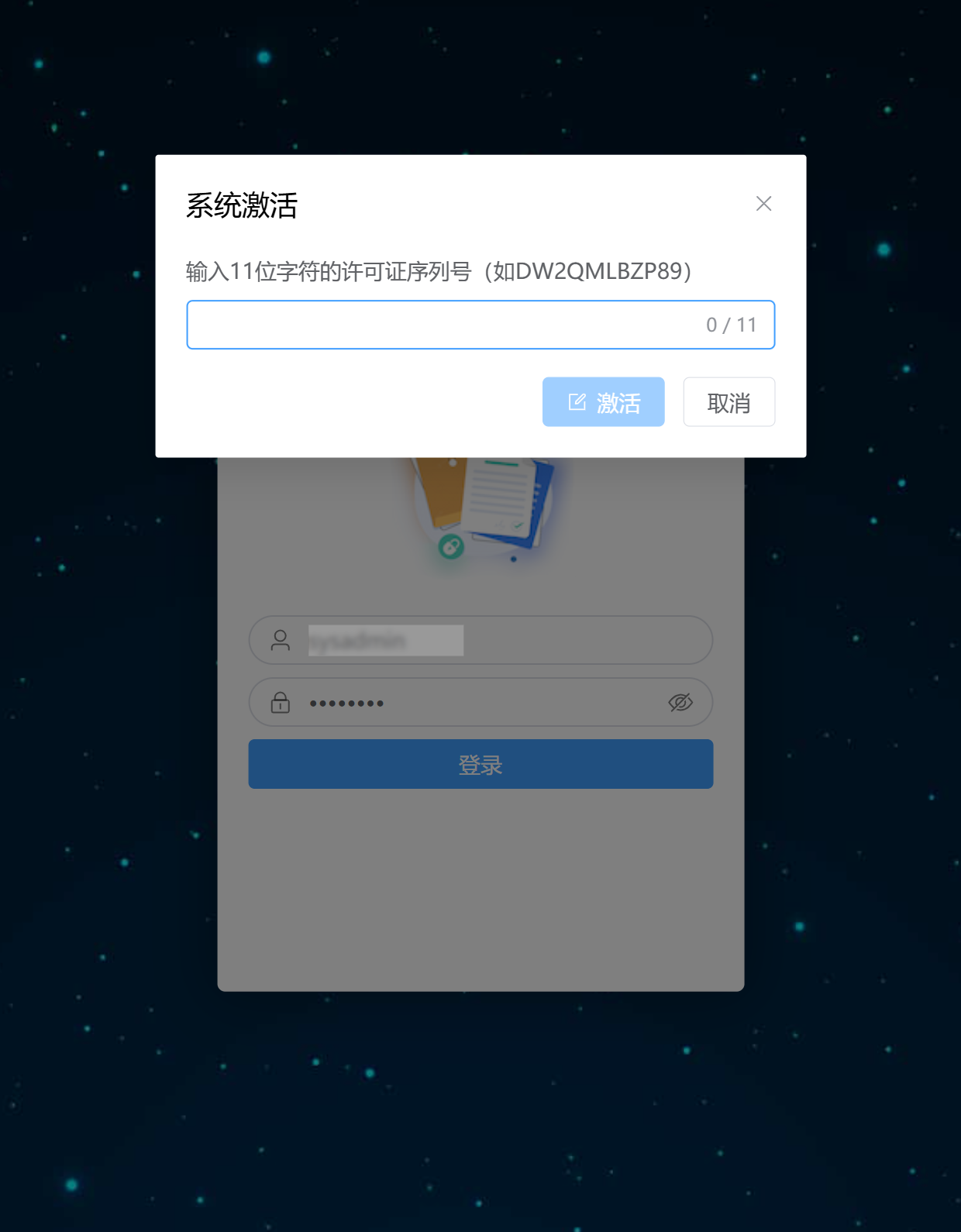
sh xpan-install.shWhen the installation finishes, open http://localhost:8000 to access 丰盘ECM on your computer. Sign in with the default sysadmin account and its password, and the license activation dialog appears. Enter the license to activate the system.